> ## Documentation Index
> Fetch the complete documentation index at: https://www.anything.com/docs/llms.txt
> Use this file to discover all available pages before exploring further.
# ElevenLabs
> Add AI-powered voice generation and text-to-speech
ElevenLabs provides state-of-the-art voice synthesis for natural sounding speech generation.
## Overview
Sign up for an ElevenLabs account
Generate your ElevenLabs API key
Add your API key to Anything's secrets
## Account Creation
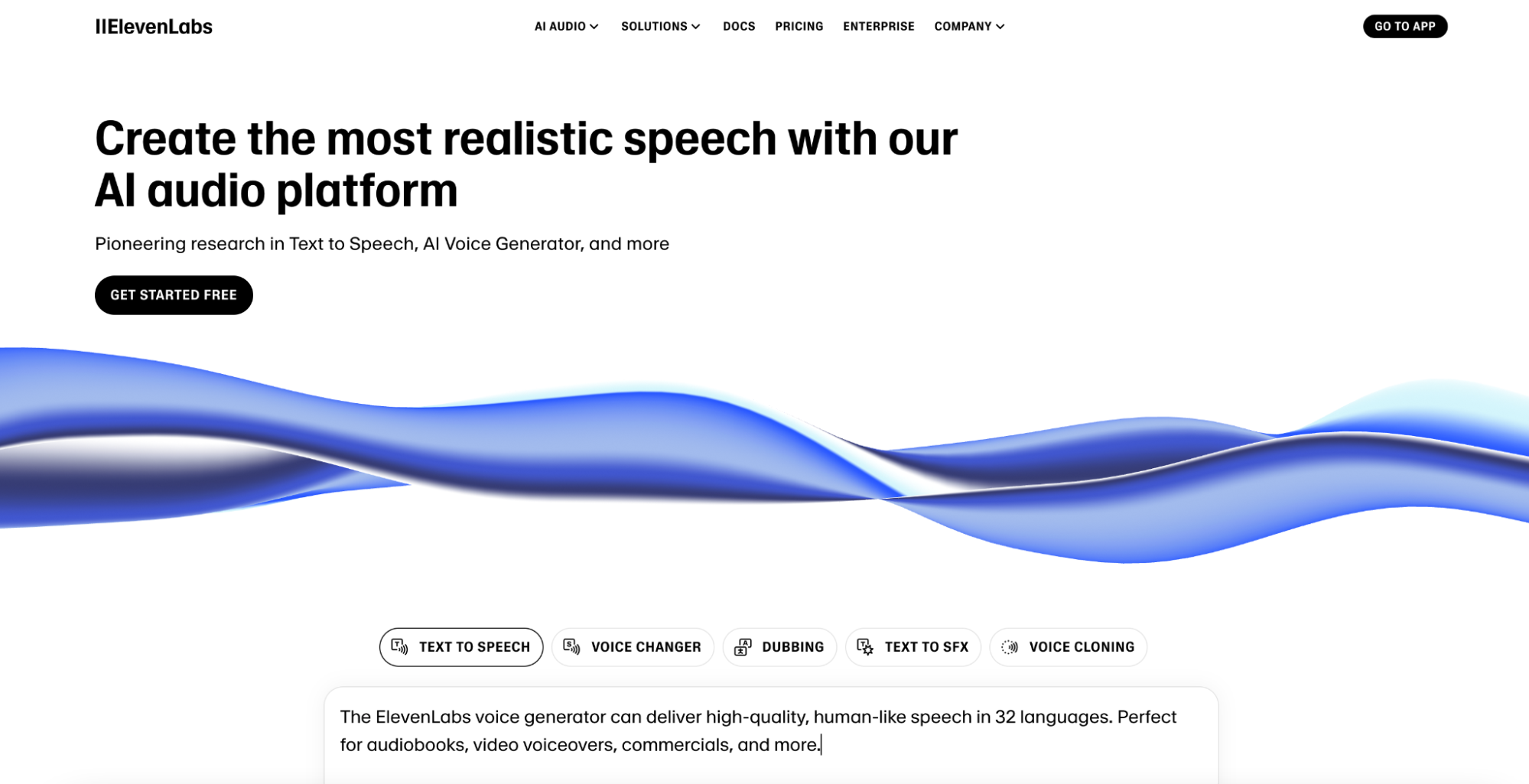
Go to [elevenlabs.io](https://elevenlabs.io/) and click "Sign Up"
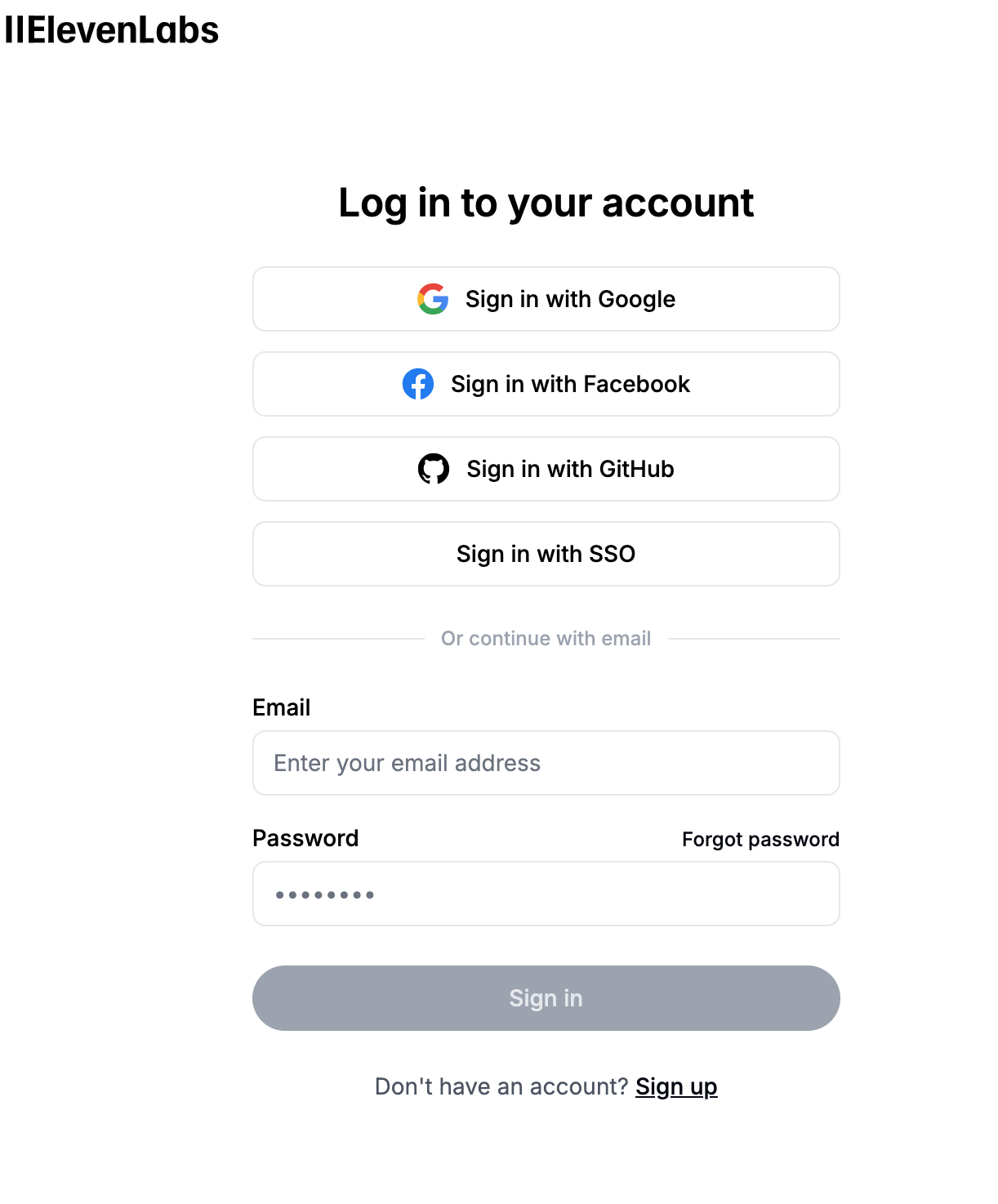
 * Sign up with email/password
* Or continue with Google authentication
* Sign up with email/password
* Or continue with Google authentication
 ## Generate API Key
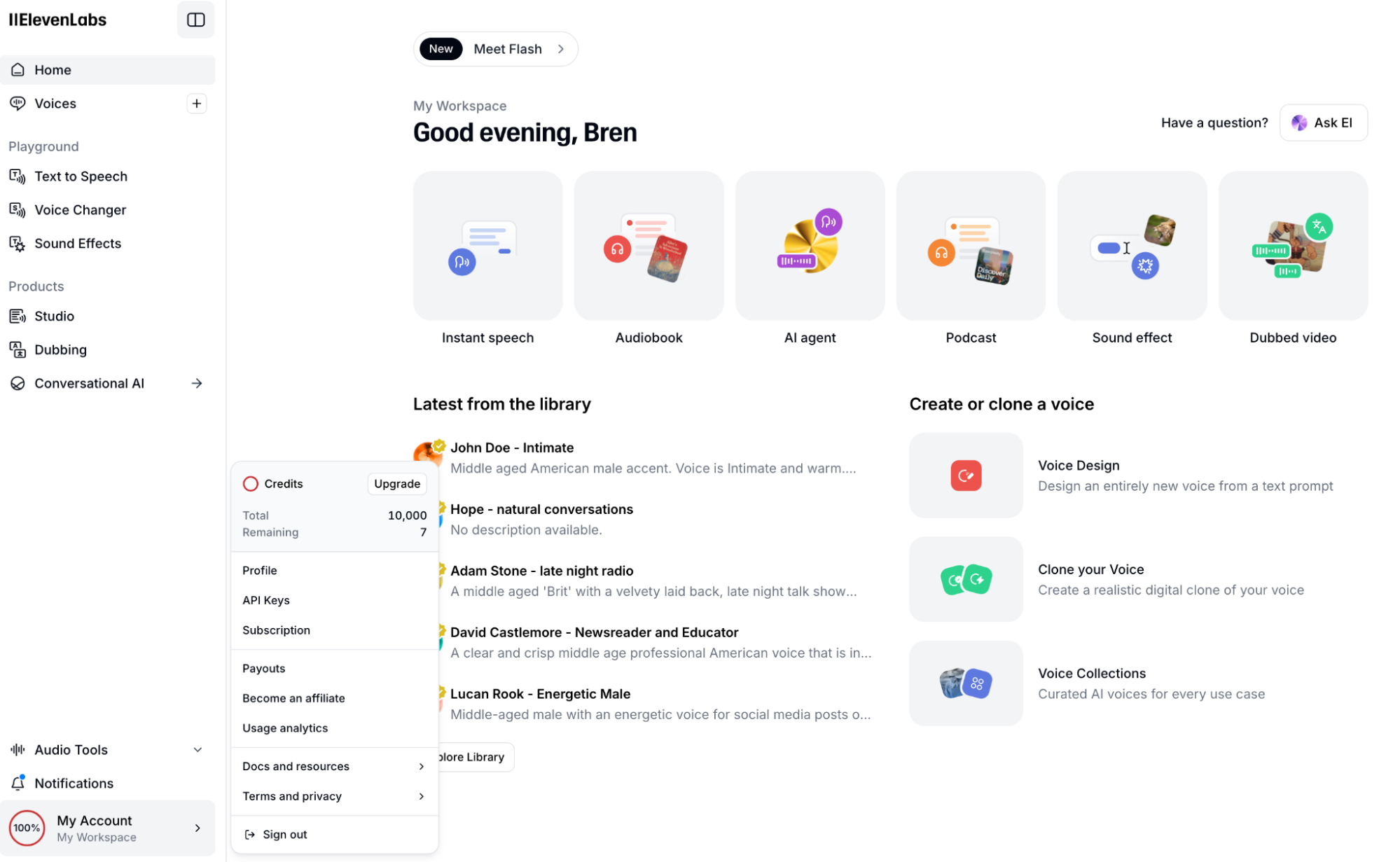
1. Click your profile icon in the top right
2. Select "API Keys" from the dropdown
## Generate API Key
1. Click your profile icon in the top right
2. Select "API Keys" from the dropdown
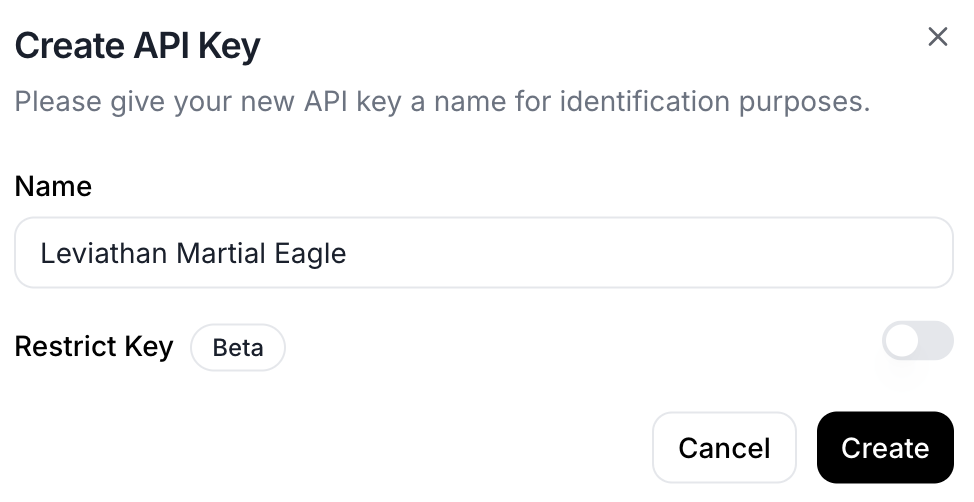
 1. Click "Generate New API Key"
2. Name the key (e.g., "Anything Integration")
1. Click "Generate New API Key"
2. Name the key (e.g., "Anything Integration")
 1. Copy the generated API key
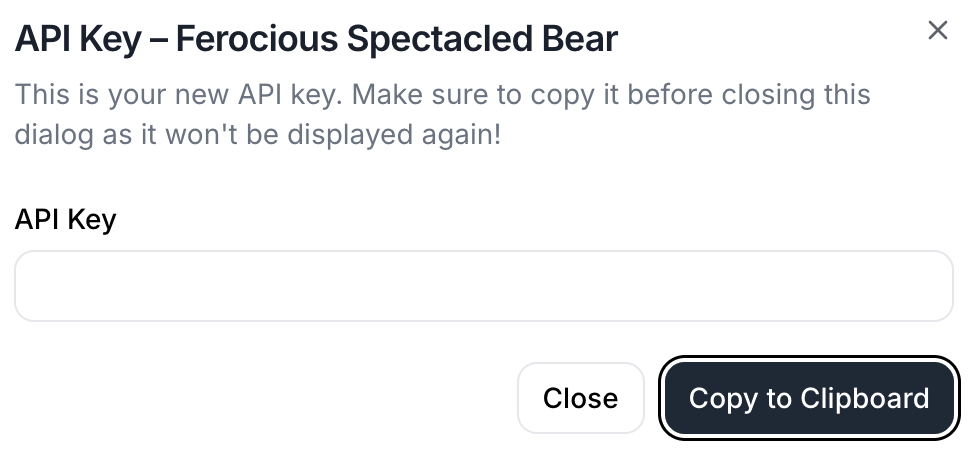 2. Store it securely
This key will only be shown once
## Add to Anything project
1. In your Anything project, type `/` in chat
2. Select "ElevenLabs" from the menu
1. Paste your ElevenLabs API key into the "ELEVEN\_LABS\_API\_KEY" field
Need a new key? Regenerate in your ElevenLabs dashboard.
Use prompts with the integration to create voice content:
* `Generate a voiceover for this script with /ElevenLabs`
* `Convert the blog post to audio with a British accent using /ElevenLabs`
* `Clone my voice from this sample with /ElevenLabs`
ElevenLabs integration complete! Use `/ElevenLabs` in chat to access voice generation capabilities.
2. Store it securely
This key will only be shown once
## Add to Anything project
1. In your Anything project, type `/` in chat
2. Select "ElevenLabs" from the menu
1. Paste your ElevenLabs API key into the "ELEVEN\_LABS\_API\_KEY" field
Need a new key? Regenerate in your ElevenLabs dashboard.
Use prompts with the integration to create voice content:
* `Generate a voiceover for this script with /ElevenLabs`
* `Convert the blog post to audio with a British accent using /ElevenLabs`
* `Clone my voice from this sample with /ElevenLabs`
ElevenLabs integration complete! Use `/ElevenLabs` in chat to access voice generation capabilities.