> ## Documentation Index
> Fetch the complete documentation index at: https://www.anything.com/docs/llms.txt
> Use this file to discover all available pages before exploring further.
# Google Imagen
> Generate images with Google's Imagen model through Replicate's AI Models Database
Google Imagen is a cutting-edge text-to-image model developed by Google that creates high-quality images from textual descriptions.
Replicate requires paid credits to use their API. Please refer to their pricing [here](https://replicate.com/pricing#public-models).
## Overview
Sign up for a Replicate account
Generate your Replicate API key
Add your API key to Anything's secrets
## Account Creation
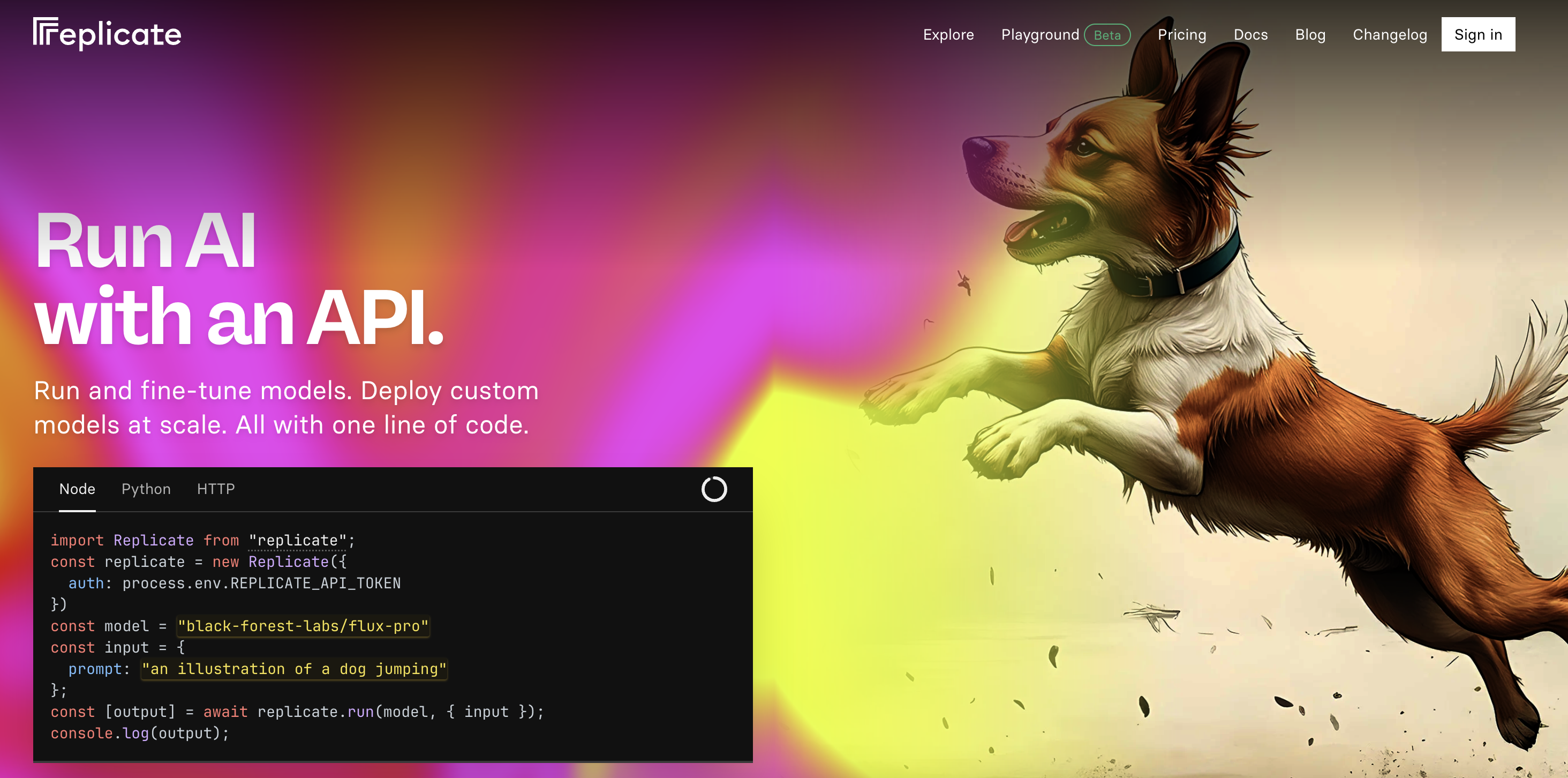
Go to [replicate.com](https://www.replicate.com/) and click "Sign Up" in the top right corner
 * Sign up with email/password
* Or continue with GitHub authentication
* Sign up with email/password
* Or continue with GitHub authentication
 ## Generate API Key
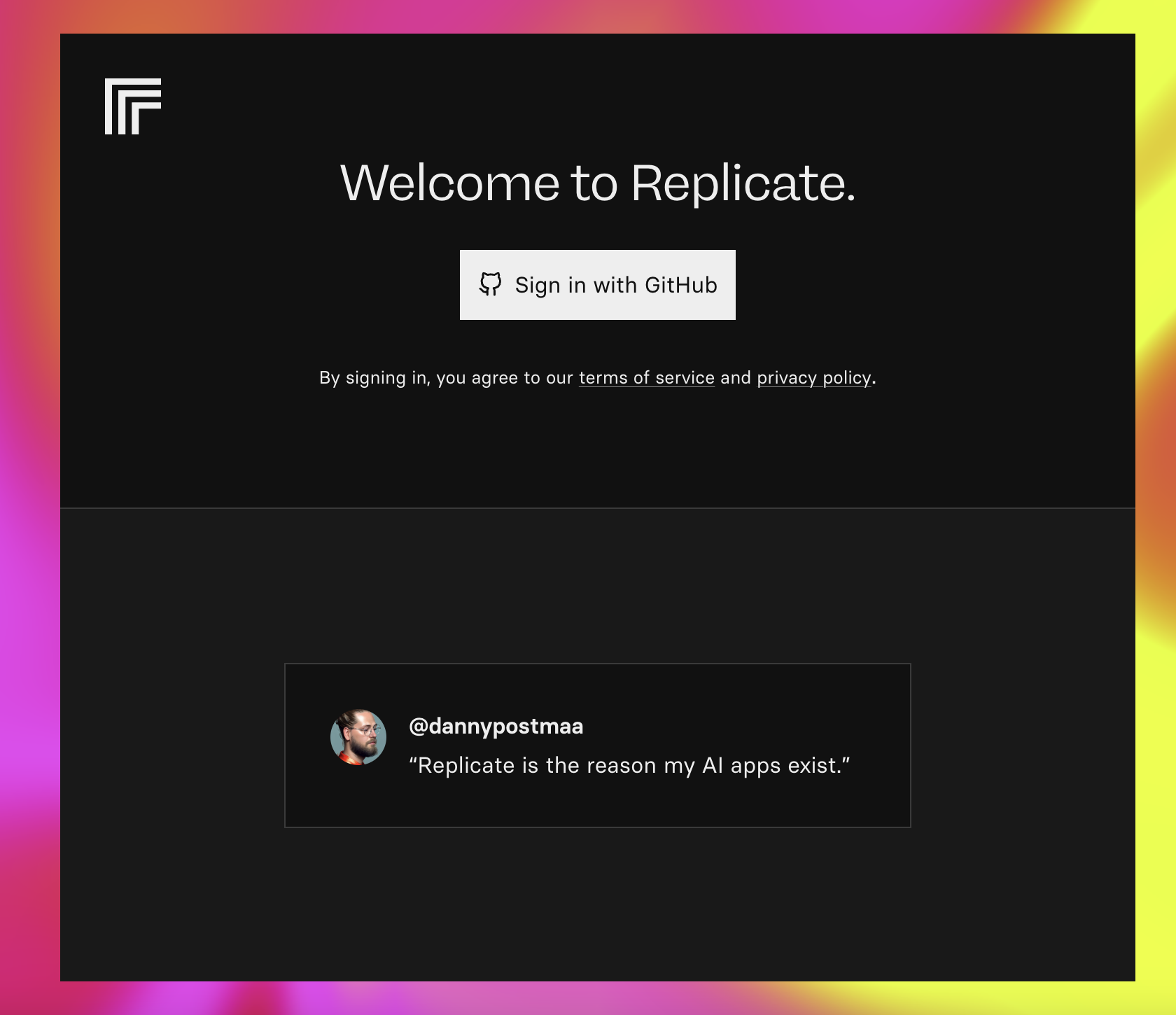
1. Click on your profile icon in the top right
2. Select "API" from the dropdown menu
## Generate API Key
1. Click on your profile icon in the top right
2. Select "API" from the dropdown menu
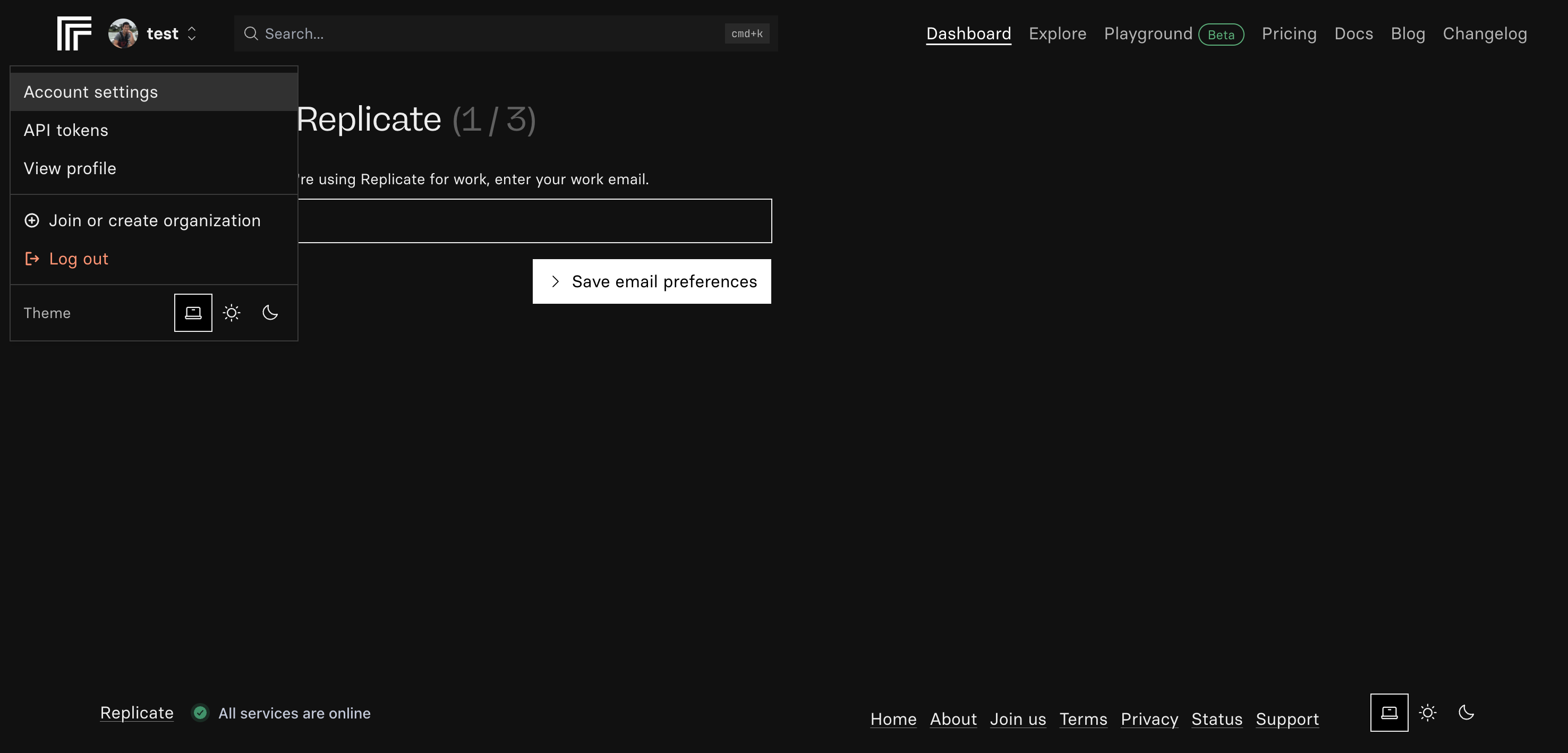 1. Click "Create API Key"
2. Name your key (e.g., "Anything Integration")
3. Click "Generate"
1. Click "Create API Key"
2. Name your key (e.g., "Anything Integration")
3. Click "Generate"
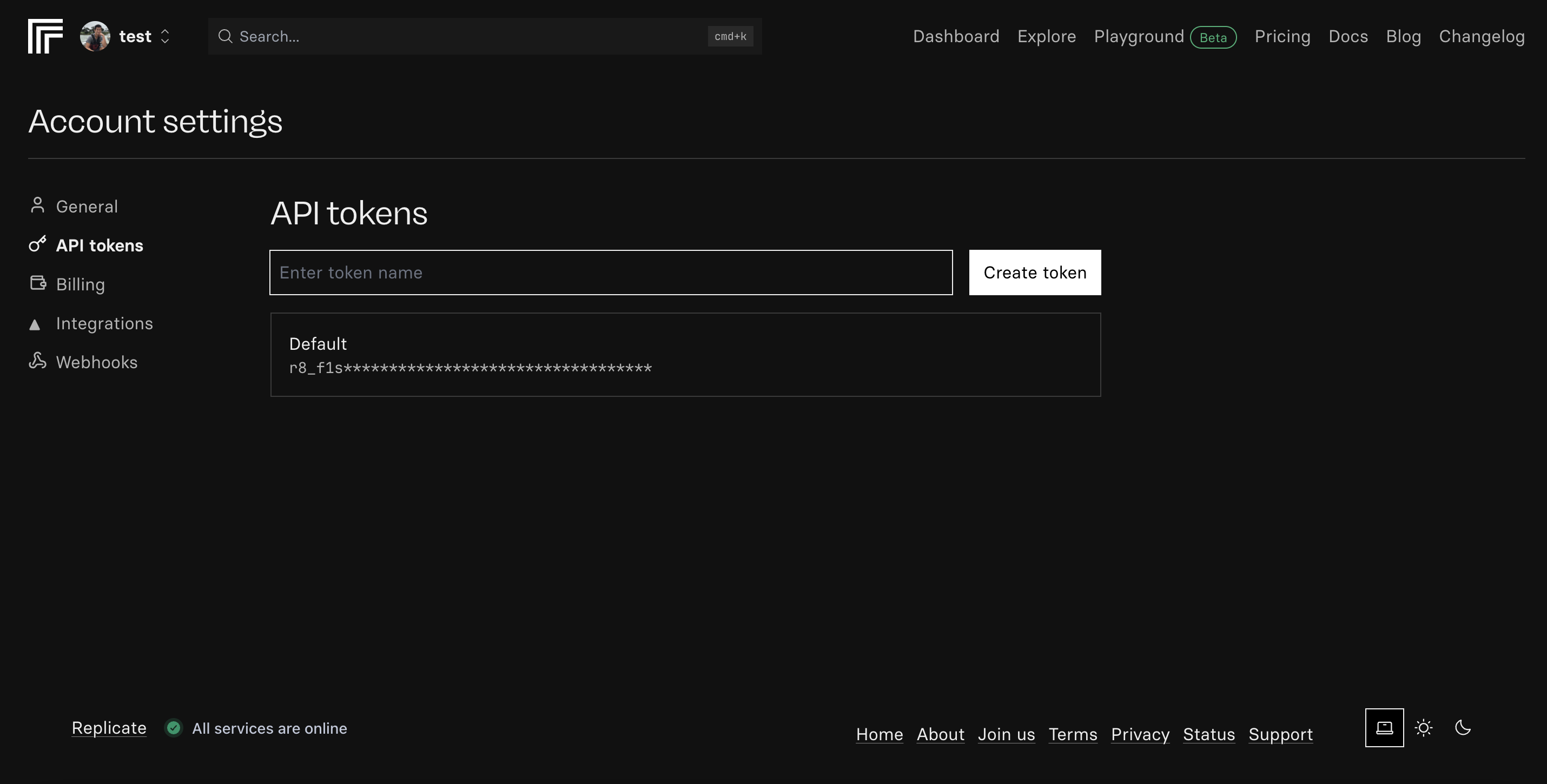 1. Copy the generated API key
Keep your API key secure - it grants access to your paid credits
## Add to Anything project
1. In your Anything project, type `/` in the chat
2. Select "Google Imagen" from the menu
1. Paste your API key into the "REPLICATE\_API\_KEY" field
Need a new key? Generate one in your Replicate dashboard.
You can now use prompts with the integration to generate images.
Some examples:
* `Generate an image of a sunset over the mountains with /GoogleImagen`
* `Make a fantasy landscape with /GoogleImagen`
* `Design a futuristic cityscape using /GoogleImagen`
Each request uses one credit. Avoid generating the same image repeatedly.
Example prompt for optimization:
```
When using /GoogleImagen, save the generated images so I can reuse them
```
Your Google Imagen integration is ready! Use `/GoogleImagen` in chat to generate images.
1. Copy the generated API key
Keep your API key secure - it grants access to your paid credits
## Add to Anything project
1. In your Anything project, type `/` in the chat
2. Select "Google Imagen" from the menu
1. Paste your API key into the "REPLICATE\_API\_KEY" field
Need a new key? Generate one in your Replicate dashboard.
You can now use prompts with the integration to generate images.
Some examples:
* `Generate an image of a sunset over the mountains with /GoogleImagen`
* `Make a fantasy landscape with /GoogleImagen`
* `Design a futuristic cityscape using /GoogleImagen`
Each request uses one credit. Avoid generating the same image repeatedly.
Example prompt for optimization:
```
When using /GoogleImagen, save the generated images so I can reuse them
```
Your Google Imagen integration is ready! Use `/GoogleImagen` in chat to generate images.