> ## Documentation Index
> Fetch the complete documentation index at: https://www.anything.com/docs/llms.txt
> Use this file to discover all available pages before exploring further.
# Levels IO
> Utilize Levels IO's disposable camera AI model via Replicate's AI model database
Replicate's AI Model Database provides access to hundreds of AI Models into your applications.
Replicate requires paid credits to use their API. Please refer to their pricing [here](https://replicate.com/pricing#public-models).
## Overview
Sign up for a Levelsio account.
Generate your Levelsio API key.
Add your API key to Anything's secrets.
## Account Creation
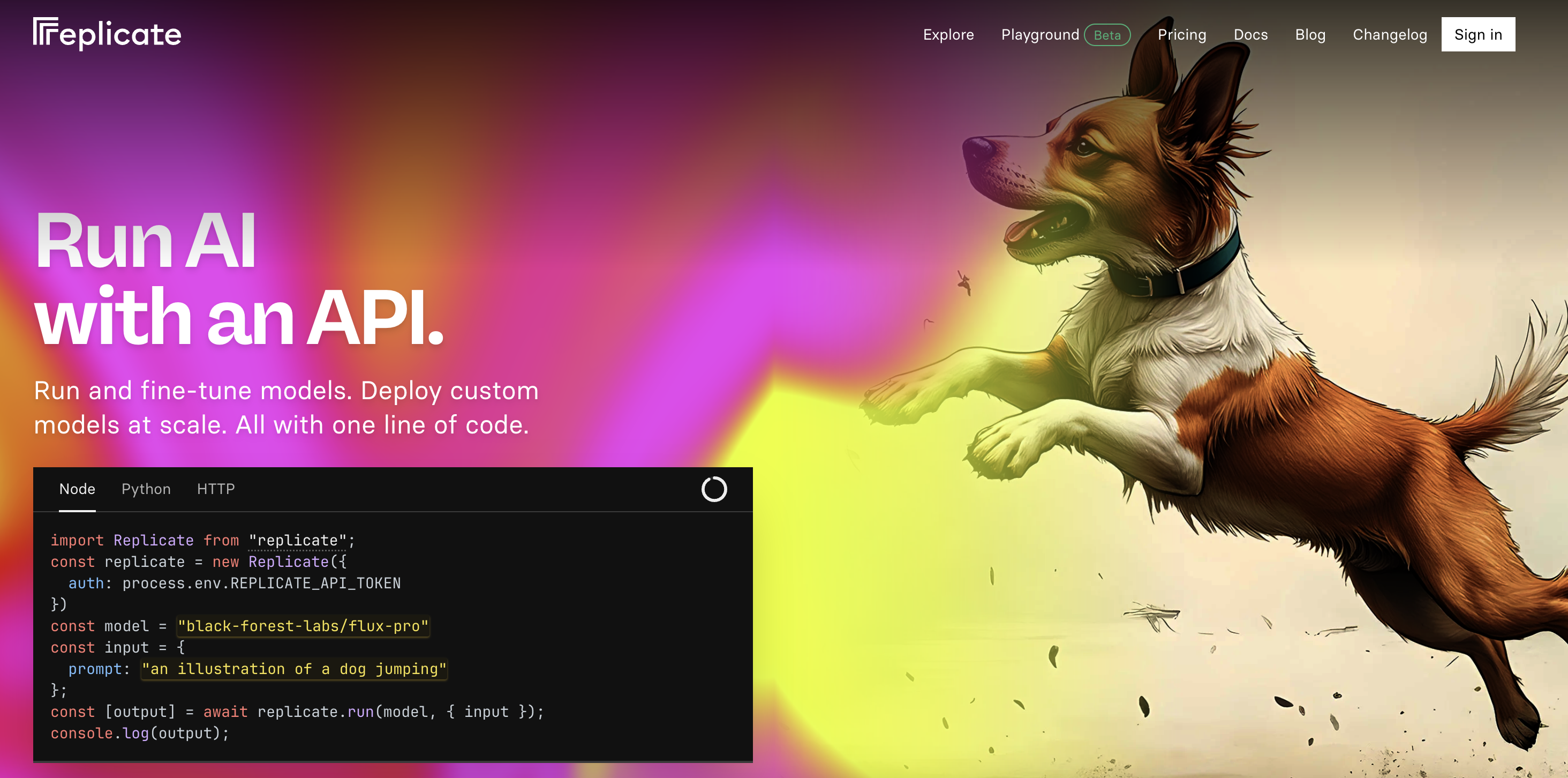
Go to [replicate.com](https://www.replicate.com/) and click "Sign Up" in the top right corner
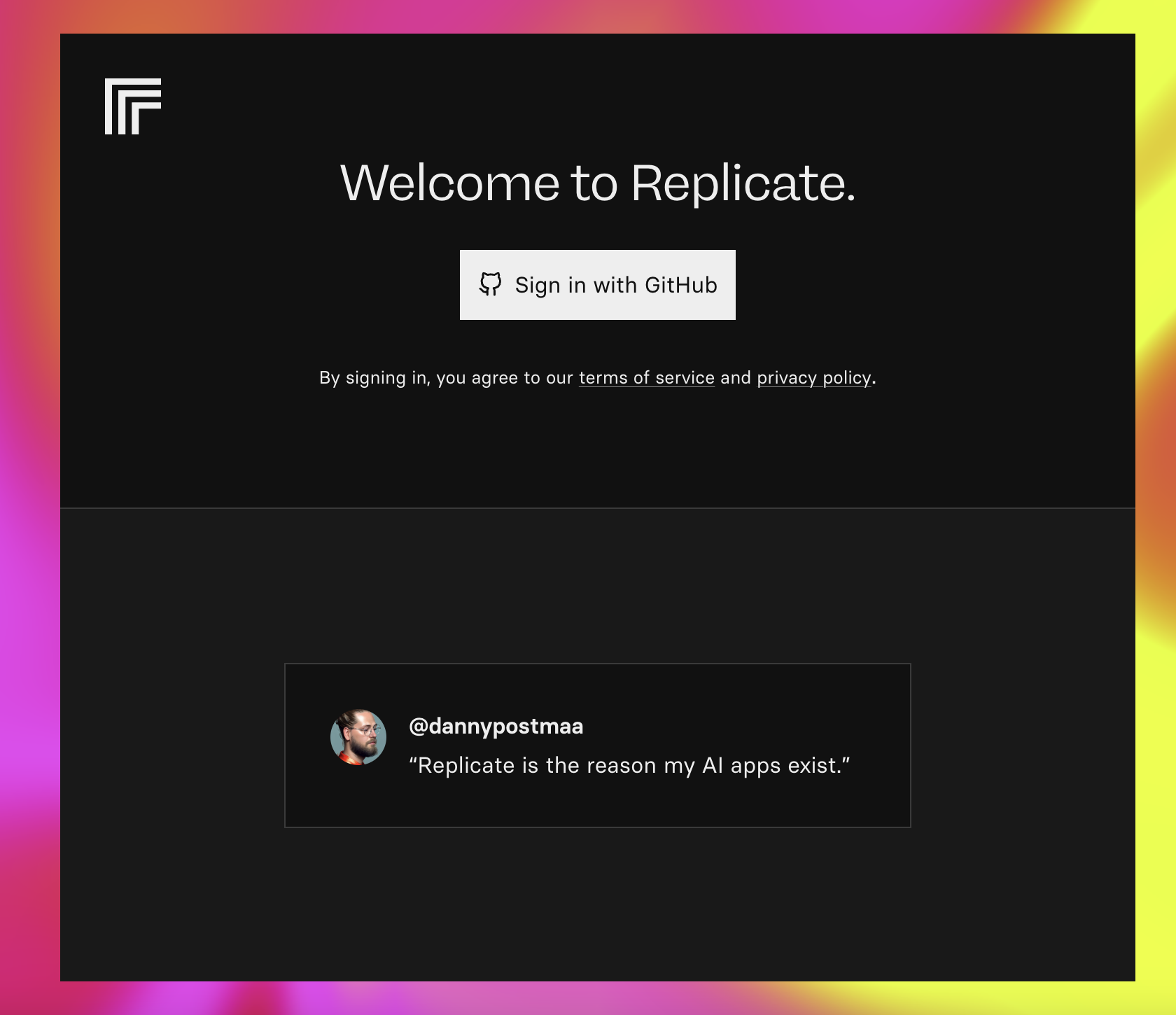
 * Sign up with email/password
* Or continue with GitHub authentication
* Sign up with email/password
* Or continue with GitHub authentication
 ## Generate API Key
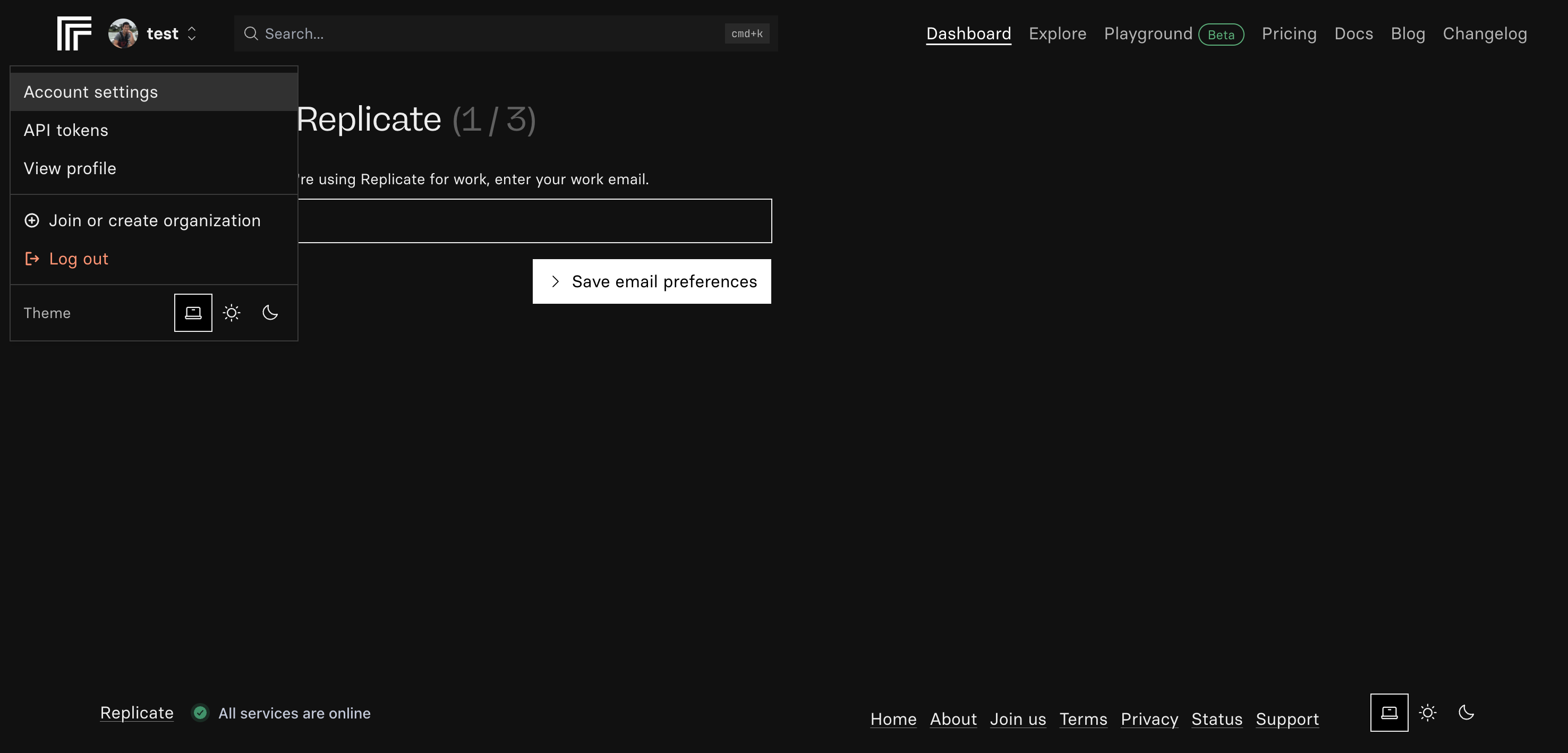
1. Click on your profile icon in the top right
2. Select "API" from the dropdown menu
## Generate API Key
1. Click on your profile icon in the top right
2. Select "API" from the dropdown menu
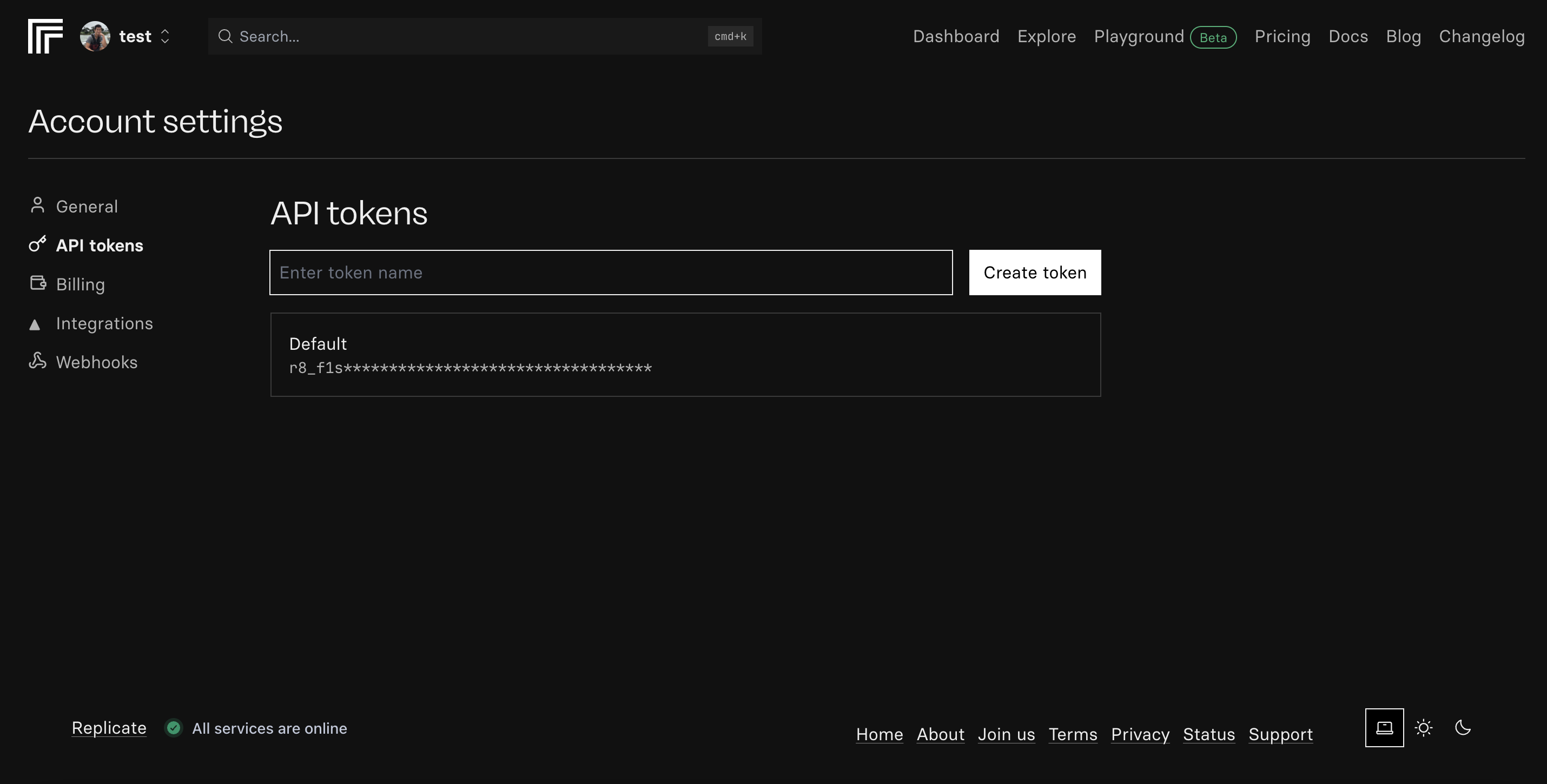
 1. Click "Create API Key"
2. Name your key (e.g., "Anything Integration")
3. Click "Generate"
1. Click "Create API Key"
2. Name your key (e.g., "Anything Integration")
3. Click "Generate"
 1. Copy the generated API key
Keep your API key secure - it grants access to your paid credits
## Add to Anything project
1. In your Anything project, type `/` in the chat
2. Select "Google Imagen" from the menu
1. Paste your API key into the "REPLICATE\_API\_KEY" field
Need a new key? Generate one in your Replicate dashboard.
You can now use prompts with the integration to access user data and functionalities.
Example prompts:
* `Generate a retro-style photo using /Levelsio`
* `Apply a disposable camera filter with /Levelsio`
* `Create a nostalgic film look with /Levelsio`
The API limits how often your app can fetch data. If your app loads the same data often, ask the agent to save it locally so it doesn't re-fetch every time.
Example prompt for optimization:
```
When using /Levelsio, save the photo so my app doesn't have to fetch it again
```
Your Levelsio integration is ready! Use `/Levelsio` in chat to access user data and functionalities.
1. Copy the generated API key
Keep your API key secure - it grants access to your paid credits
## Add to Anything project
1. In your Anything project, type `/` in the chat
2. Select "Google Imagen" from the menu
1. Paste your API key into the "REPLICATE\_API\_KEY" field
Need a new key? Generate one in your Replicate dashboard.
You can now use prompts with the integration to access user data and functionalities.
Example prompts:
* `Generate a retro-style photo using /Levelsio`
* `Apply a disposable camera filter with /Levelsio`
* `Create a nostalgic film look with /Levelsio`
The API limits how often your app can fetch data. If your app loads the same data often, ask the agent to save it locally so it doesn't re-fetch every time.
Example prompt for optimization:
```
When using /Levelsio, save the photo so my app doesn't have to fetch it again
```
Your Levelsio integration is ready! Use `/Levelsio` in chat to access user data and functionalities.