> ## Documentation Index
> Fetch the complete documentation index at: https://www.anything.com/docs/llms.txt
> Use this file to discover all available pages before exploring further.

# LINE

> Integrate LINE messaging capabilities into your application

Connect your app to LINE's messaging platform to send notifications, build chatbots, and interact with users through LINE's popular messaging service.

Watch this step-by-step video tutorial to learn how to integrate LINE messaging:

<iframe width="100%" height="400" src="https://www.youtube.com/embed/roWWFeXcRto" title="Line Integration Tutorial" frameBorder="0" allow="accelerometer; autoplay; clipboard-write; encrypted-media; gyroscope; picture-in-picture" allowFullScreen />

## Overview

<CardGroup cols={2}>
  <Card title="Create Developer Account" icon="user">
    Sign up and configure your LINE Account Manager, LINE Official Account, and LINE Developer Account.
  </Card>

  <Card title="Get Channel Credentials" icon="key">
    Create a LINE channel and obtain API keys
  </Card>

  <Card title="Verify Settings" icon="gear">
    Turn on these settings to have the best experience with LINE
  </Card>

  <Card title="Connect to Anything" icon="plug">
    Add your credentials to Anything's secrets
  </Card>
</CardGroup>

## Account Setup

<Steps>
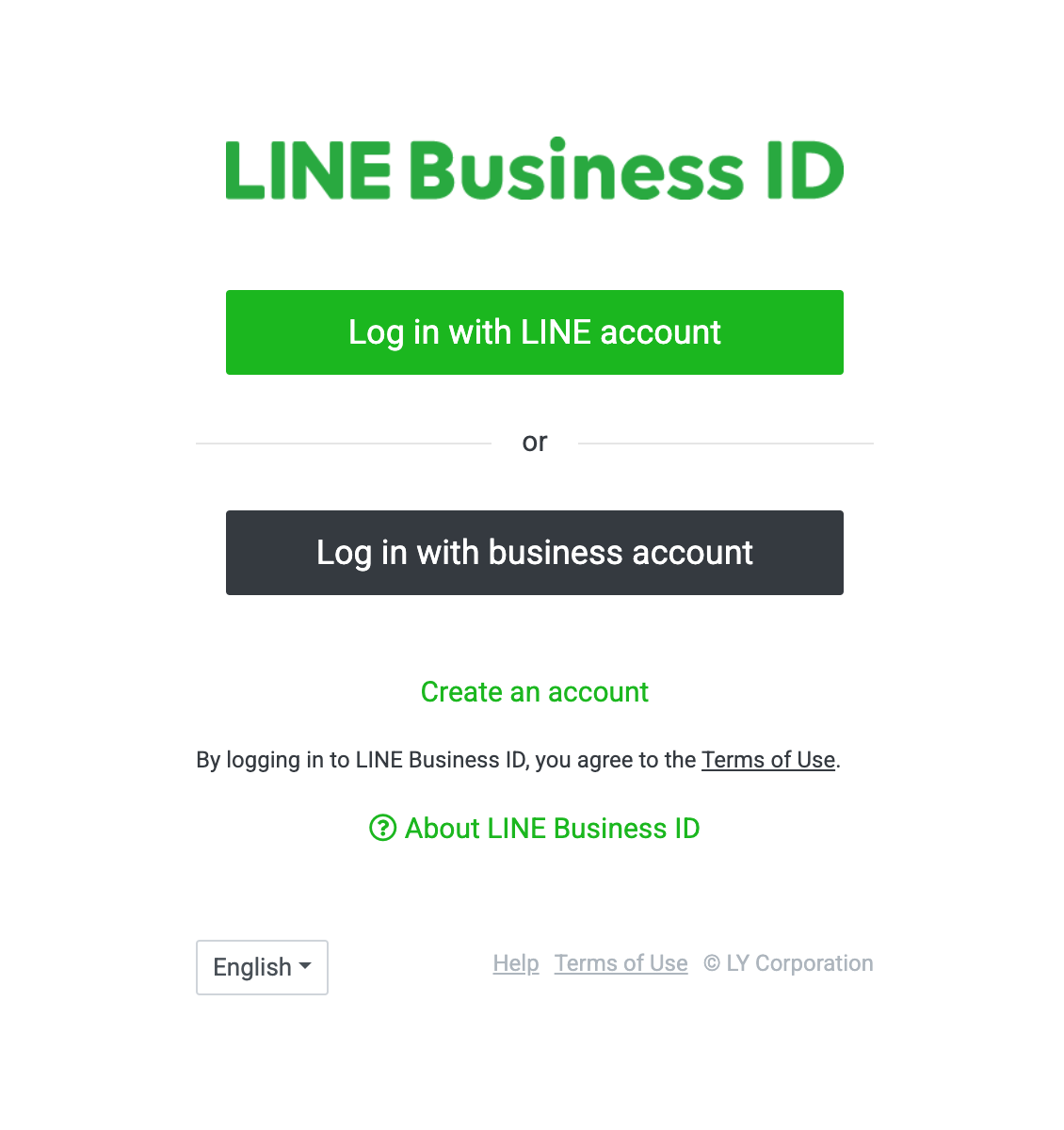
  <Step title="Create a LINE Official Account Manager">
    Go to [https://manager.line.biz/](https://manager.line.biz/) and sign up with your account

    <img src="https://mintcdn.com/create/dPp8LRxEG75nRlMj/images/line/line-login.png?fit=max&auto=format&n=dPp8LRxEG75nRlMj&q=85&s=3c71bcb69db135f5c910265ed683219f" style={{ borderRadius: '0.5rem'}} width="1130" height="1200" data-path="images/line/line-login.png" />
  </Step>

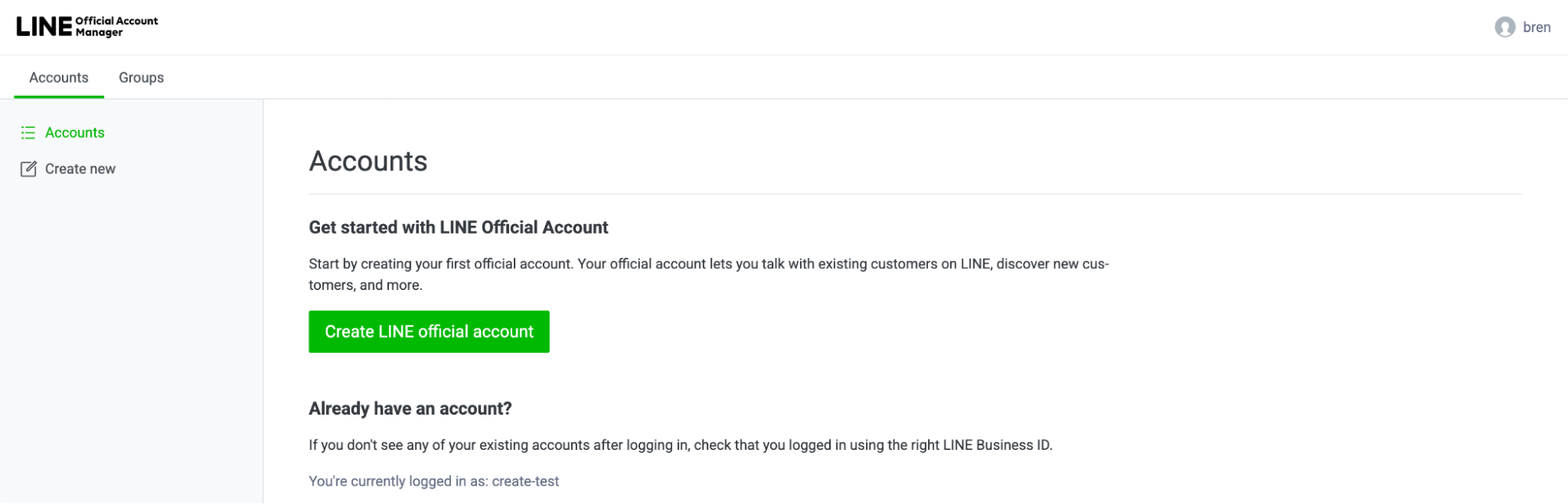
  <Step title="Create a LINE Official Account">
    Click "Create LINE official account" to continue

    <img src="https://mintcdn.com/create/dPp8LRxEG75nRlMj/images/line/image1.png?fit=max&auto=format&n=dPp8LRxEG75nRlMj&q=85&s=90d6affbf3ae0b9b1b0770204fa2197c" style={{ borderRadius: '0.5rem' }} width="1999" height="643" data-path="images/line/image1.png" />
  </Step>

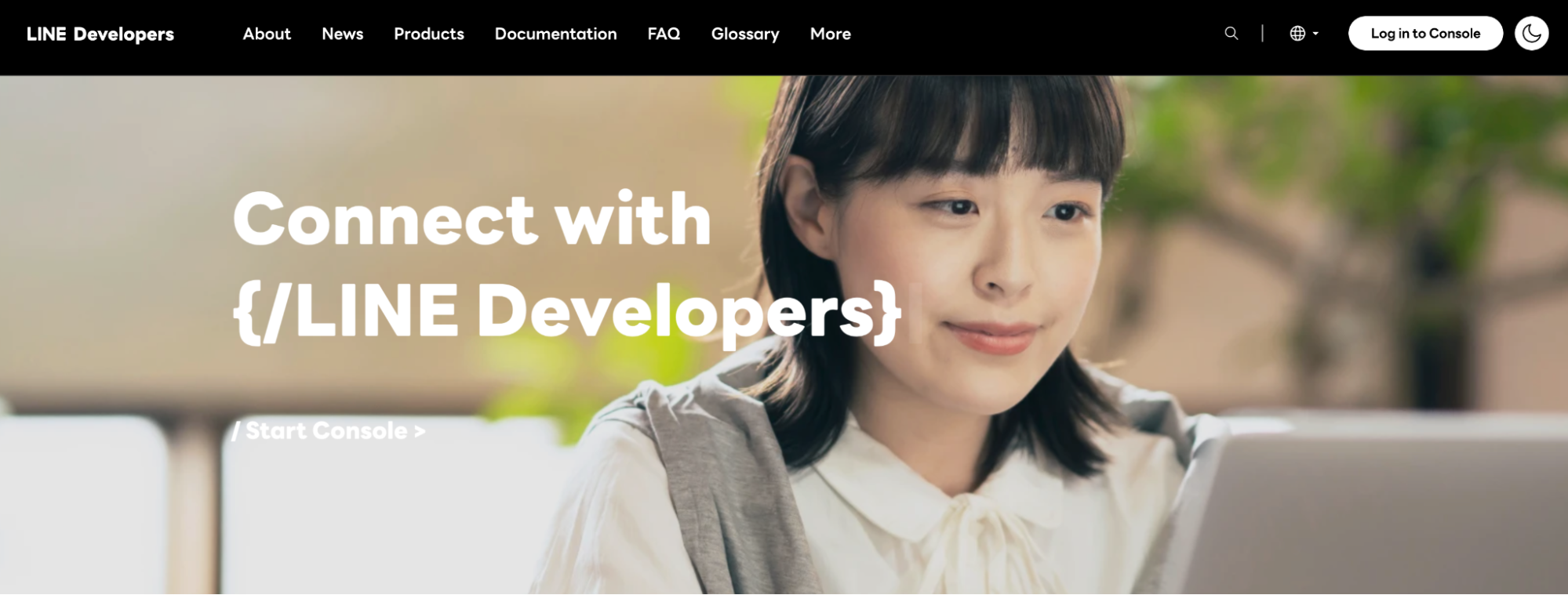
  <Step title="Link your LINE Account to LINE Developer">
    Once your account is created, you may now visit LINE Developer and click Log in to Console to link your LINE Official Account.

    <img src="https://mintcdn.com/create/dPp8LRxEG75nRlMj/images/line/image3.png?fit=max&auto=format&n=dPp8LRxEG75nRlMj&q=85&s=217efe176bff1a55c487c94c1d250857" style={{ borderRadius: '0.5rem' }} width="1999" height="759" data-path="images/line/image3.png" />
  </Step>
</Steps>

## Generate API Credentials

<Steps>
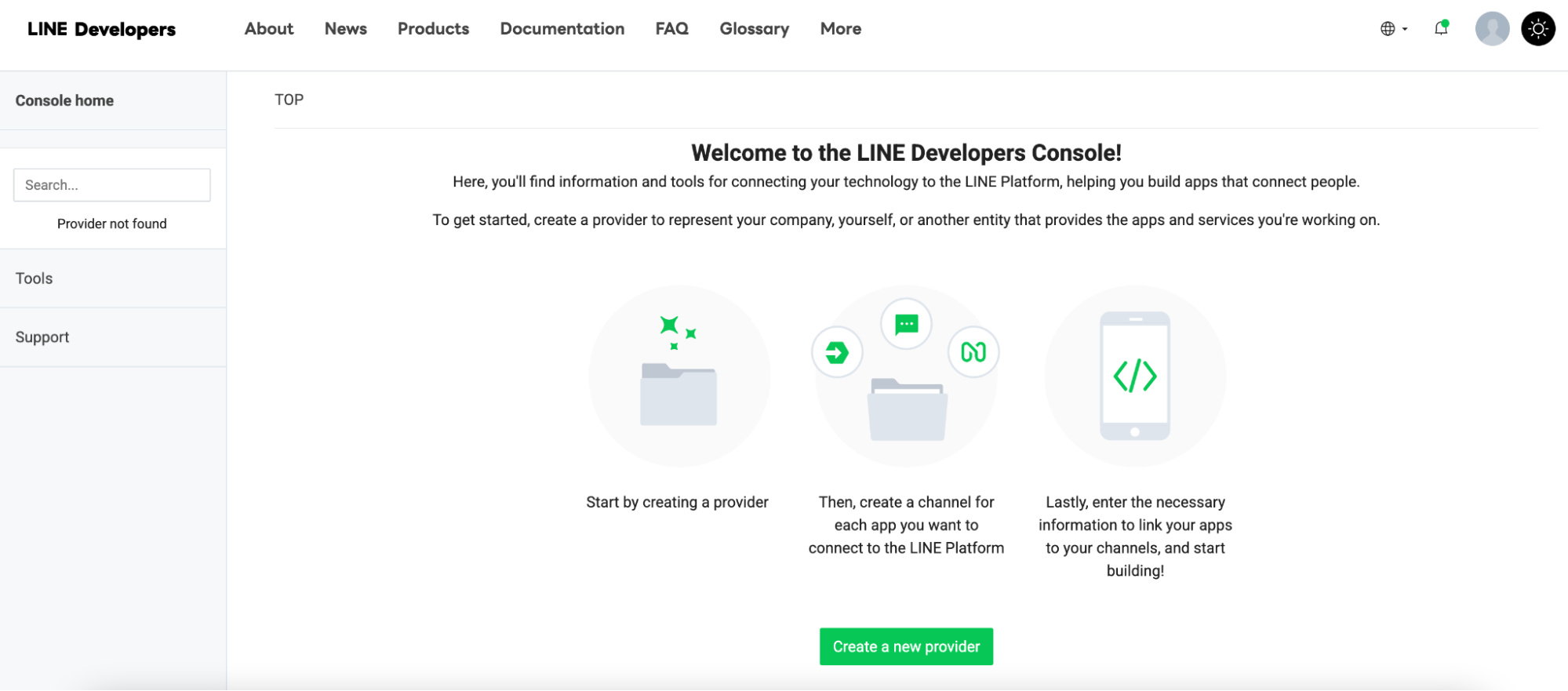
  <Step title="Creating a Provider">
    Click on "Create a new provider" to generate a provider for your Channel.

    <img src="https://mintcdn.com/create/dPp8LRxEG75nRlMj/images/line/image6.png?fit=max&auto=format&n=dPp8LRxEG75nRlMj&q=85&s=6144d0ee2303411257cfbd37ad618464" style={{ borderRadius: '0.5rem' }} width="1999" height="881" data-path="images/line/image6.png" />
  </Step>

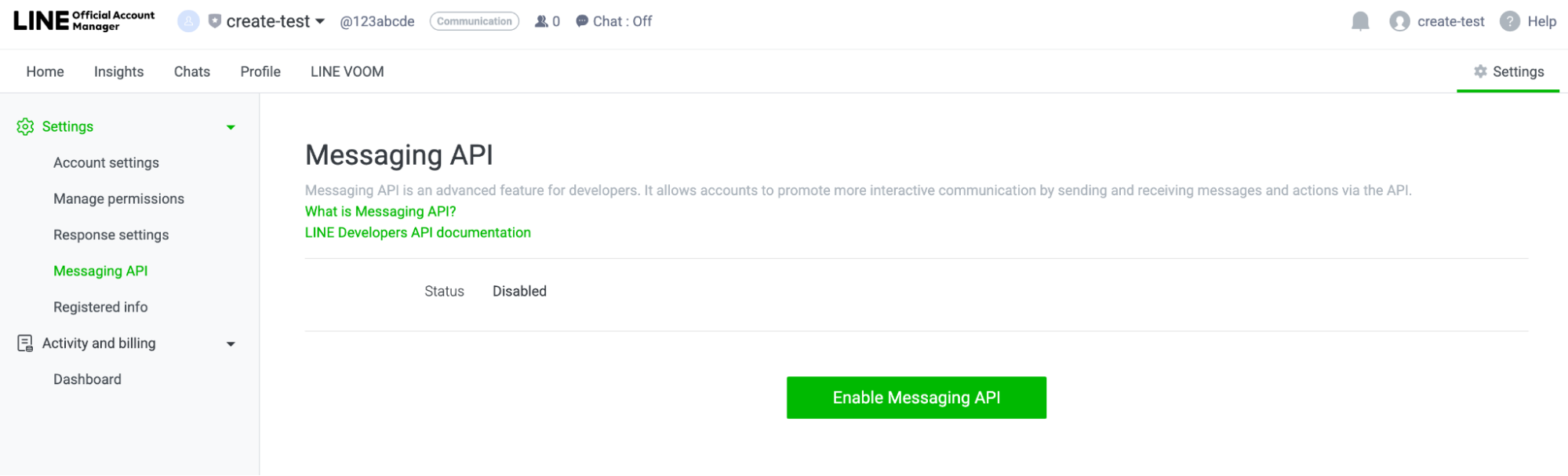
  <Step title="Enable Messaging API">
    Now go back to your LINE Official Account Manager. In the top right corner, click on "Setting". Then, on the left panel, select "Messaging API" and "Enable Messaging API". Be sure to select the provider mentioned previously.

    <img src="https://mintcdn.com/create/dPp8LRxEG75nRlMj/images/line/image8.png?fit=max&auto=format&n=dPp8LRxEG75nRlMj&q=85&s=94c46d0d676029193f4f1ef368532c5e" style={{ borderRadius: '0.5rem' }} width="1999" height="607" data-path="images/line/image8.png" />

    <Warning>
      These credentials grant full access to your LINE channel - keep them private
    </Warning>
  </Step>

  <Step title="Finding Webhook URL">
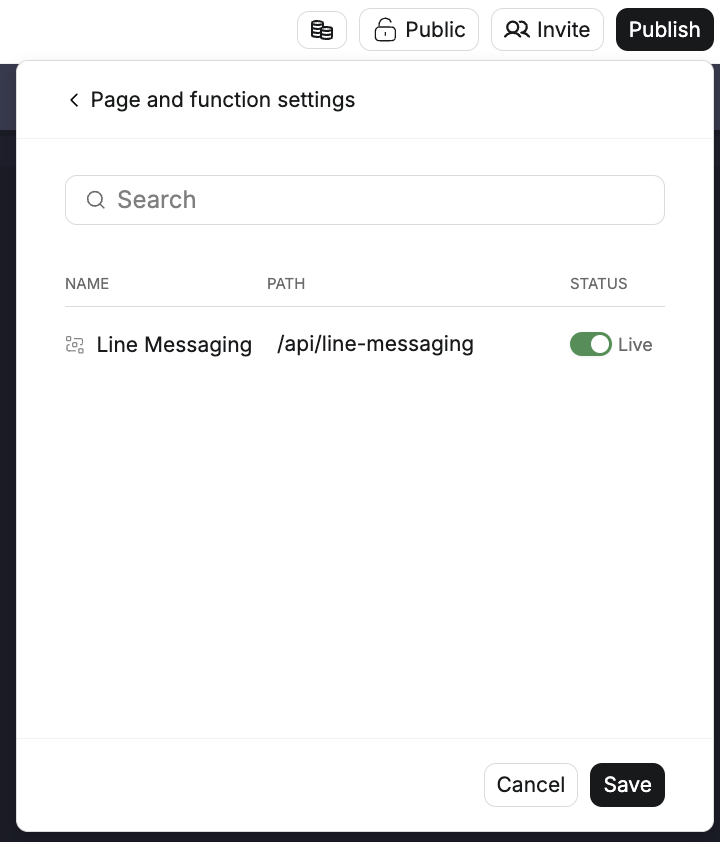
    Find your webhook URL path in the Page and Function Settings under the Publish button. Copy the URL of your Anything project's live site and API path into the webhook URL.

    <img src="https://mintcdn.com/create/dPp8LRxEG75nRlMj/images/line/line-webhook.png?fit=max&auto=format&n=dPp8LRxEG75nRlMj&q=85&s=af8f3d70284014ede56cc4e36b0f8a9c" style={{ borderRadius: '0.5rem' }} width="720" height="842" data-path="images/line/line-webhook.png" />
  </Step>

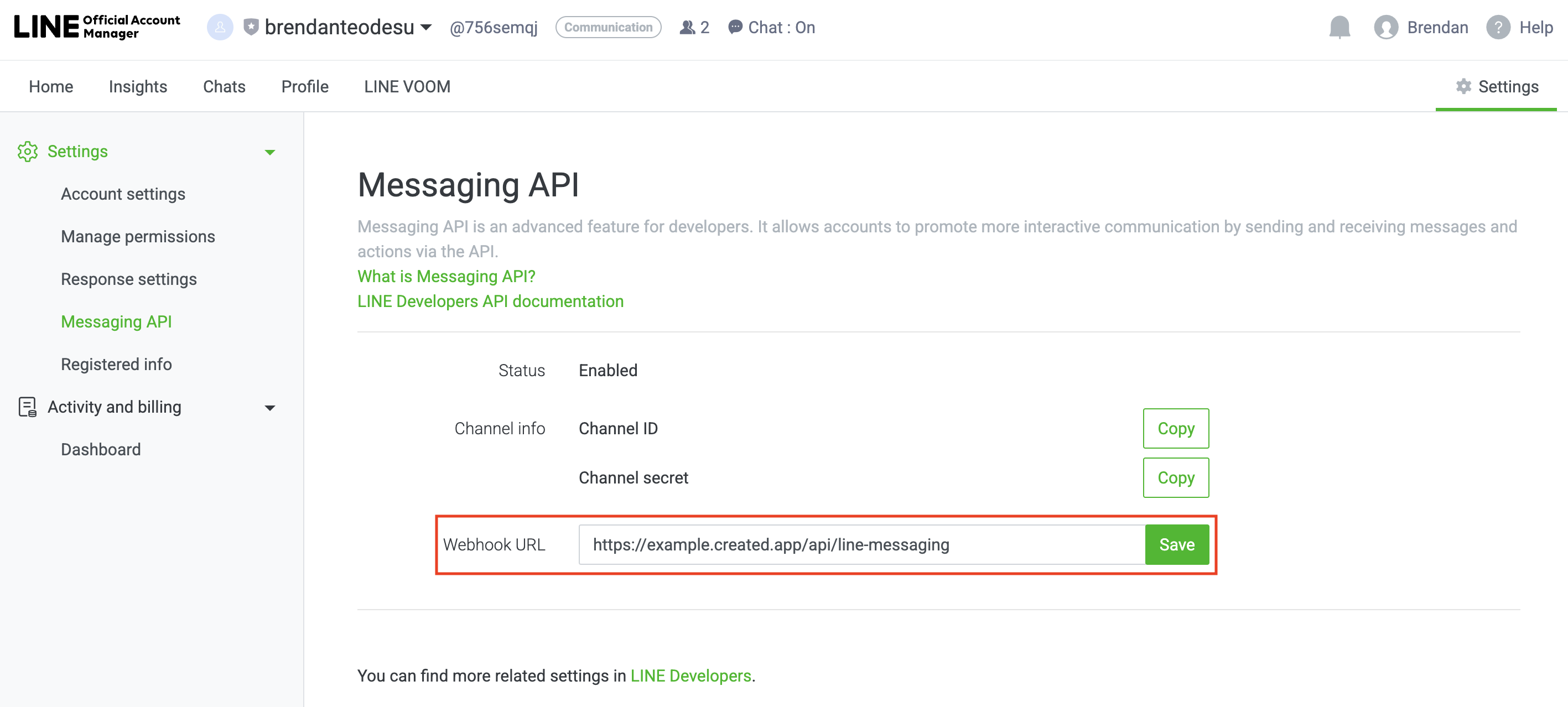
  <Step title="Inputting Webhook URL">
    Input your webhook URL in your LINE Official Account Manager. It should be in the format of https\:// your-anything-project-url.created.app/api/line-messaging.

    <img src="https://mintcdn.com/create/dPp8LRxEG75nRlMj/images/line/line-webhook-input.png?fit=max&auto=format&n=dPp8LRxEG75nRlMj&q=85&s=92b4c1e34a67bf49a543b4359a8fcf97" style={{ borderRadius: '0.5rem' }} width="2834" height="1278" data-path="images/line/line-webhook-input.png" />

    <Warning>
      The function path "api/line-messaging" may be changed as well. If so, you may need to update the function path in your LINE Developer Console to match the function path in your Anything project.
    </Warning>
  </Step>

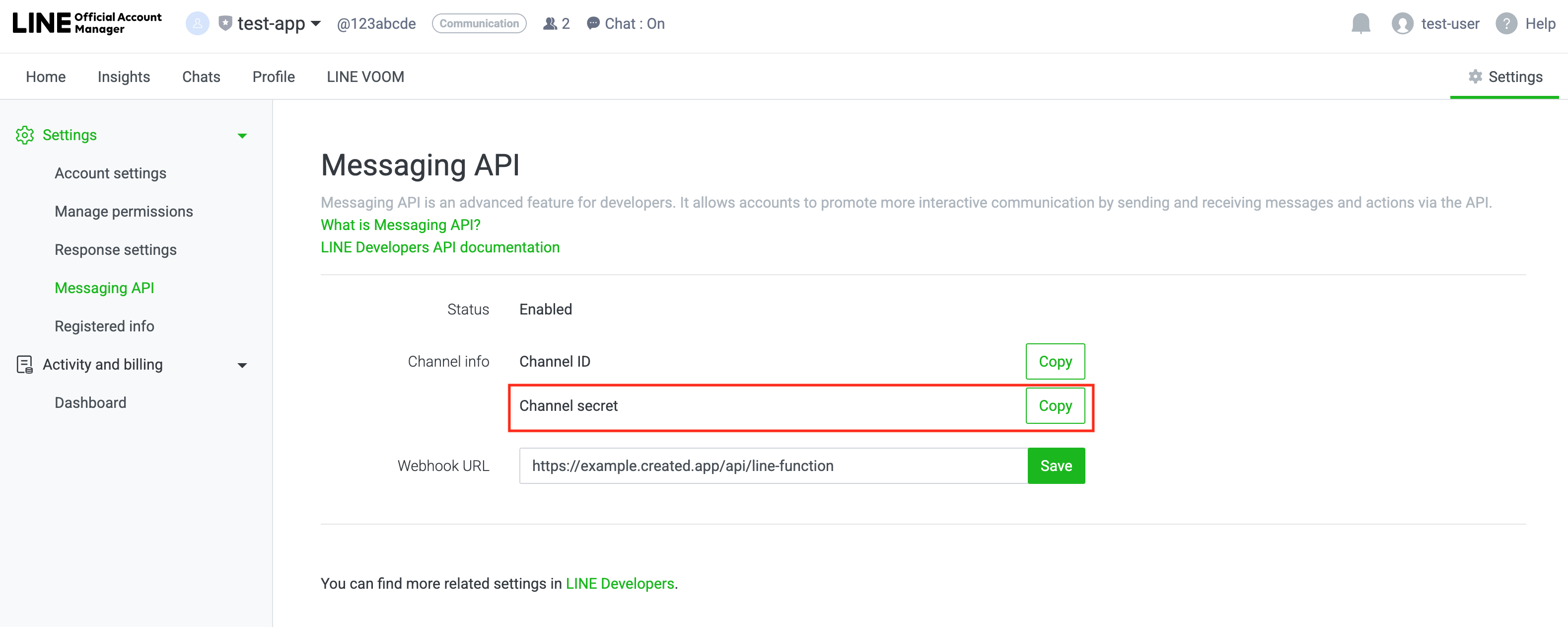
  <Step title="Channel Secret Token">
    You may copy your Channel Secret Token here as well.

    <img src="https://mintcdn.com/create/dPp8LRxEG75nRlMj/images/line/line-secret.png?fit=max&auto=format&n=dPp8LRxEG75nRlMj&q=85&s=bb1b174510dc6b26234e66c5ecff402b" style={{ borderRadius: '0.5rem' }} width="3158" height="1262" data-path="images/line/line-secret.png" />
  </Step>

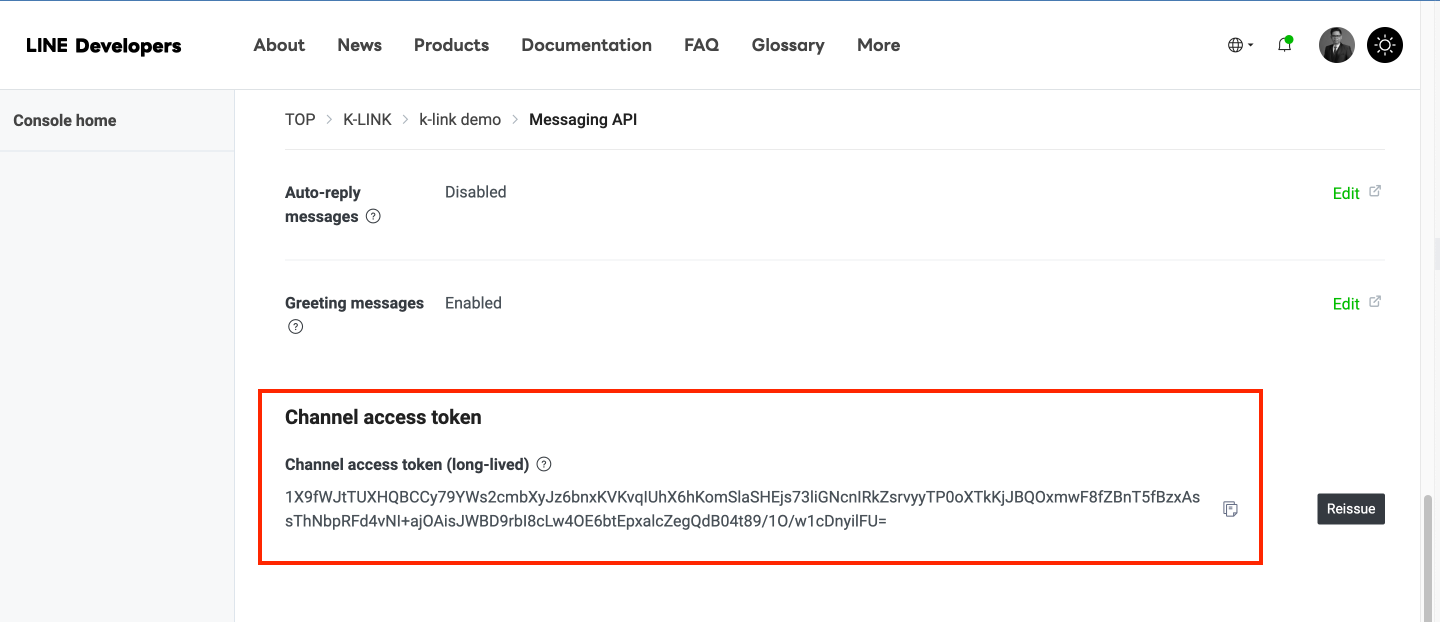
  <Step title="Channel Access Token">
    Get your Channel Access Token by going to your LINE Developer Account > Provider Name > Messaging API > Scroll all the way down

    <img src="https://mintcdn.com/create/dPp8LRxEG75nRlMj/images/line/image4.png?fit=max&auto=format&n=dPp8LRxEG75nRlMj&q=85&s=f4914da33faeb2657607bcc0c9ada788" style={{ borderRadius: '0.5rem' }} width="1440" height="622" data-path="images/line/image4.png" />
  </Step>

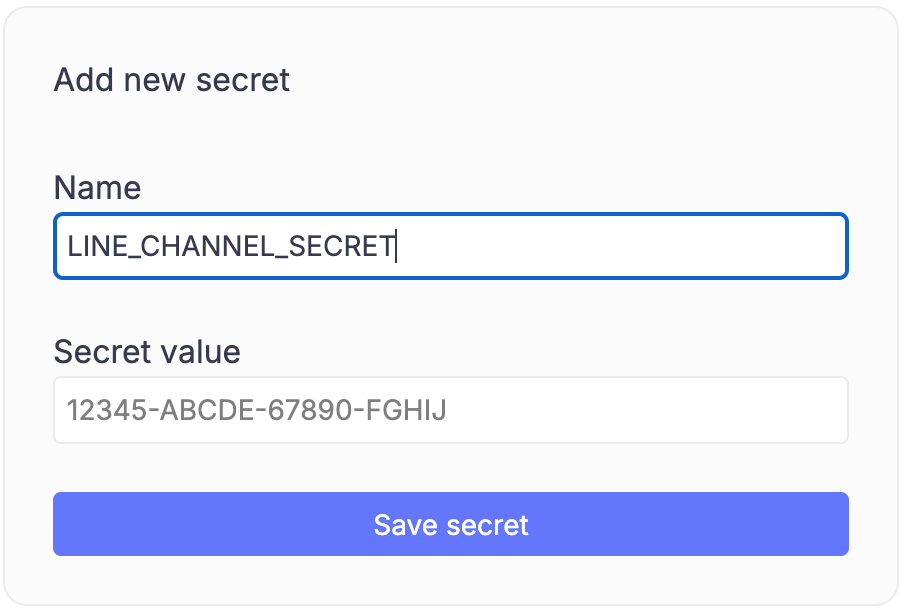
  <Step title="Adding Tokens to Anything">
    Enter and save your API tokens in Anything

    <img src="https://mintcdn.com/create/dPp8LRxEG75nRlMj/images/line/image5.png?fit=max&auto=format&n=dPp8LRxEG75nRlMj&q=85&s=08a01b638f97106bb3ca250ebcbd0de0" style={{ borderRadius: '0.5rem' }} width="902" height="610" data-path="images/line/image5.png" />
  </Step>
</Steps>

## Verify Settings

<Steps>
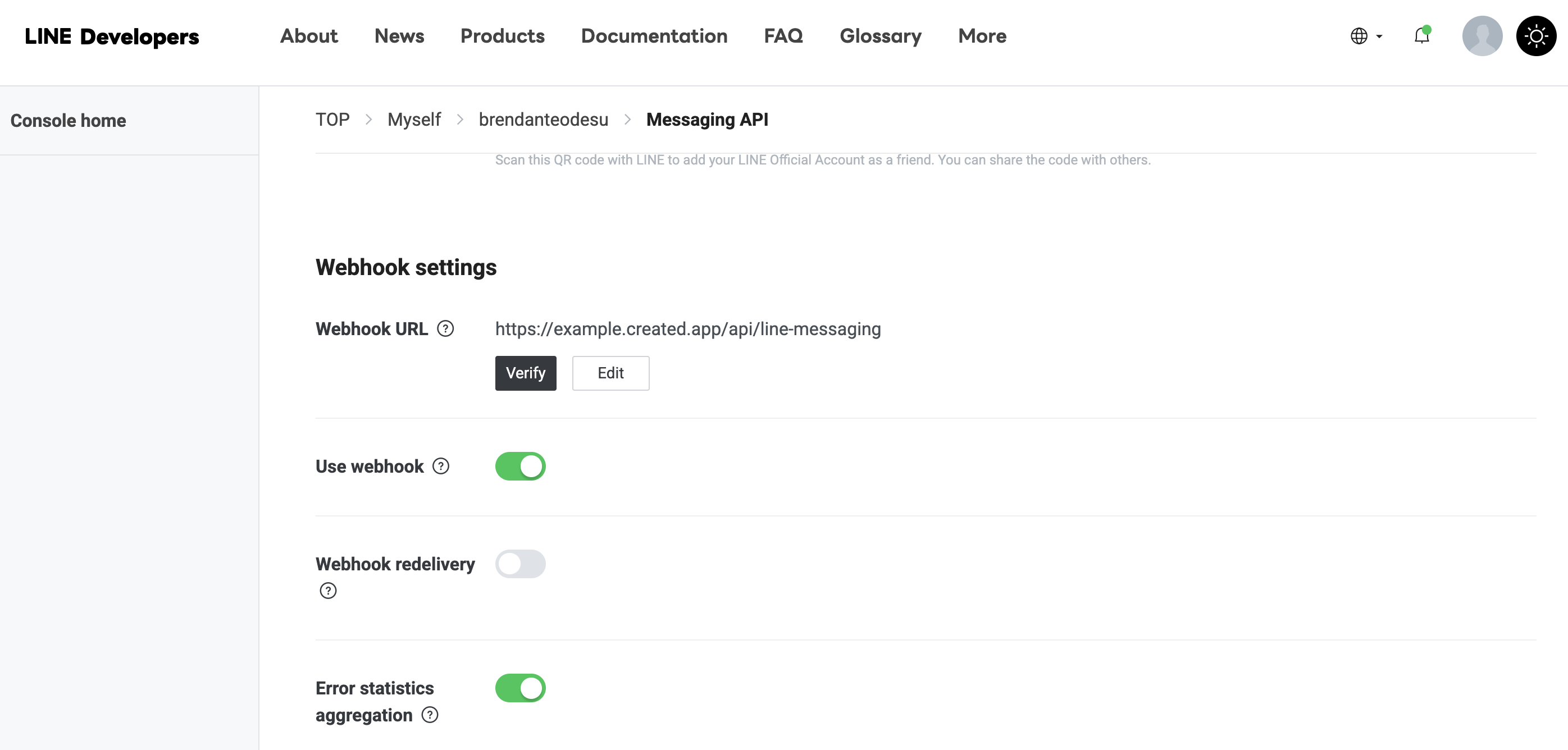
  <Step title="Verify Webhook URL">
    After publishing your project, you may verify your webhook URL by going to your LINE Developer Console > Provider > Channel > Messaging API <br />
    If you see a success message, your webhook URL is verified. Otherwise, you may need to check your webhook URL/function and try again.

    <img src="https://mintcdn.com/create/dPp8LRxEG75nRlMj/images/line/line-webhook-verify.png?fit=max&auto=format&n=dPp8LRxEG75nRlMj&q=85&s=732a0245b49f9879186ec0e668eb8149" style={{ borderRadius: '0.5rem' }} width="2792" height="1336" data-path="images/line/line-webhook-verify.png" />
  </Step>

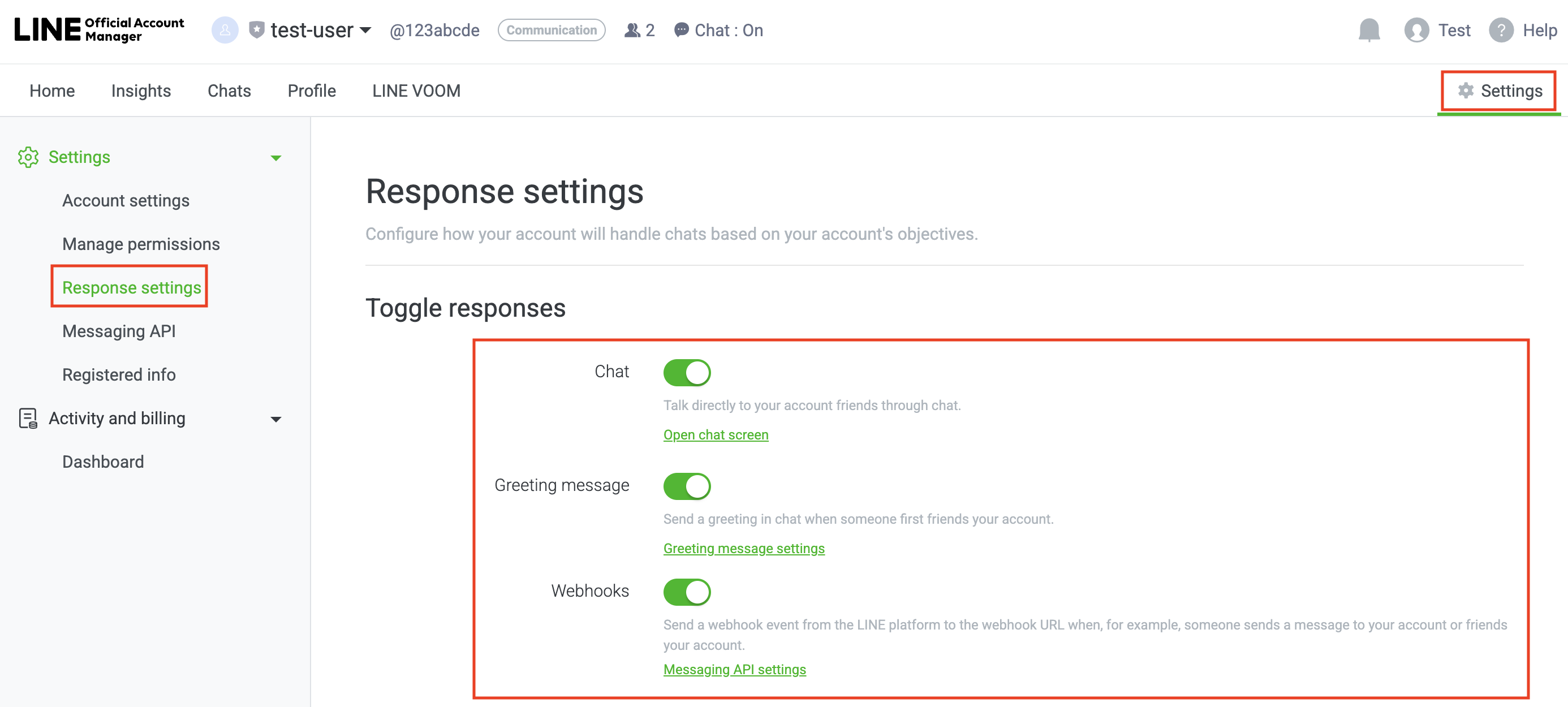
  <Step title="Enable Chatbot Settings">
    Enable Chatbot Settings by going to your LINE Official Account Manager > Settings(Top Right) > Response Settings

    <img src="https://mintcdn.com/create/dPp8LRxEG75nRlMj/images/line/line-bot-setting.png?fit=max&auto=format&n=dPp8LRxEG75nRlMj&q=85&s=1a5a5e11cc3ee69afea4546da2d4ba56" style={{ borderRadius: '0.5rem' }} width="2772" height="1250" data-path="images/line/line-bot-setting.png" />
  </Step>

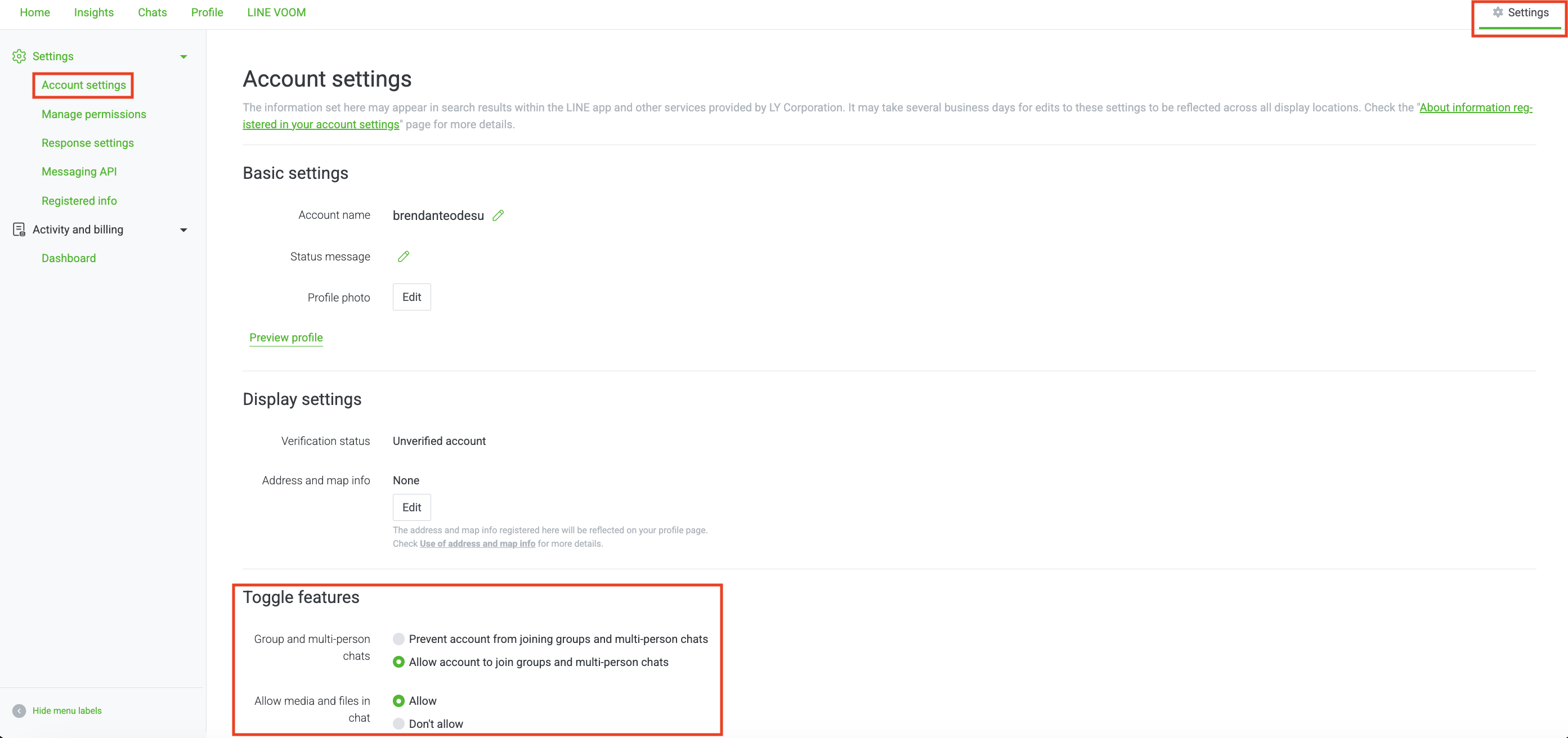
  <Step title="Enable Chatbot to Join Group Chats (Optional)">
    Allow your chatbot to join group chats by going to your LINE Official Account Manager > Settings(Top Right) > Account Settings

    <img src="https://mintcdn.com/create/dPp8LRxEG75nRlMj/images/line/line-groupchat.png?fit=max&auto=format&n=dPp8LRxEG75nRlMj&q=85&s=04a7c88be2a8d5e6c7bdcb91c646e731" style={{ borderRadius: '0.5rem' }} width="2786" height="1312" data-path="images/line/line-groupchat.png" />
  </Step>
</Steps>

## Add to Anything project

<Steps>
  <Step title="Add the Integration">
    1. In your Anything project, type `/` in chat
    2. Select "Line" from the menu
  </Step>

  <Step title="Add Your Credentials">
    1. Paste Channel Secret into "LINE\_CHANNEL\_SECRET"
    2. Paste Access Token into "LINE\_ACCESS\_TOKEN"

    <Tip>
      Need new credentials? Regenerate in LINE Developer Console.
    </Tip>
  </Step>

  <Step title="Start Building">
    Use prompts to implement LINE features:

    * `Send order confirmation via /Line`
    * `Build a chatbot that uses /Line for customer support`
    * `Create a broadcast system with /Line`

    <Warning>
      Ask the agent to show a helpful message if the connection fails.
    </Warning>
  </Step>
</Steps>

<Tip>
  LINE integration complete! Use `/Line` in chat to access messaging capabilities.
</Tip>

## Frequently Asked Questions

<AccordionGroup>
  <Accordion title="What is LINE Messaging API?">
    LINE Messaging API allows you to send messages, build chatbots, and interact with users through LINE's messaging platform. It's particularly popular in Asia and great for customer engagement.
  </Accordion>

  <Accordion title="Do I need a LINE Business Account?">
    Yes, you need a LINE Business/Developer Account to access the Messaging API. The basic account is free and sufficient for testing and development.
  </Accordion>

  <Accordion title="How does the webhook work?">
    The webhook works by sending LINE encrypted messages to your Anything project's function URL when a message is typed in the Line app. This message triggers Function(s) that can send messages back to the user.
  </Accordion>

  <Accordion title="What can I build with LINE integration?">
    You can build:

    * Customer service chatbots
    * Order notification systems
    * Broadcast messaging tools
    * Interactive marketing campaigns
    * Automated response systems
  </Accordion>

  <Accordion title="Are there usage limits?">
    Yes, LINE has API rate limits and message quotas. Free accounts have lower limits than paid business accounts. Check Line's official documentation for current limits.
  </Accordion>

  <Accordion title="Can I test my LINE integration?">
    Yes, you can test your LINE integration by verifying your webhook URL returns a success message. Followed by talking to your bot on LINE to test the integration.
    Additonally, you may test responses from your bot by asking the AI chat to print the response and using the Function test runner.
  </Accordion>
</AccordionGroup>