> ## Documentation Index
> Fetch the complete documentation index at: https://www.anything.com/docs/llms.txt
> Use this file to discover all available pages before exploring further.
# Pixabay
> Access high-quality images and videos from Pixabay
Pixabay provides access to a vast collection of free images and videos for personal and commercial use.
## Overview
Sign up for a Pixabay account.
Generate your Pixabay API key.
Add your API key to Anything's secrets.
## Account Creation
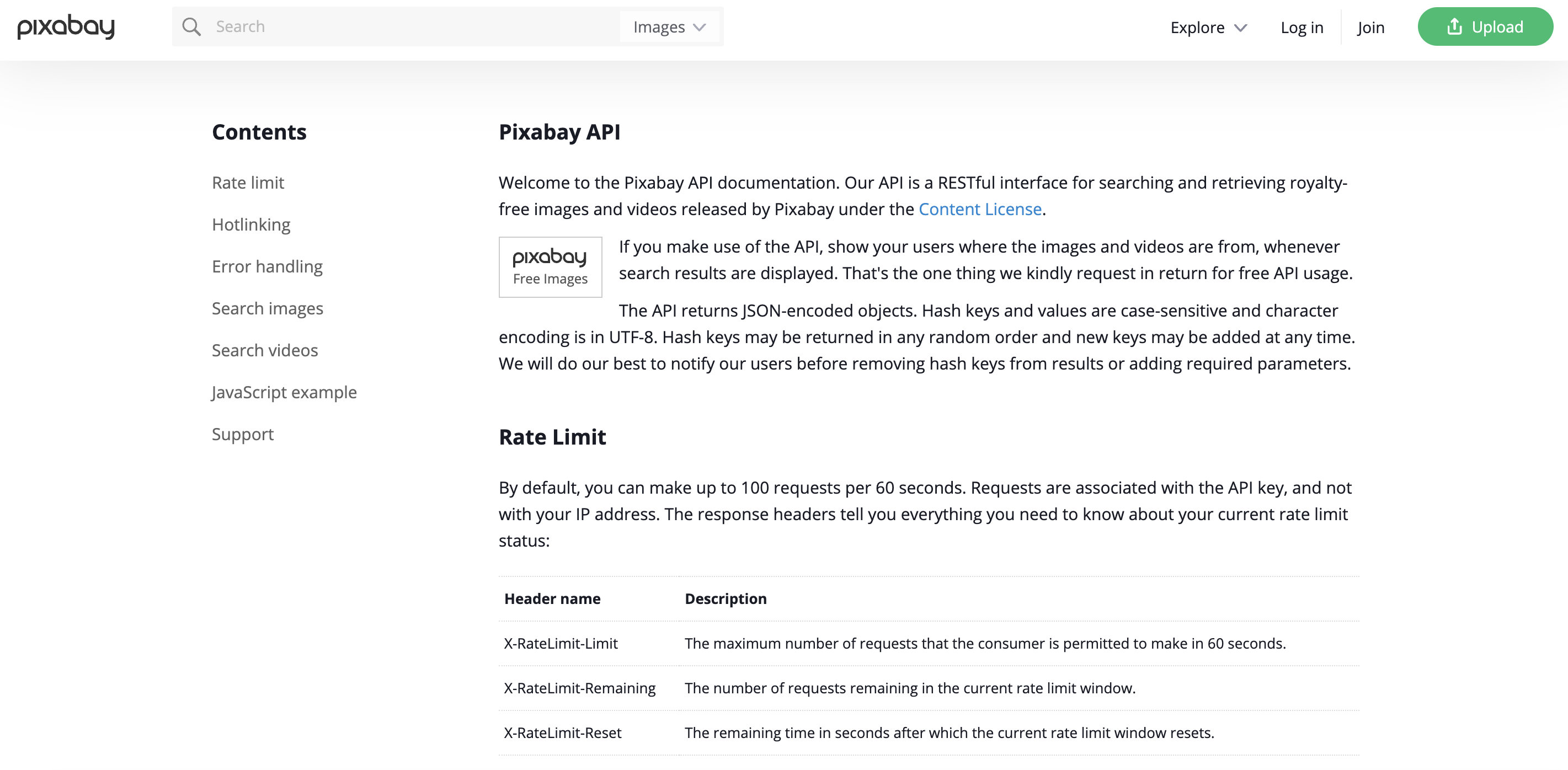
Go to [pixabay.com/api/docs](https://pixabay.com/api/docs/) and click "Join" in the top right corner.
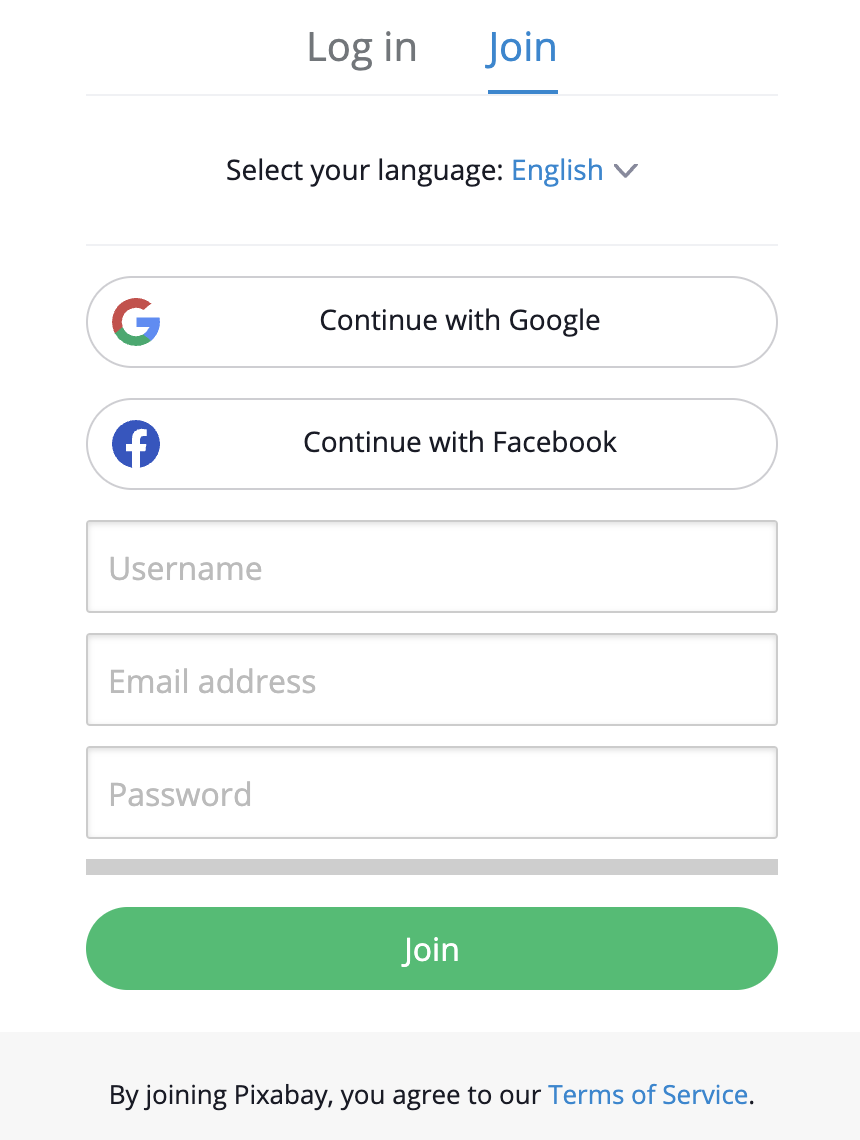
 * Sign up with email/password.
* Or continue with social media authentication.
* Sign up with email/password.
* Or continue with social media authentication.
 ## Generate API Key
1. Log in to your Pixabay account.
2. Navigate to the API section in your account settings.
## Generate API Key
1. Log in to your Pixabay account.
2. Navigate to the API section in your account settings.
 1. Click "Create API Key."
2. Name your key (e.g., "Anything Integration").
3. Click "Generate."
1. Click "Create API Key."
2. Name your key (e.g., "Anything Integration").
3. Click "Generate."
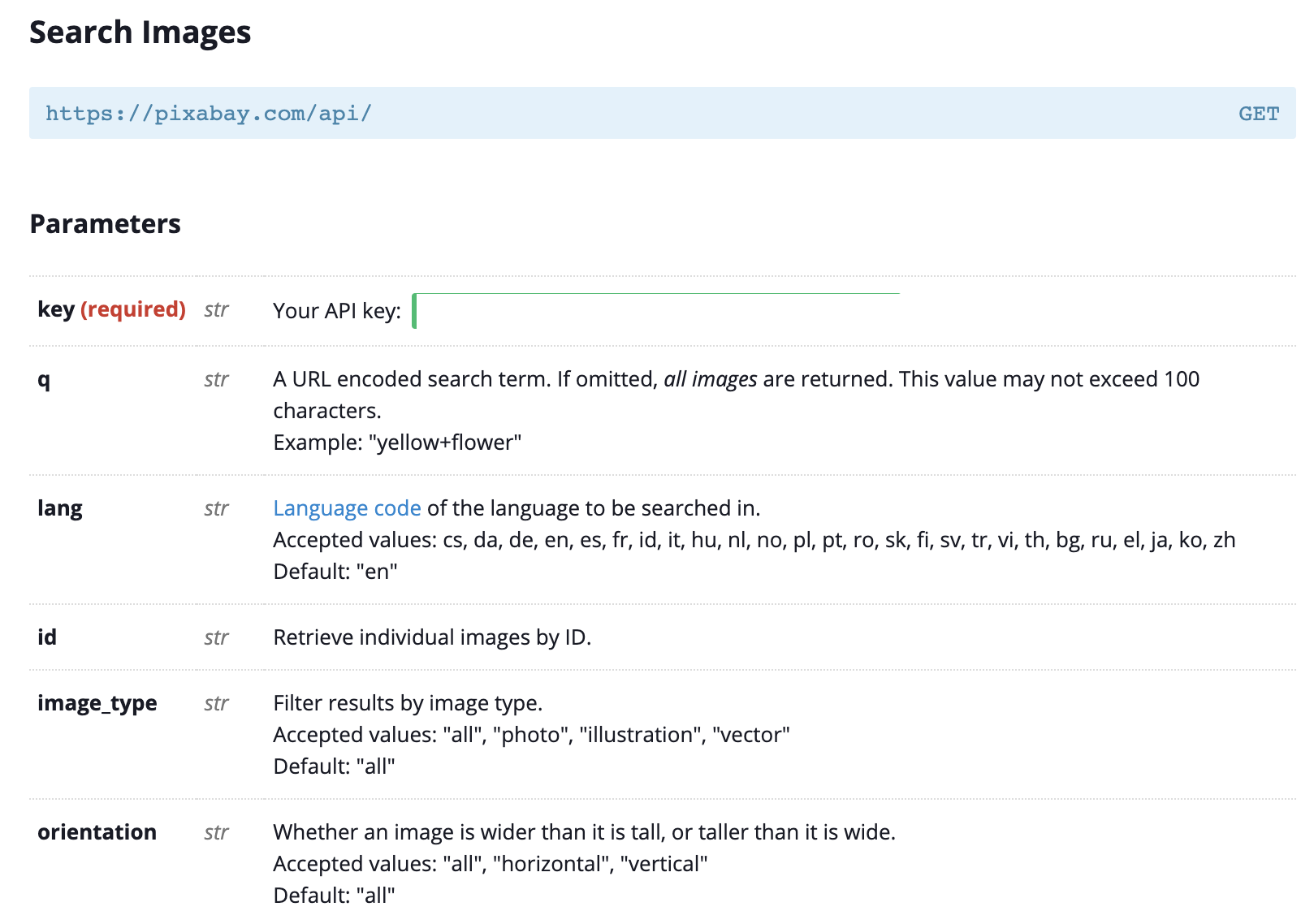 1. Copy the generated API key.
2. Store it securely - you won't be able to see it again.
Keep your API key secure - it grants access to your account data.
## Add to Anything project
1. In your Anything project, type `/` in chat.
2. Select "Pixabay" from the menu.
1. Paste your API key into "PIXABAY\_API\_KEY."
Need new credentials? Regenerate in the Pixabay dashboard.
You can now use prompts with the integration to access images and videos.
Example prompts:
* `Search for images of cats using /Pixabay`
* `Get a random image using /Pixabay`
* `Build a gallery app with /Pixabay`
The Pixabay API has rate limits. If something fails, wait a moment and try again.
Example prompt for optimization:
```
When using /Pixabay, save the image results so they load faster next time
```
Your Pixabay integration is ready! Use `/Pixabay` in chat to access images and videos.
1. Copy the generated API key.
2. Store it securely - you won't be able to see it again.
Keep your API key secure - it grants access to your account data.
## Add to Anything project
1. In your Anything project, type `/` in chat.
2. Select "Pixabay" from the menu.
1. Paste your API key into "PIXABAY\_API\_KEY."
Need new credentials? Regenerate in the Pixabay dashboard.
You can now use prompts with the integration to access images and videos.
Example prompts:
* `Search for images of cats using /Pixabay`
* `Get a random image using /Pixabay`
* `Build a gallery app with /Pixabay`
The Pixabay API has rate limits. If something fails, wait a moment and try again.
Example prompt for optimization:
```
When using /Pixabay, save the image results so they load faster next time
```
Your Pixabay integration is ready! Use `/Pixabay` in chat to access images and videos.