> ## Documentation Index
> Fetch the complete documentation index at: https://www.anything.com/docs/llms.txt
> Use this file to discover all available pages before exploring further.
# Slack
> Integrate Slack messaging capabilities into your application
Connect your app to Slack's API to send messages, manage channels, and interact with users.
## Overview
Sign up for a Slack account.
Generate your Slack API token.
Add your credentials to Anything's secrets.
## Account setup
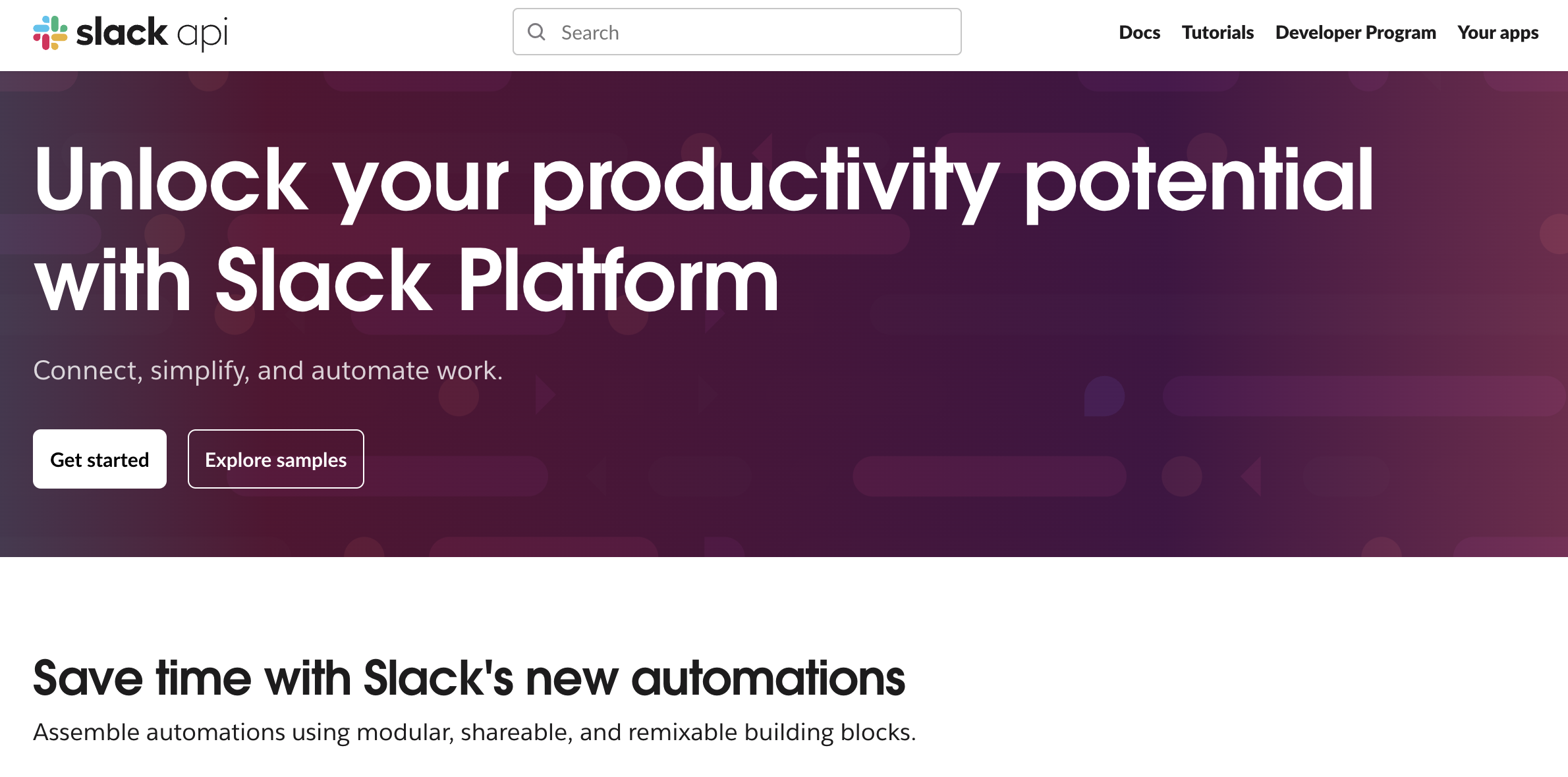
Go to [api.slack.com](https://slack.com/) and click "Get Started" to create a new workspace.
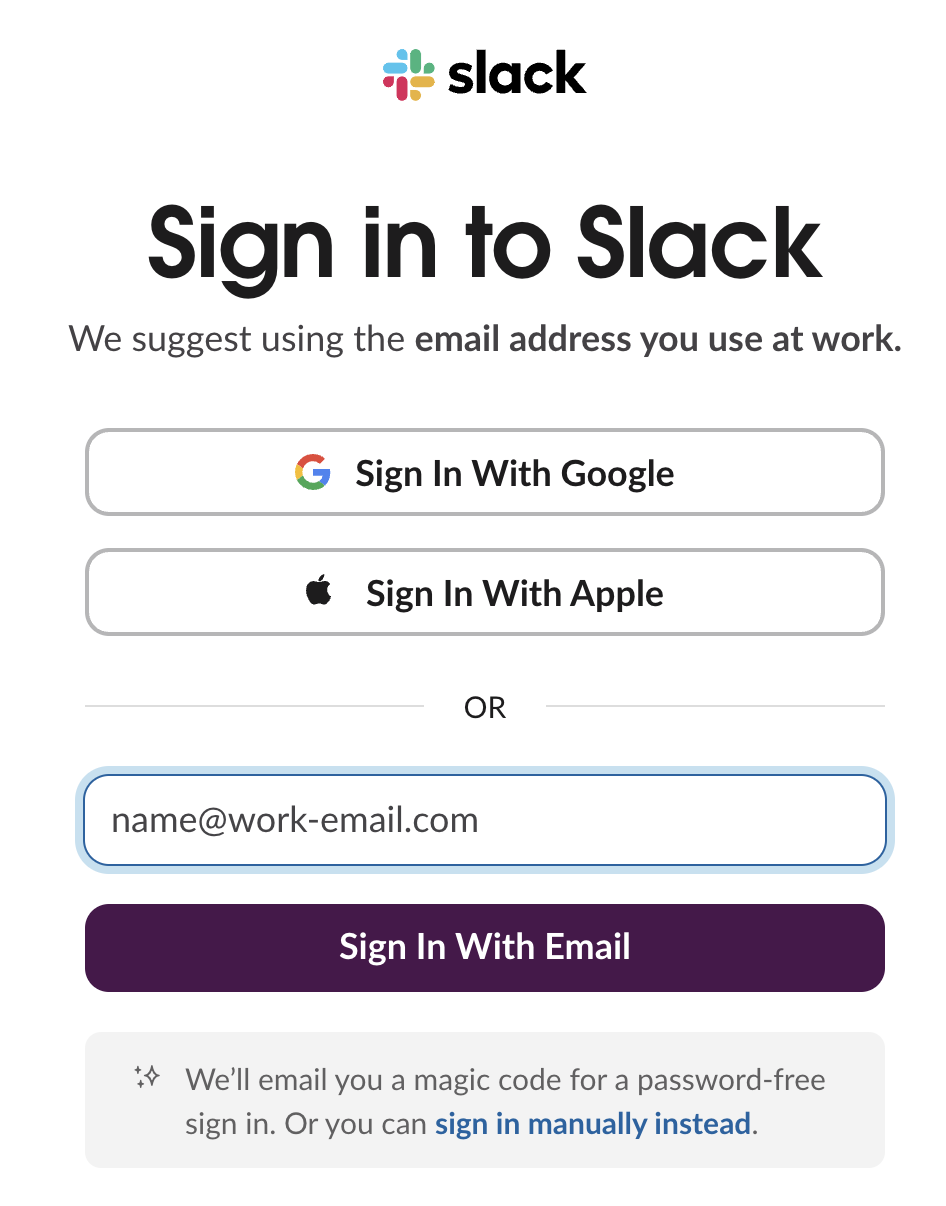
 If you already have a workspace, click "Sign In" to access your account.
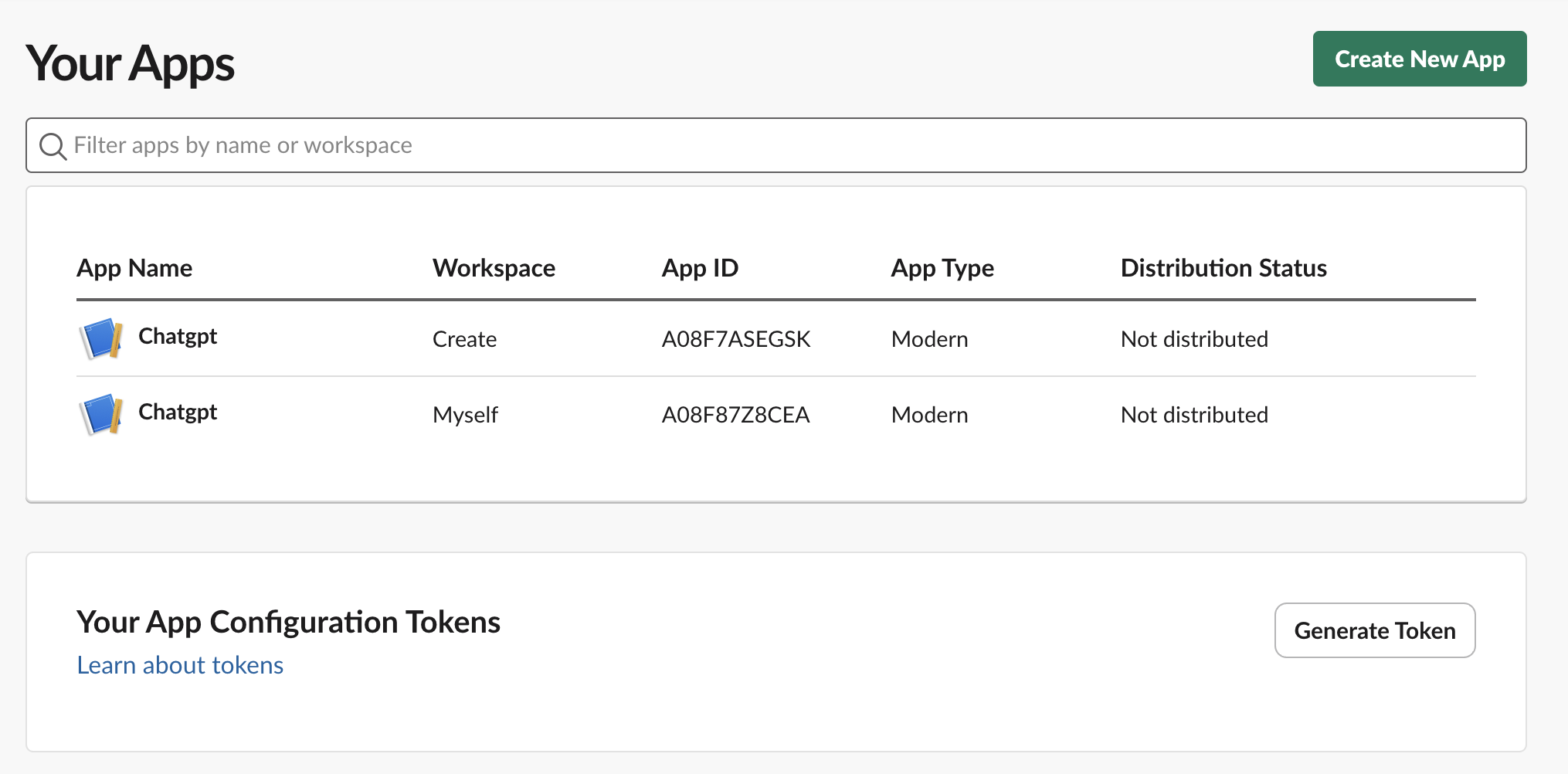
 1. After signing, click "Your Apps" on the homepage.
2. Click on "Create New App".
1. After signing, click "Your Apps" on the homepage.
2. Click on "Create New App".
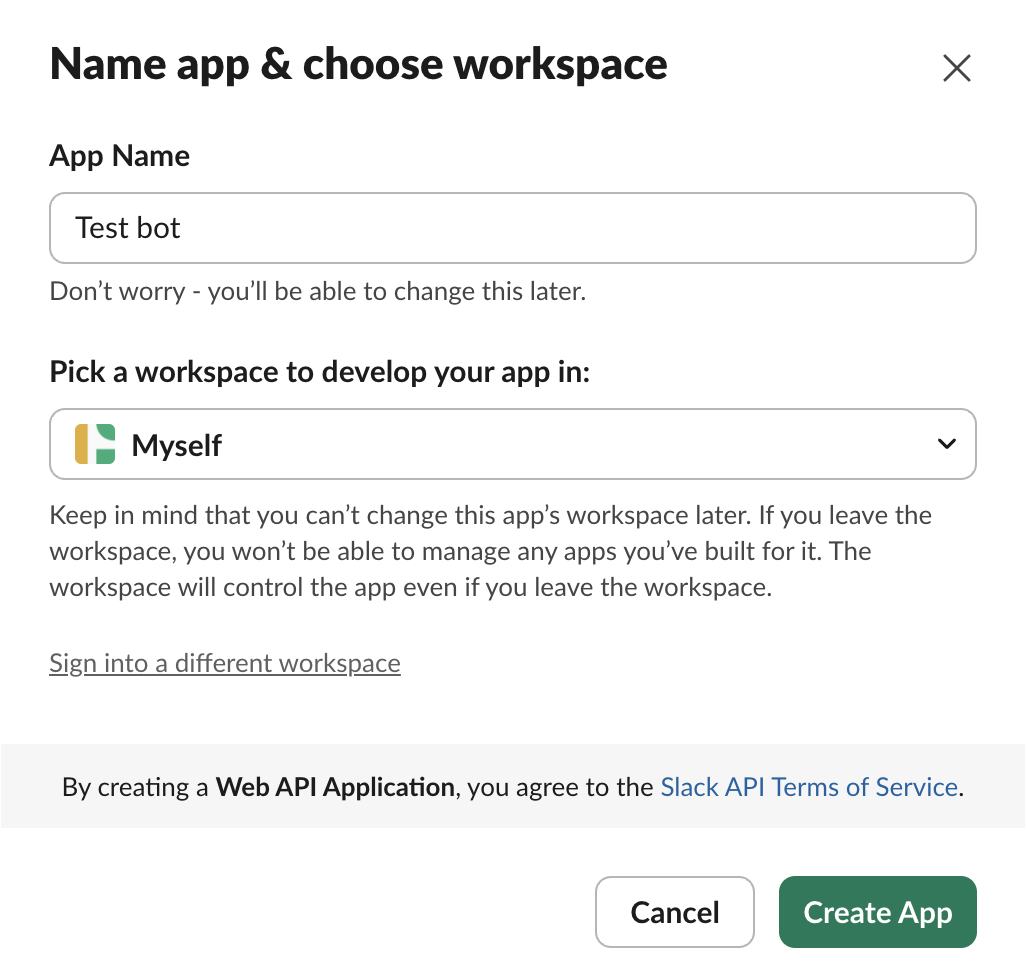
 3. Name your App and choose which workspace you will be installing the slack bot.
 ## Slack alert bot setup guide
This part will guide you in creating a bot that sends an alert to a specified channel.
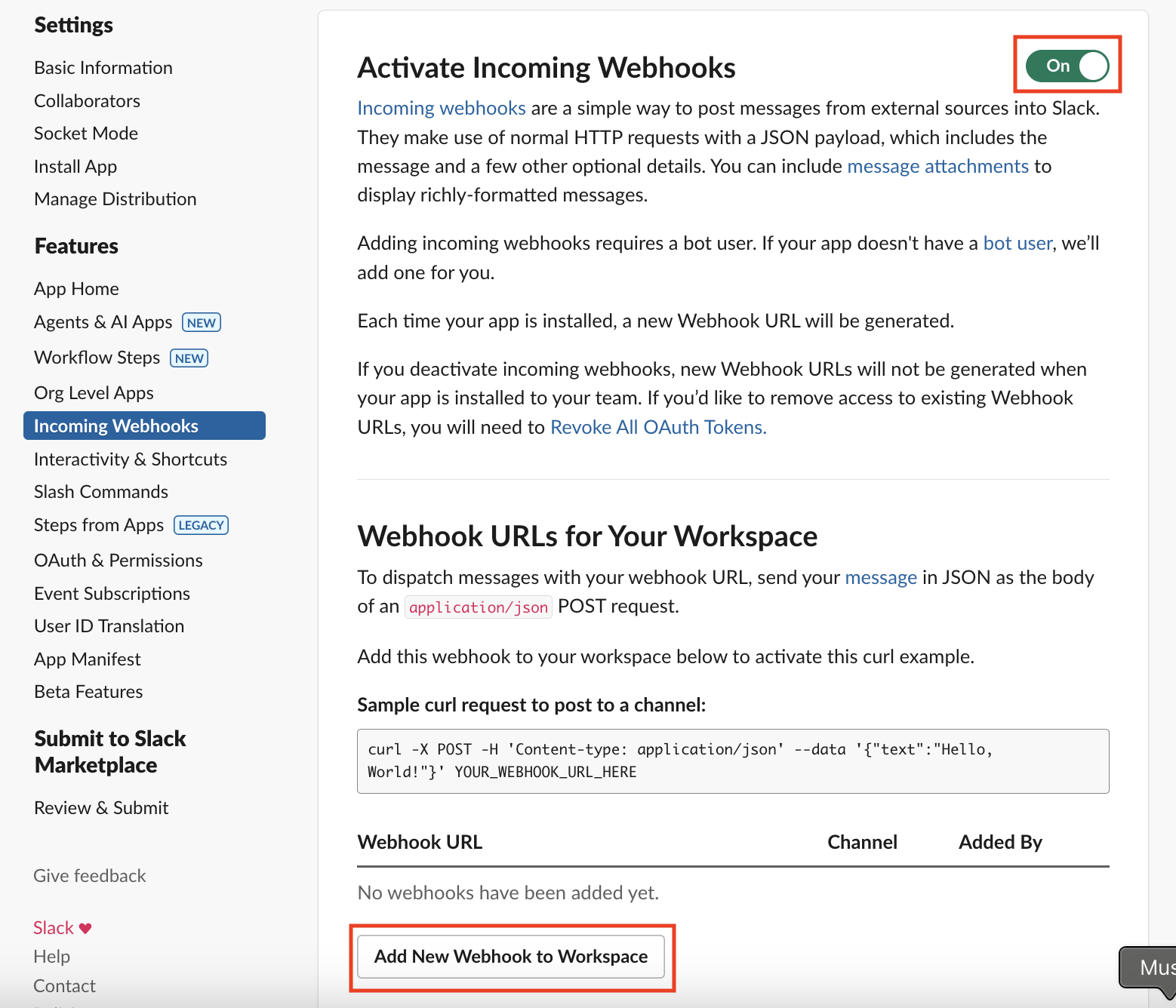
1. Navigate to "Incoming Webhook" in the left sidebar.
2. Enable "Activate Incoming Webhooks"
3. Click "Add New Webhook to Workspace"
## Slack alert bot setup guide
This part will guide you in creating a bot that sends an alert to a specified channel.
1. Navigate to "Incoming Webhook" in the left sidebar.
2. Enable "Activate Incoming Webhooks"
3. Click "Add New Webhook to Workspace"
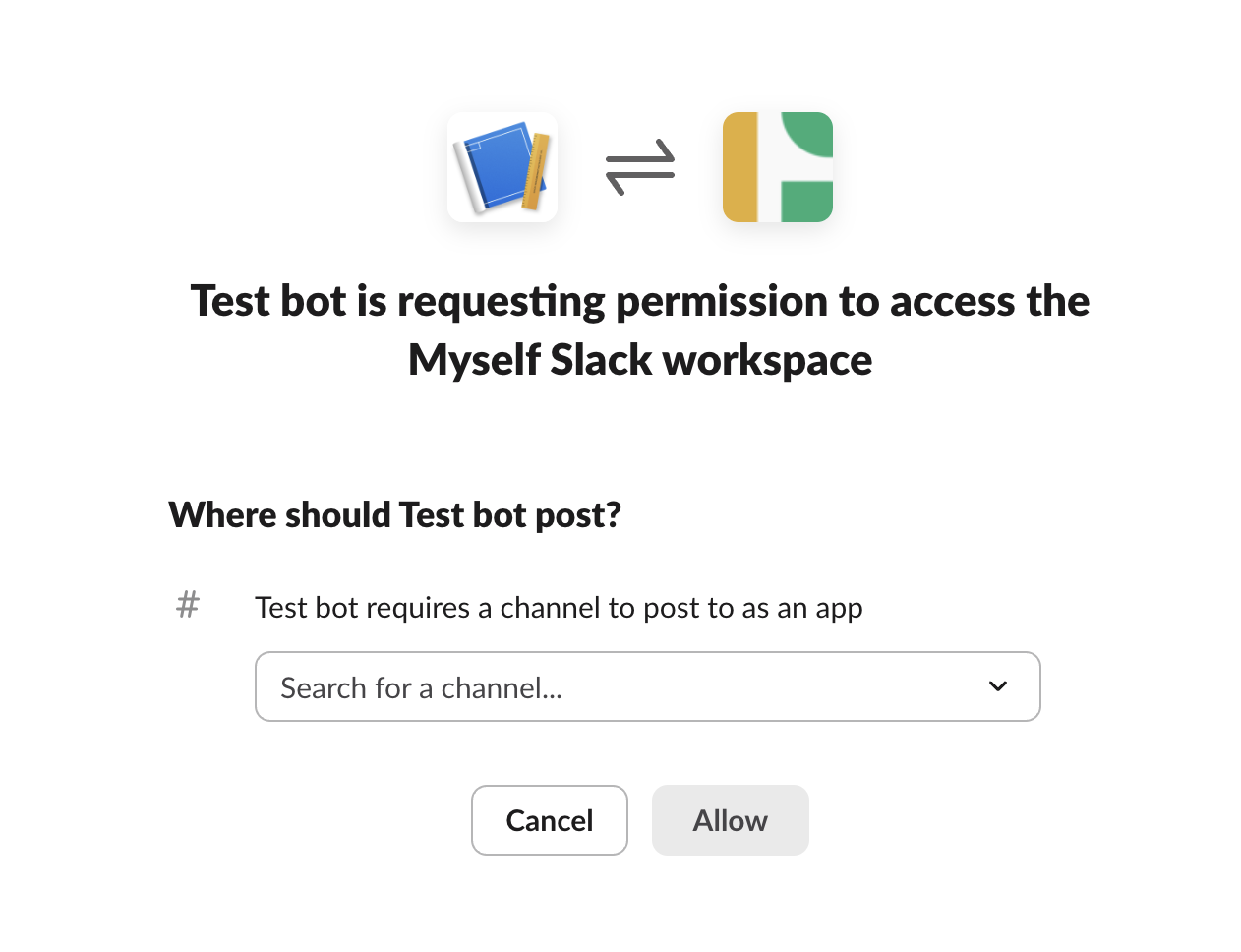
 Select the channel in your workspace that your bot will send notifications to.
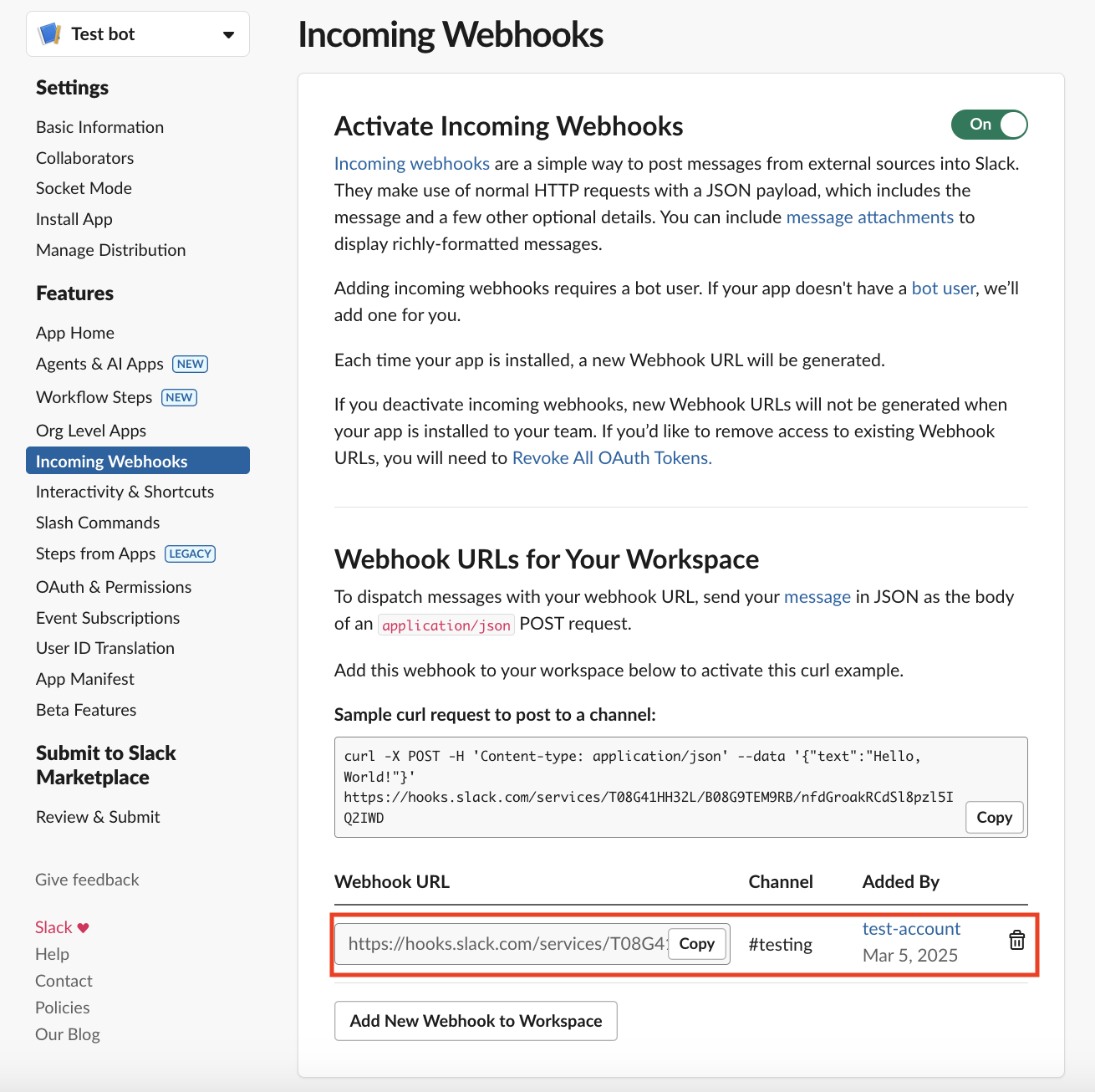
 1. Copy the generated Slack webhook URL at the bottom of the page.
2. Paste the URL into your Anything project's secrets as SLACK\_WEBHOOK.
1. Copy the generated Slack webhook URL at the bottom of the page.
2. Paste the URL into your Anything project's secrets as SLACK\_WEBHOOK.
 ## Slack slash command bot setup guide
This part will guide you in creating a bot that uses slash commands.
1. Once your app is created, navigate to "Basic Information" in the left sidebar.
2. Under "Signing Secret", copy the necessary key for your bot app.
## Slack slash command bot setup guide
This part will guide you in creating a bot that uses slash commands.
1. Once your app is created, navigate to "Basic Information" in the left sidebar.
2. Under "Signing Secret", copy the necessary key for your bot app.
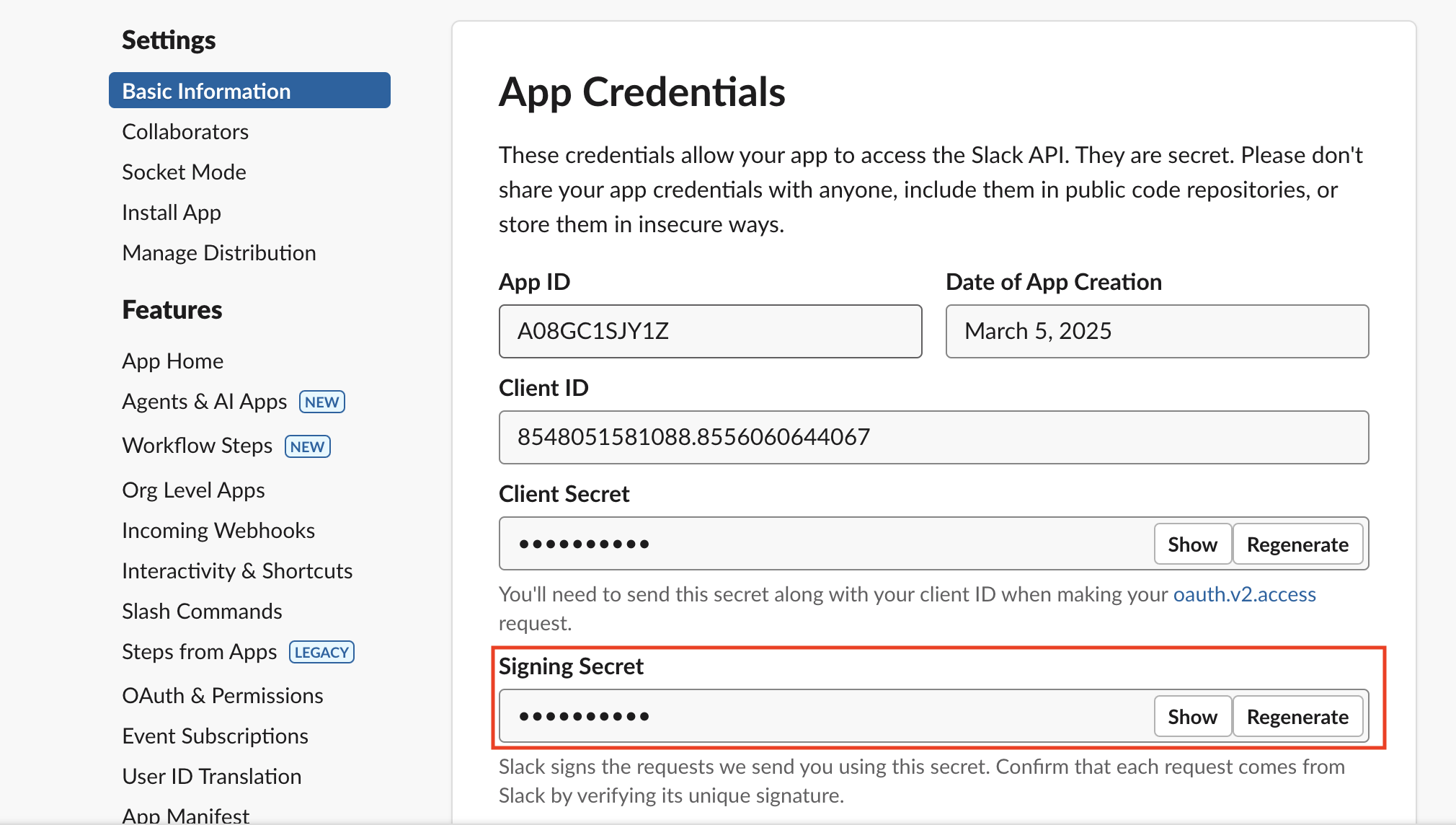 The signing secret is used in the function to verify messages are coming from Slack.
## Verify settings
1. Navigate to "Event Subscriptions" in the left sidebar, and enable Events.
2. Enter your Anything project's URL into the Request URL. It should follow the example in the picture below.
The signing secret is used in the function to verify messages are coming from Slack.
## Verify settings
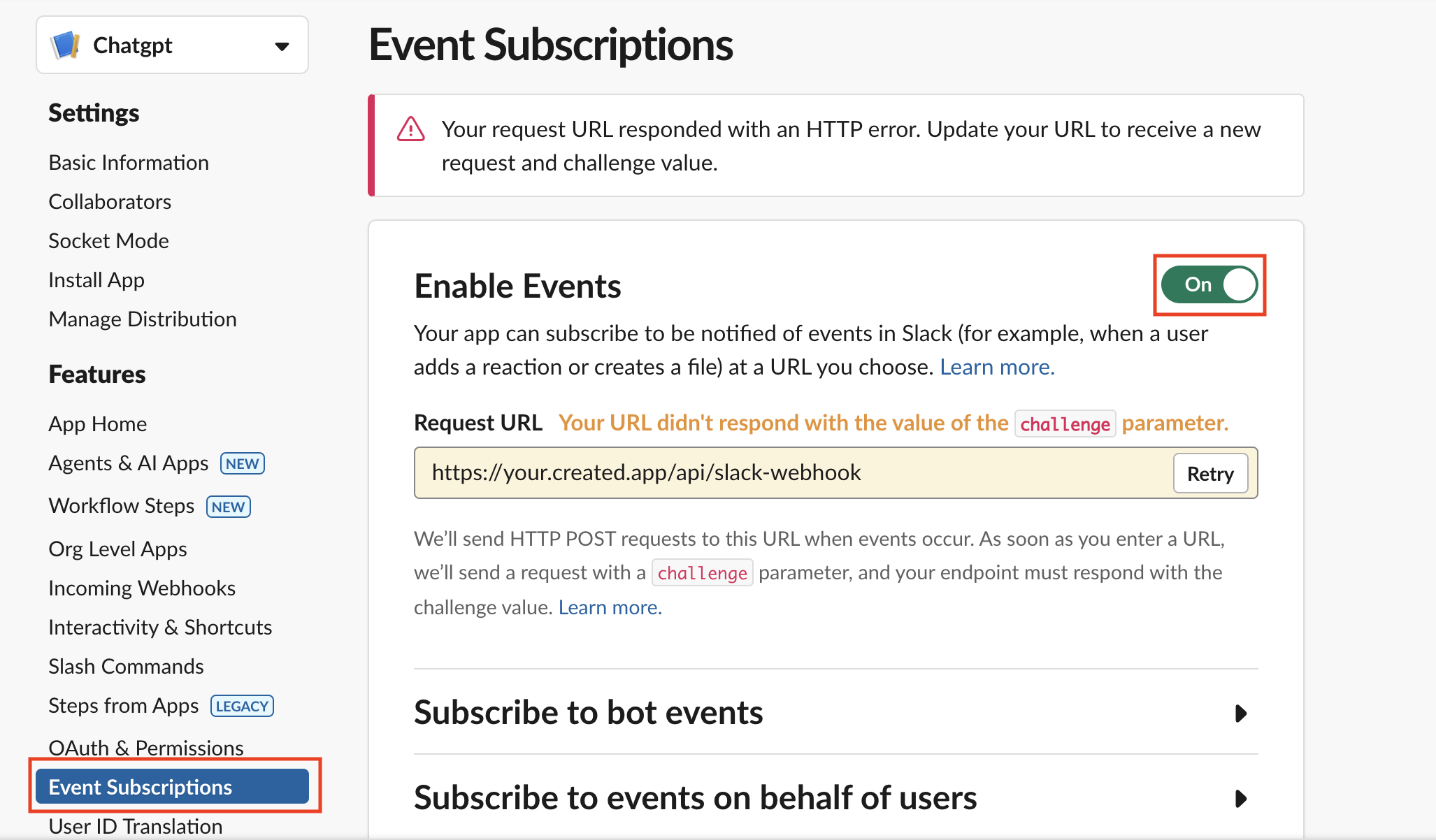
1. Navigate to "Event Subscriptions" in the left sidebar, and enable Events.
2. Enter your Anything project's URL into the Request URL. It should follow the example in the picture below.
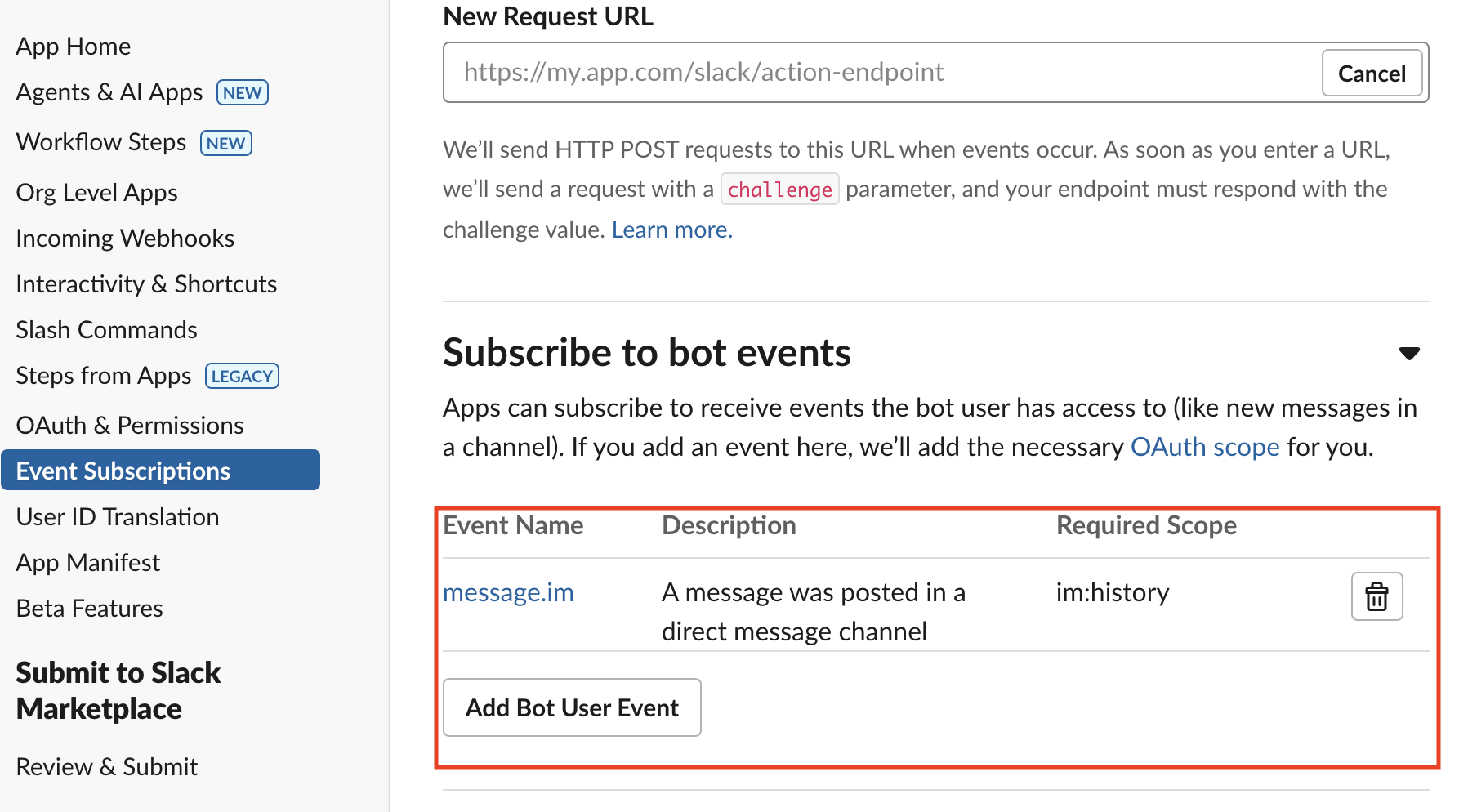
 3. Scroll further to find "Subscribe to Bot Events" and add the "message.im" Bot User Event
 1. Navigate to "App Home" in the left sidebar.
2. Enable "Show my Bot as Online" and "Allow Users to Send Slash Commands"
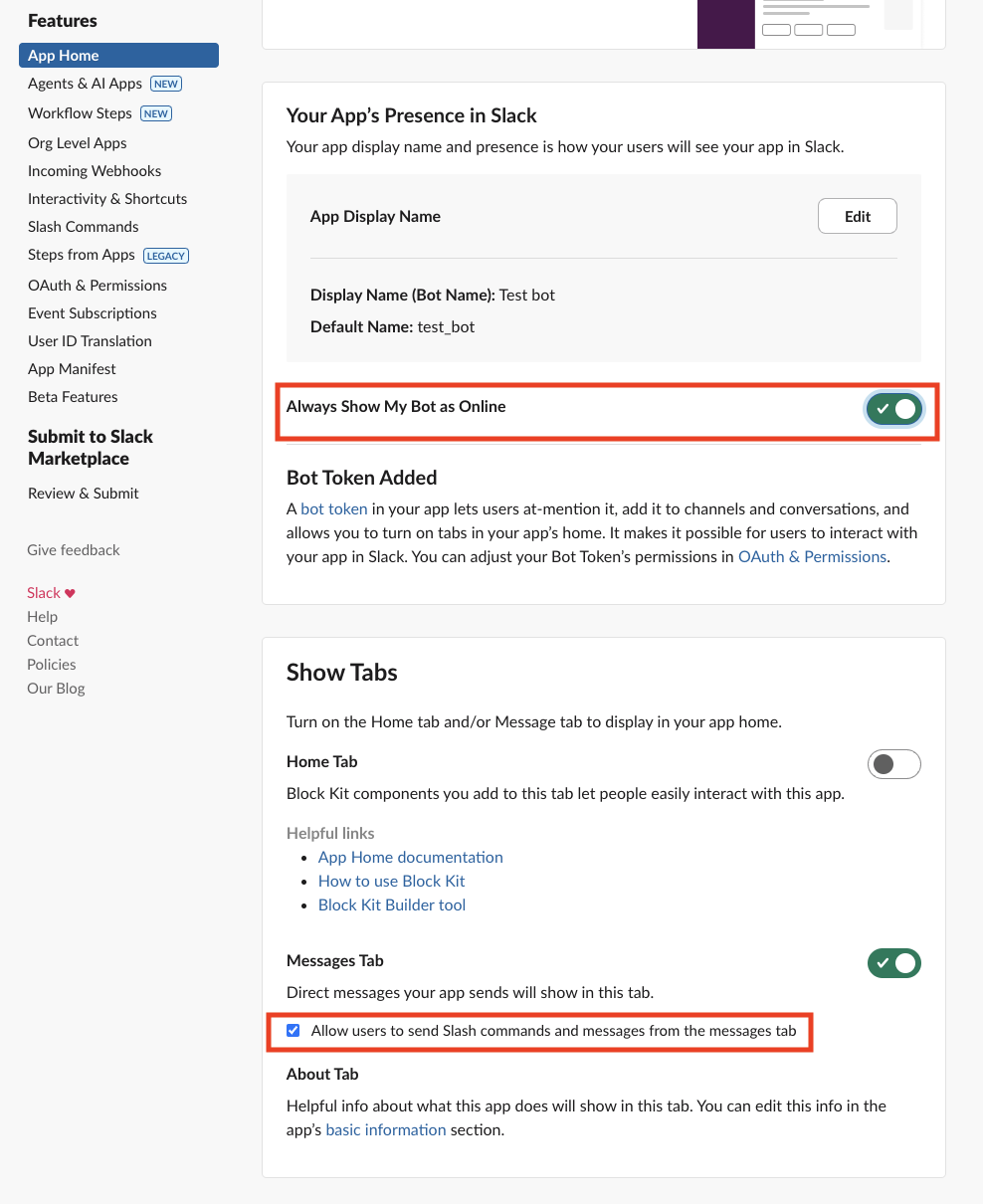
1. Navigate to "App Home" in the left sidebar.
2. Enable "Show my Bot as Online" and "Allow Users to Send Slash Commands"
 1. Navigate to "Slash Commands" in the left sidebar.
2. Click "Create New Command", and name it chatgpt as an example.
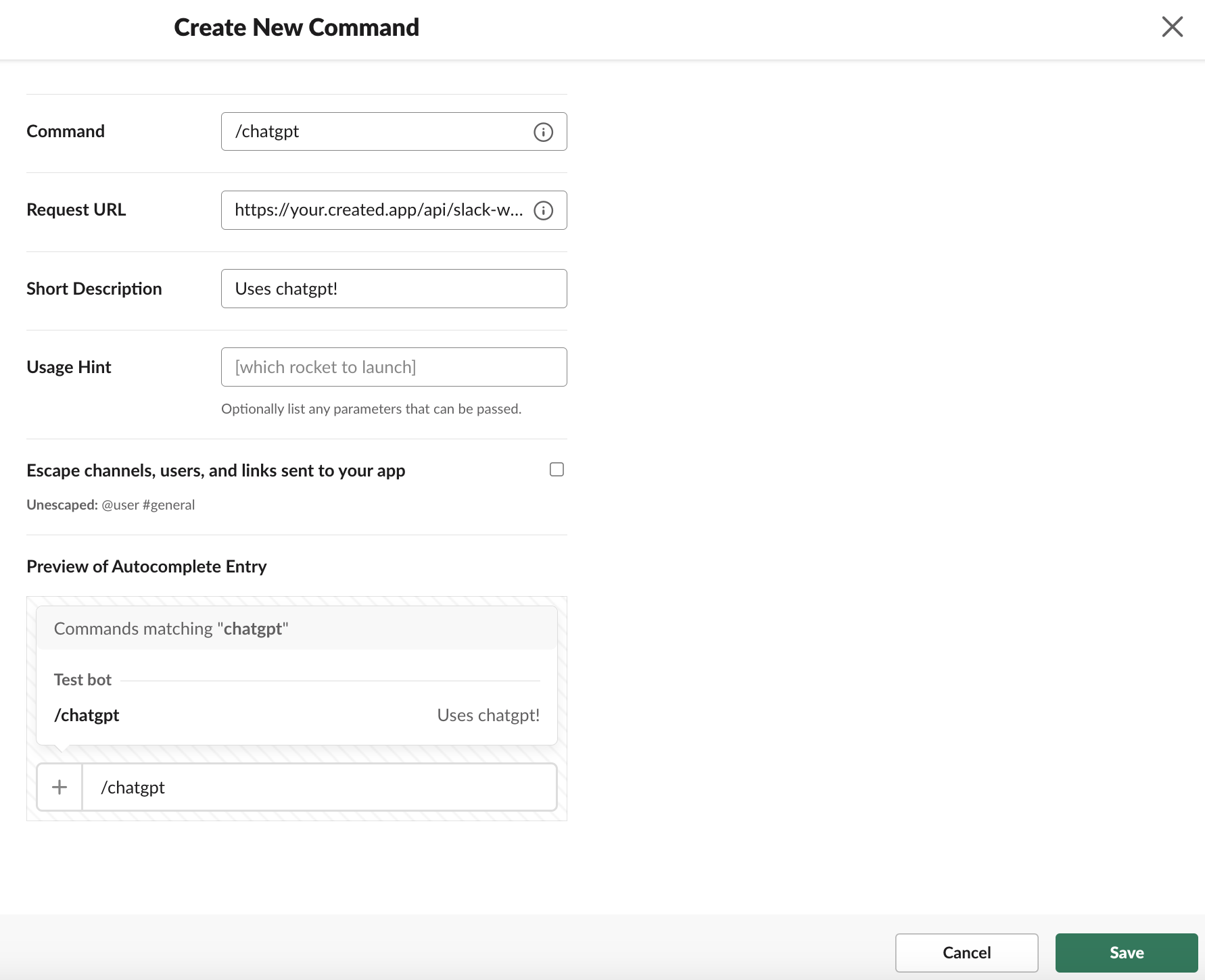
1. Navigate to "Slash Commands" in the left sidebar.
2. Click "Create New Command", and name it chatgpt as an example.
 If you plan on changing the name:
1. Open your Anything project, find the conditional that mentions /chatgpt and change it to whatever slash command you plan to name.
If you plan on changing the functionality as well, be sure to use the agent to modify it for that slash command
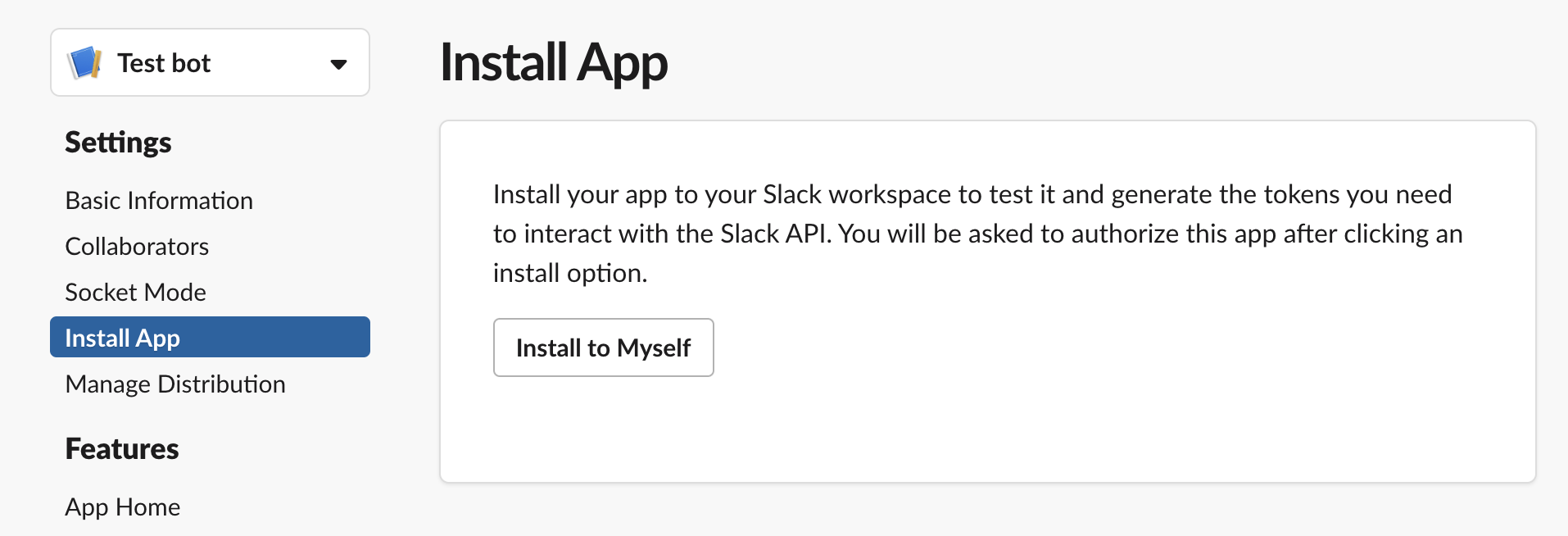
1. After setting everything up, navigate to the "Install App" in the left sidebar.
2. Click on "Install to Your Workspace"
If you plan on changing the name:
1. Open your Anything project, find the conditional that mentions /chatgpt and change it to whatever slash command you plan to name.
If you plan on changing the functionality as well, be sure to use the agent to modify it for that slash command
1. After setting everything up, navigate to the "Install App" in the left sidebar.
2. Click on "Install to Your Workspace"
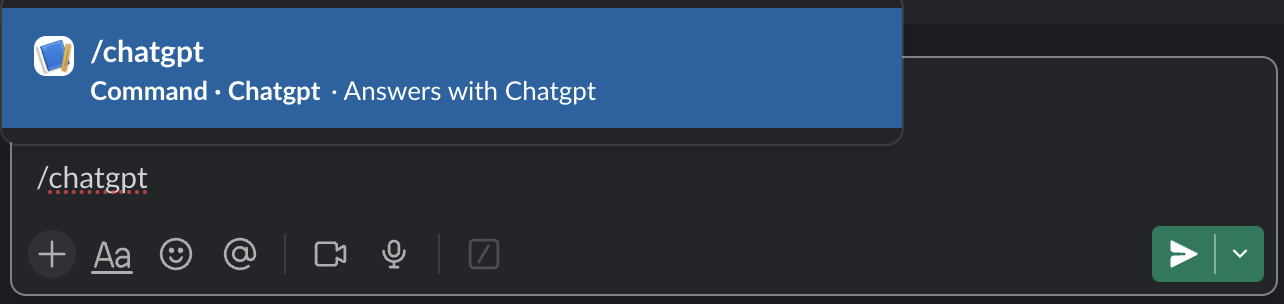
 Try out your App by going into any available channels or DM and type in "/chatgpt"
 ## Add to Anything project
1. In your Anything project, type `/` in chat.
2. Select "Slack" from the menu.
1. Paste your Signing Secret into "SLACK\_SIGNING\_SECRET."
Need new credentials? Regenerate in the Slack API settings.
Use prompts to implement Slack features:
* `Send a message to a channel using /Slack`
* `Post a reminder with /Slack`
* `Manage channels with /Slack`
The Slack API has rate limits. If something fails, wait a moment and try again.
Slack integration complete! Use `/Slack` in chat to access messaging capabilities.
## Frequently asked questions
Slack API allows you to interact with Slack's messaging platform, enabling features like sending messages, managing channels, and more.
Yes, you need a Slack Developer Account to create an app and access the API.
The API works by sending requests to Slack's servers, which process the requests and return the results based on your commands.
You can build:
* Messaging bots
* Notification systems
* Channel management tools
Yes, Slack has API rate limits. Free accounts have lower limits than paid accounts. Check Slack's official documentation for current limits.
Yes, you can test your integration by sending requests to the API and monitoring the responses to ensure it functions as expected.
## Add to Anything project
1. In your Anything project, type `/` in chat.
2. Select "Slack" from the menu.
1. Paste your Signing Secret into "SLACK\_SIGNING\_SECRET."
Need new credentials? Regenerate in the Slack API settings.
Use prompts to implement Slack features:
* `Send a message to a channel using /Slack`
* `Post a reminder with /Slack`
* `Manage channels with /Slack`
The Slack API has rate limits. If something fails, wait a moment and try again.
Slack integration complete! Use `/Slack` in chat to access messaging capabilities.
## Frequently asked questions
Slack API allows you to interact with Slack's messaging platform, enabling features like sending messages, managing channels, and more.
Yes, you need a Slack Developer Account to create an app and access the API.
The API works by sending requests to Slack's servers, which process the requests and return the results based on your commands.
You can build:
* Messaging bots
* Notification systems
* Channel management tools
Yes, Slack has API rate limits. Free accounts have lower limits than paid accounts. Check Slack's official documentation for current limits.
Yes, you can test your integration by sending requests to the API and monitoring the responses to ensure it functions as expected.