> ## Documentation Index
> Fetch the complete documentation index at: https://www.anything.com/docs/llms.txt
> Use this file to discover all available pages before exploring further.
# Tavus
> Create personalized AI video content
Tavus API enables creation of personalized AI-generated video content at scale.
## Overview
Sign up for a Tavus account
Generate your Tavus API key
Add your API key to Anything's secrets
## Account Creation
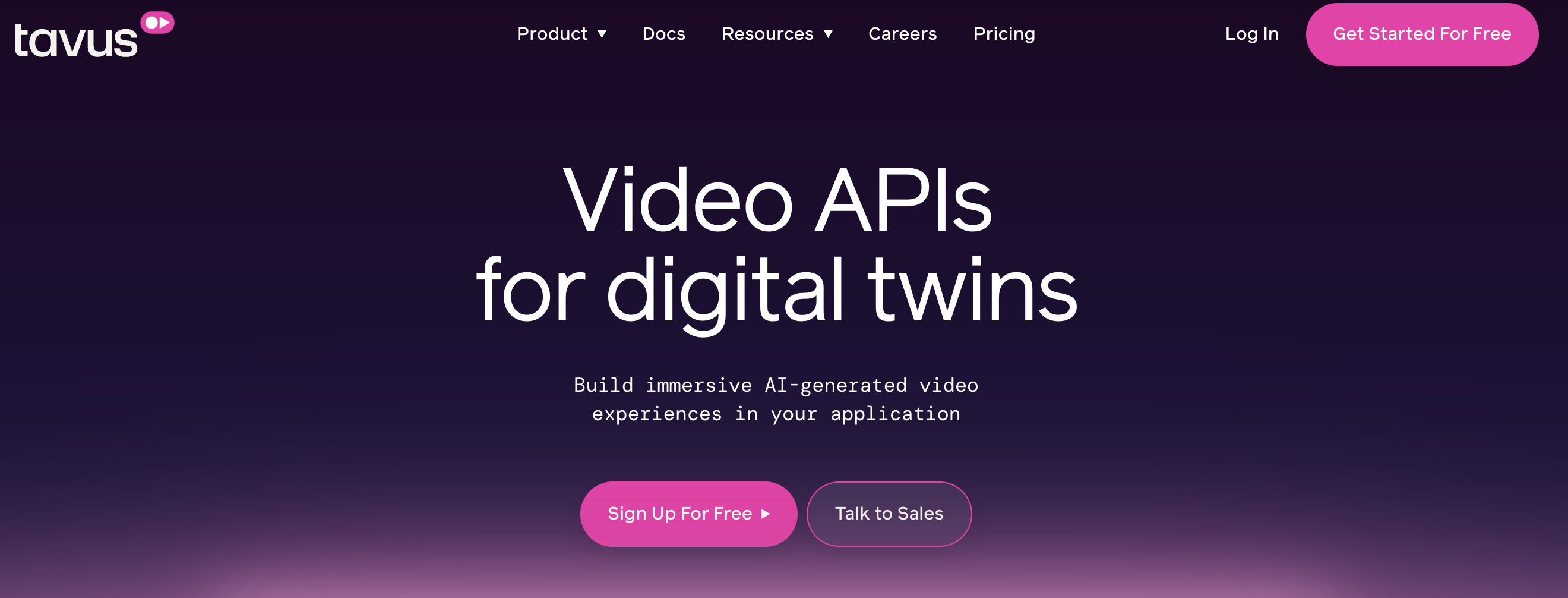
Go to [tavus.io](https://tavus.io/) and click "Sign Up"
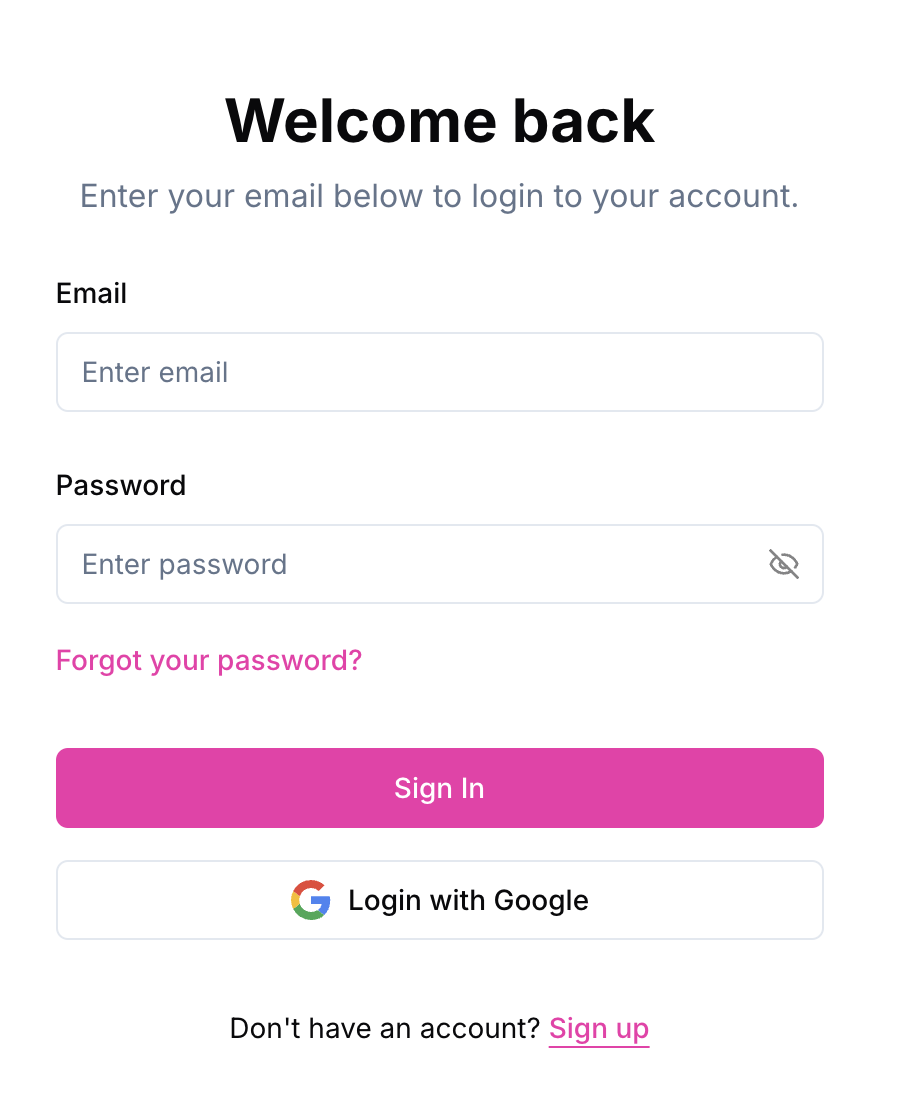
 * Sign up with email/password
* Or continue with Google authentication
* Sign up with email/password
* Or continue with Google authentication
 ## Generate API Key
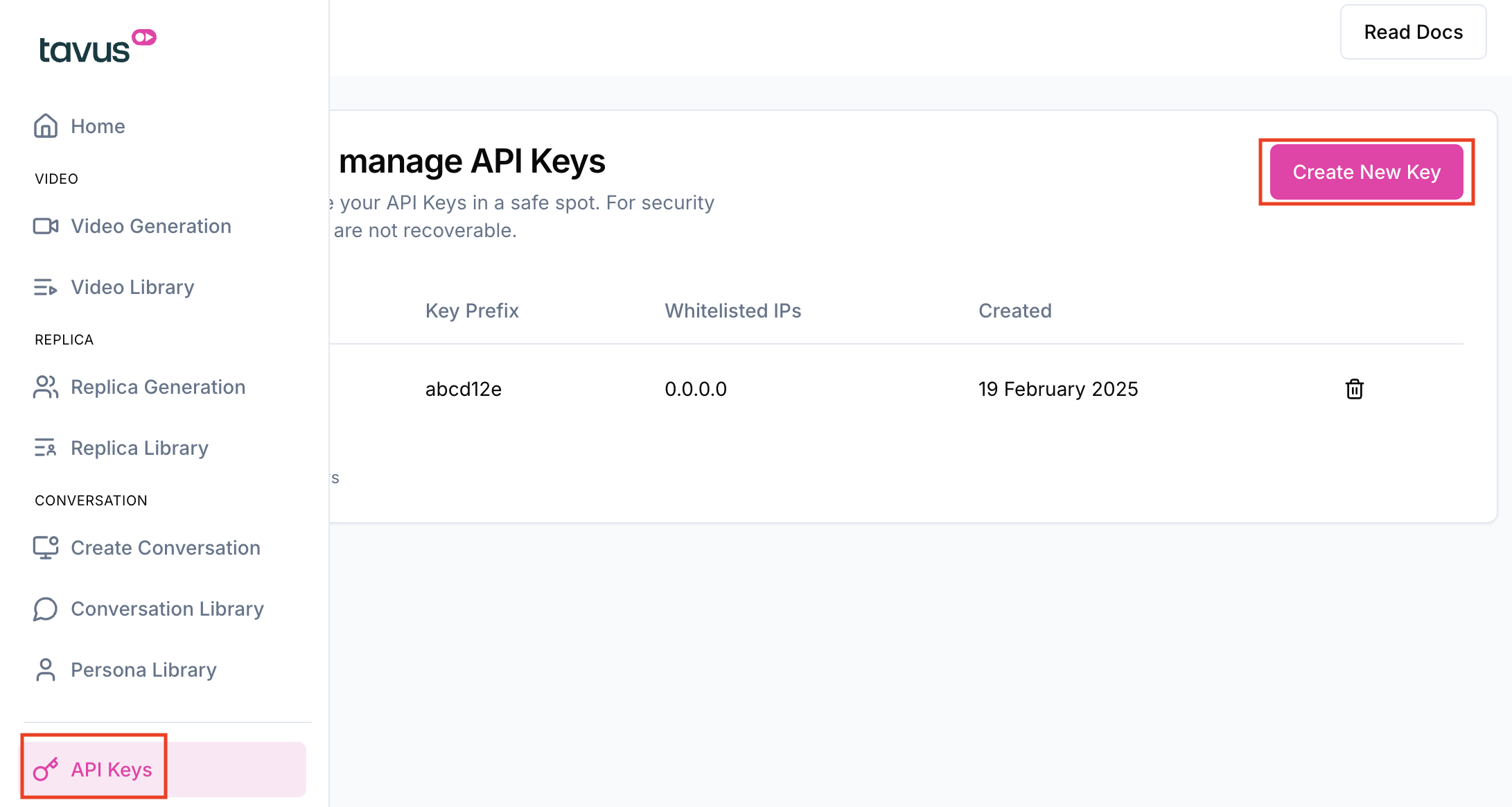
1. Go to your Tavus dashboard
2. Navigate to "API Settings"
Free tier has rate limits - monitor your usage
1. Click "Create a New Key"
2. Name your key (e.g., "Anything Integration")
3. Copy your API key
## Generate API Key
1. Go to your Tavus dashboard
2. Navigate to "API Settings"
Free tier has rate limits - monitor your usage
1. Click "Create a New Key"
2. Name your key (e.g., "Anything Integration")
3. Copy your API key
 1. Go to "Replica Library" in your left side dashboard
2. Select the stock replica or personal replica you want to use as a template
3. Click "Copy Replica ID" or find it in the video's URL
1. Go to "Replica Library" in your left side dashboard
2. Select the stock replica or personal replica you want to use as a template
3. Click "Copy Replica ID" or find it in the video's URL
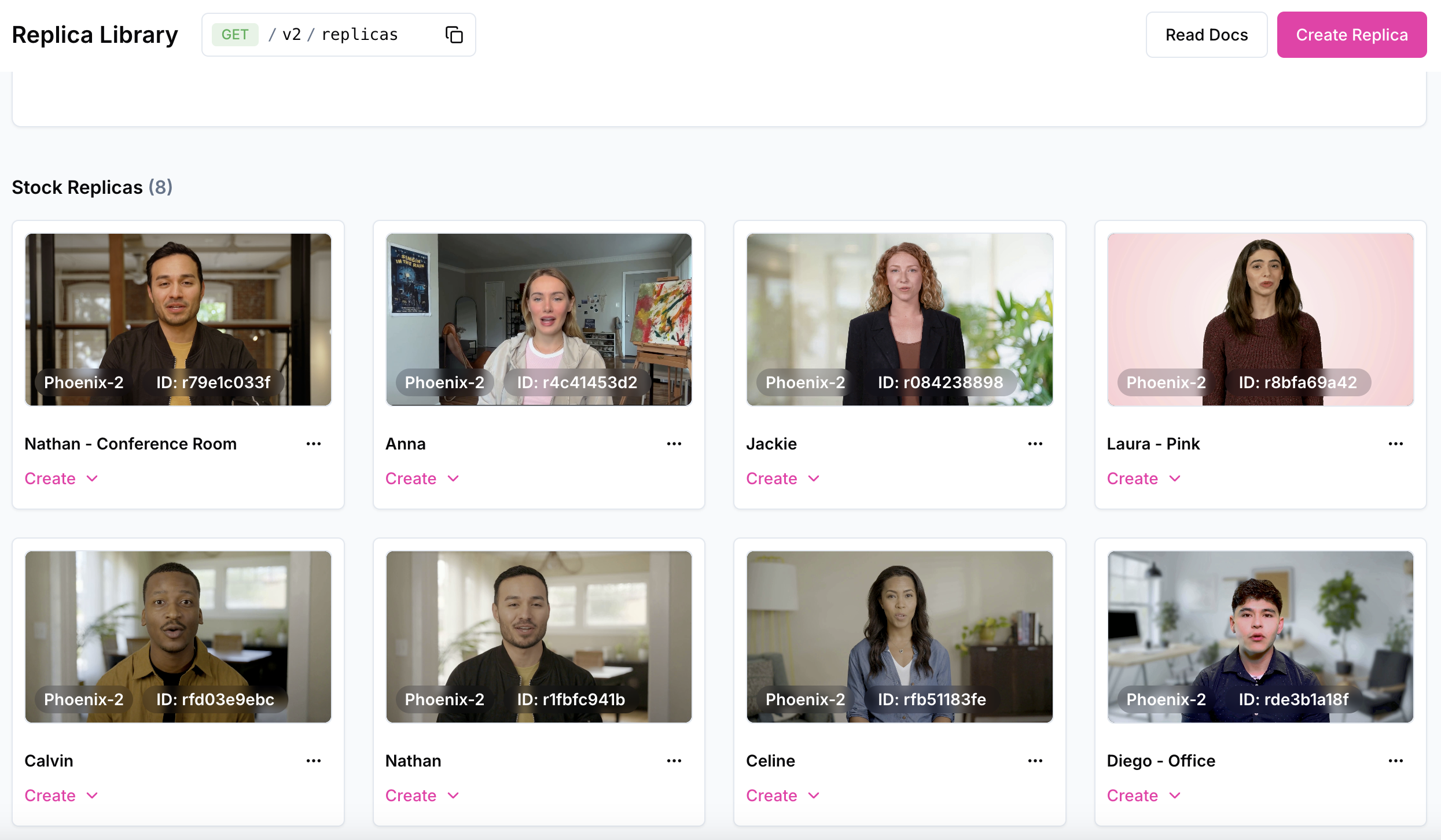 The Replica ID is needed to generate variations of your video template
## Add to Anything project
1. In your Anything project, type `/` in the chat
2. Select "Tavus" from the menu
1. Paste your API key into the "TAVUS\_API\_KEY" field
Need a new key? Generate one in your Tavus dashboard.
You can now use prompts with the integration to create AI videos.
Example prompts:
* `Generate a personalized video using /Tavus`
* `Create video variations with /Tavus`
* `Build a video message system using /Tavus`
The API limits how often your app can fetch data. If your app loads the same data often, ask the agent to save it locally so it doesn't re-fetch every time.
Example prompt for optimization:
```
When using /Tavus, save the generated videos so my app doesn't have to fetch it again
```
Your Tavus integration is ready! Use `/Tavus` in chat to create AI videos.
The Replica ID is needed to generate variations of your video template
## Add to Anything project
1. In your Anything project, type `/` in the chat
2. Select "Tavus" from the menu
1. Paste your API key into the "TAVUS\_API\_KEY" field
Need a new key? Generate one in your Tavus dashboard.
You can now use prompts with the integration to create AI videos.
Example prompts:
* `Generate a personalized video using /Tavus`
* `Create video variations with /Tavus`
* `Build a video message system using /Tavus`
The API limits how often your app can fetch data. If your app loads the same data often, ask the agent to save it locally so it doesn't re-fetch every time.
Example prompt for optimization:
```
When using /Tavus, save the generated videos so my app doesn't have to fetch it again
```
Your Tavus integration is ready! Use `/Tavus` in chat to create AI videos.