> ## Documentation Index
> Fetch the complete documentation index at: https://www.anything.com/docs/llms.txt
> Use this file to discover all available pages before exploring further.
# Weather
> Access real-time weather data and forecasts
Get detailed weather information and forecasts for any location worldwide using OpenWeatherMap's API.
## Overview
Sign up for an OpenWeatherMap account
Generate your API key
Add your API key to Anything's secrets
## Account Creation
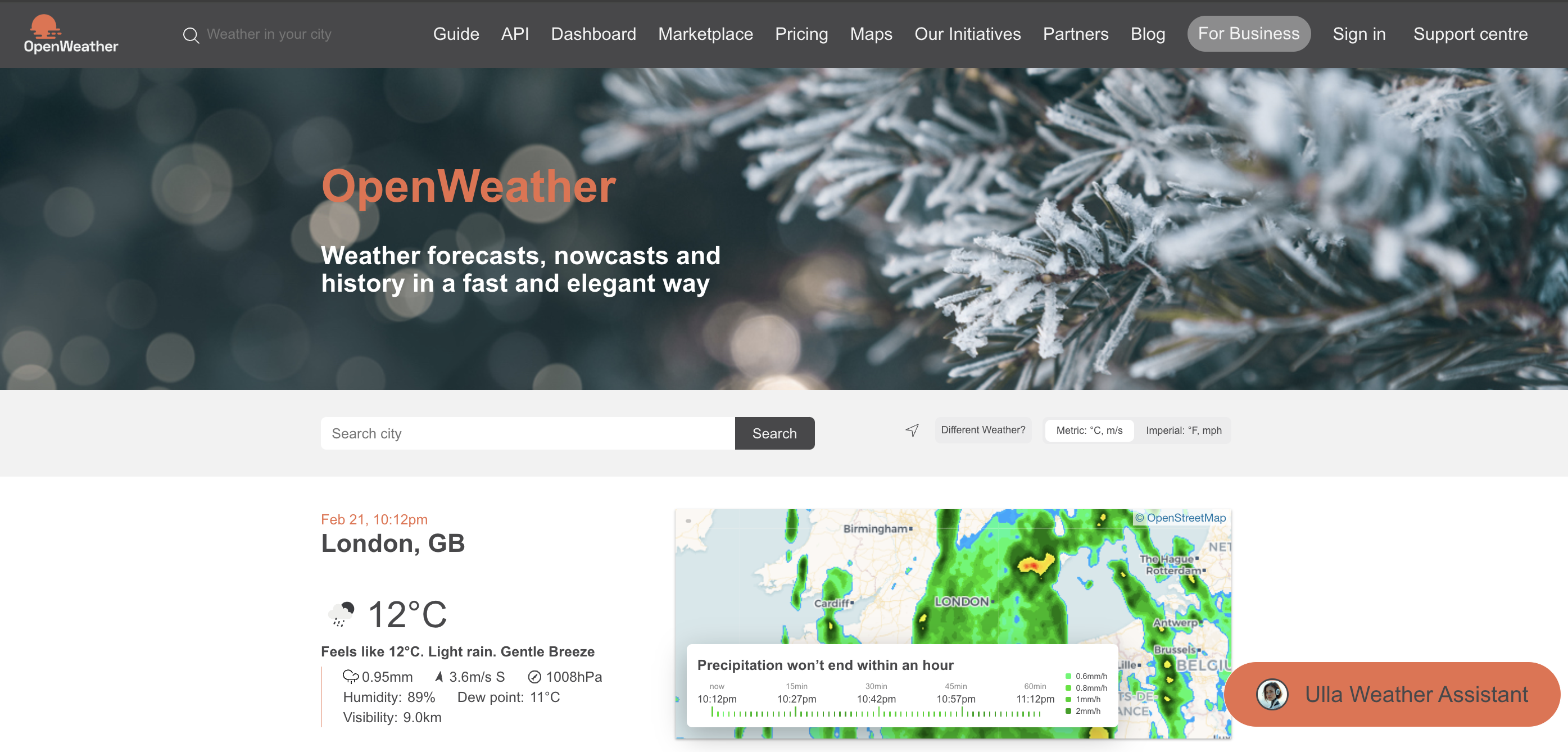
Go to [openweathermap.org](https://openweathermap.org/) and click "Sign Up" in the top right corner
 * Sign up with email/password
* Or continue with Google authentication
## Generate API Key
1. Go to your OpenWeatherMap dashboard
2. Navigate to the "API keys" tab
New API keys may take a few hours to activate
1. Name your key (e.g., "Anything Integration")
2. Click "Generate"
3. Copy your API key
## Add to Anything project
1. In your Anything project, type `/` in the chat
2. Select "Weather" from the menu
1. Paste your API key into the "OPENWEATHERMAP\_API\_KEY" field
Need a new key? Generate one in your OpenWeatherMap dashboard.
You can now use prompts with the integration to access weather data.
Example prompts:
* `Show the weather forecast using /Weather`
* `Build a travel planner with /Weather`
* `Create a sports event scheduler using /Weather`
The API limits how often your app can fetch data. If your app loads the same data often, ask the agent to save it locally so it doesn't re-fetch every time.
Example prompt for optimization:
```
When using /Weather, save the forecast data so my app doesn't have to fetch it again
```
Your Weather integration is ready! Use `/Weather` in chat to access weather data.
* Sign up with email/password
* Or continue with Google authentication
## Generate API Key
1. Go to your OpenWeatherMap dashboard
2. Navigate to the "API keys" tab
New API keys may take a few hours to activate
1. Name your key (e.g., "Anything Integration")
2. Click "Generate"
3. Copy your API key
## Add to Anything project
1. In your Anything project, type `/` in the chat
2. Select "Weather" from the menu
1. Paste your API key into the "OPENWEATHERMAP\_API\_KEY" field
Need a new key? Generate one in your OpenWeatherMap dashboard.
You can now use prompts with the integration to access weather data.
Example prompts:
* `Show the weather forecast using /Weather`
* `Build a travel planner with /Weather`
* `Create a sports event scheduler using /Weather`
The API limits how often your app can fetch data. If your app loads the same data often, ask the agent to save it locally so it doesn't re-fetch every time.
Example prompt for optimization:
```
When using /Weather, save the forecast data so my app doesn't have to fetch it again
```
Your Weather integration is ready! Use `/Weather` in chat to access weather data.