> ## Documentation Index
> Fetch the complete documentation index at: https://www.anything.com/docs/llms.txt
> Use this file to discover all available pages before exploring further.
# Word Cloud
> Generate visual word clouds from text data
Word Cloud API allows you to create visual representations of text data, highlighting the most frequent words in your content.
## Overview
Sign up for a Word Cloud account
Generate your Word Cloud API key
Add your API key to Anything's secrets
## Account Creation
Go to [rapidapi.com](https://rapidapi.com/) and click "Sign Up"
 * Go to [https://rapidapi.com/Textvis/api/word-cloud/pricing](https://rapidapi.com/Textvis/api/word-cloud/pricing)
* Select a subscription plan
* Complete the subscription process
## Generate API Key
1. Log in to your RapidAPI account
2. Navigate to the WordCloud API page
* Go to [https://rapidapi.com/Textvis/api/word-cloud/pricing](https://rapidapi.com/Textvis/api/word-cloud/pricing)
* Select a subscription plan
* Complete the subscription process
## Generate API Key
1. Log in to your RapidAPI account
2. Navigate to the WordCloud API page
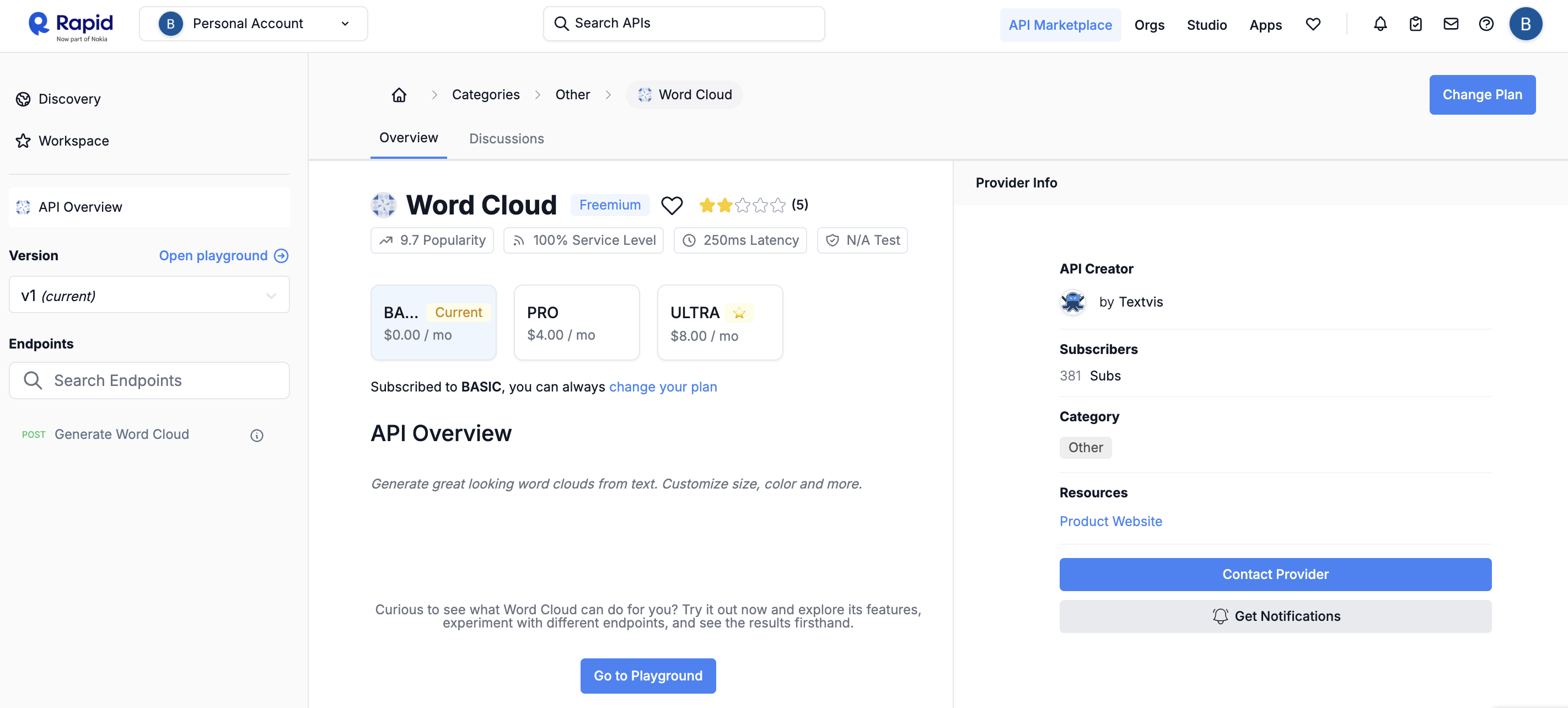 1. Subscribe to the API if you haven't already
2. Copy your RapidAPI key from the endpoint examples
1. Subscribe to the API if you haven't already
2. Copy your RapidAPI key from the endpoint examples
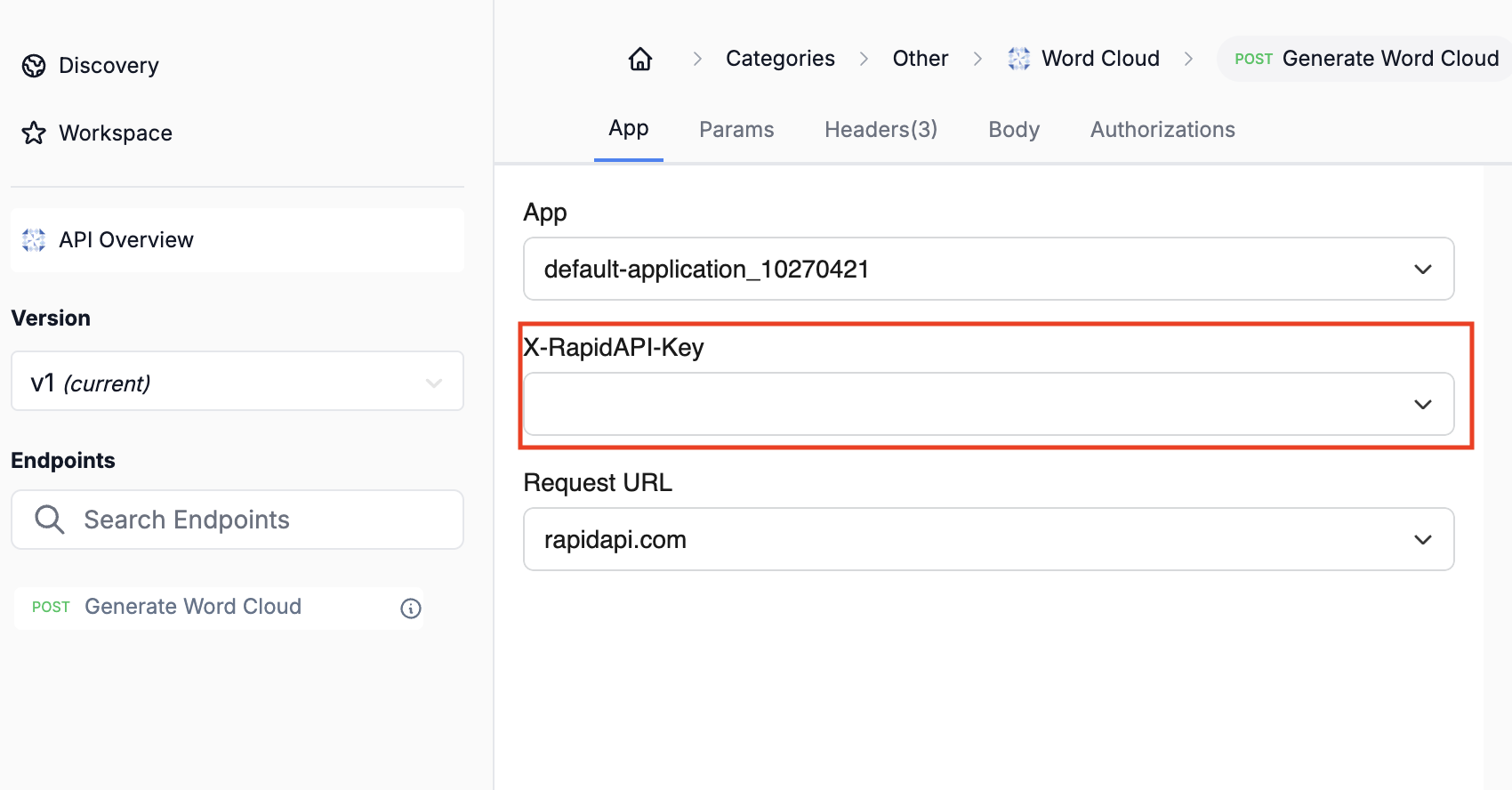 1. Store your API key safely
Keep your API key secure - it grants access to all your RapidAPI subscriptions
## Add to Anything project
1. In your Anything project, type `/` in the chat
2. Select "Word Cloud" from the menu
1. Paste your API key into the "WORDCLOUD\_API\_KEY" field
Need a new key? Generate one in your Word Cloud dashboard.
You can now use prompts with the integration to generate word clouds.
Some examples:
* `Generate a word cloud from this text using /WordCloud`
* `Create a visual representation of keywords with /WordCloud`
* `Build a content analysis tool using /WordCloud`
The API limits how often your app can fetch data. If your app loads the same data often, ask the agent to save it locally so it doesn't re-fetch every time.
Example prompt for optimization:
```
When using /WordCloud, save the generated images so my app doesn't have to fetch them again
```
Your Word Cloud integration is now ready! Use the `/WordCloud` command in chat to generate word clouds.
1. Store your API key safely
Keep your API key secure - it grants access to all your RapidAPI subscriptions
## Add to Anything project
1. In your Anything project, type `/` in the chat
2. Select "Word Cloud" from the menu
1. Paste your API key into the "WORDCLOUD\_API\_KEY" field
Need a new key? Generate one in your Word Cloud dashboard.
You can now use prompts with the integration to generate word clouds.
Some examples:
* `Generate a word cloud from this text using /WordCloud`
* `Create a visual representation of keywords with /WordCloud`
* `Build a content analysis tool using /WordCloud`
The API limits how often your app can fetch data. If your app loads the same data often, ask the agent to save it locally so it doesn't re-fetch every time.
Example prompt for optimization:
```
When using /WordCloud, save the generated images so my app doesn't have to fetch them again
```
Your Word Cloud integration is now ready! Use the `/WordCloud` command in chat to generate word clouds.