> ## Documentation Index
> Fetch the complete documentation index at: https://www.anything.com/docs/llms.txt
> Use this file to discover all available pages before exploring further.
# Domains
> Get your app on its own URL
Give your app its own address on the web. Buy a domain through Anything or connect one you already own.
## Free domain
Every published app gets a `created.app` URL. No setup, no cost.
## Prerequisites
* Anything Pro or Max subscription ([upgrade here](https://anything.com/pricing))
* An app ready to publish
## Buy a domain
We buy and configure the domain for you. No DNS setup.
1. Open your project and click **Publish**
2. Click **Get a custom domain**
3. Search for the domain you want
4. Buy it
* Payment uses your Anything payment method
* DNS resolves in under 24 hours
* Manage your domains from **Dashboard > Domains Menu**
* Domains are purchased through [Name.com](https://www.name.com/support)
## Bring your own domain
Already own a domain? Connect it in the publish dialog, then set up DNS either automatically or manually.
Open your project and click **Publish**.
Click **Get a custom domain**, then **Connect your domain** and type your domain (like `yourdomain.com`).
Choose automatic or manual setup. Both get you to the same result.
**Automatic DNS setup**
Click **Automatic DNS setup** in the publish dialog. A popup walks you through connecting to your domain provider — it detects where your domain is registered, asks you to log in, and configures the DNS records for you. The whole thing takes about a minute.
Automatic setup works with most major providers, including GoDaddy, Namecheap, Cloudflare, Amazon Route 53, Hover, Bluehost, and many more. If your provider isn't supported, the popup tells you, and you can set things up manually instead.
**Manual DNS setup**
If you prefer to configure DNS yourself, click **set up DNS manually** in the publish dialog (below the automatic setup button).
For a root domain (`yourdomain.com`), add these two records at your provider:
| Type | Name | Value |
| ----- | ----- | ------------------------------------- |
| A | `@` | `76.76.21.21` |
| CNAME | `www` | `29be2d3df86a0426.vercel-dns-016.com` |
For a subdomain (`app.yourdomain.com`), you only need one:
| Type | Name | Value |
| ---- | ------------------------------ | ------------- |
| A | `your-subdomain` (e.g., `app`) | `76.76.21.21` |
See [Provider instructions](#provider-instructions) below for step-by-step guides for specific registrars.
DNS changes can take up to 48 hours to propagate. If your domain still isn't working after that, email [hello@anything.com](mailto:hello@anything.com).
## Provider instructions
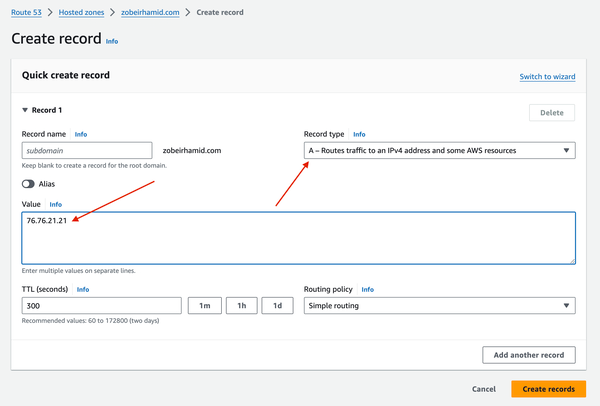
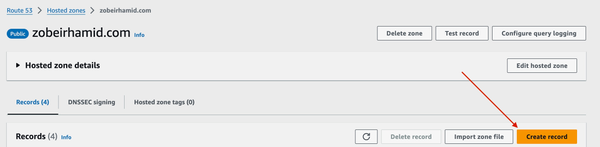 Select `A` for the record type and set `76.76.21.21` for the value.
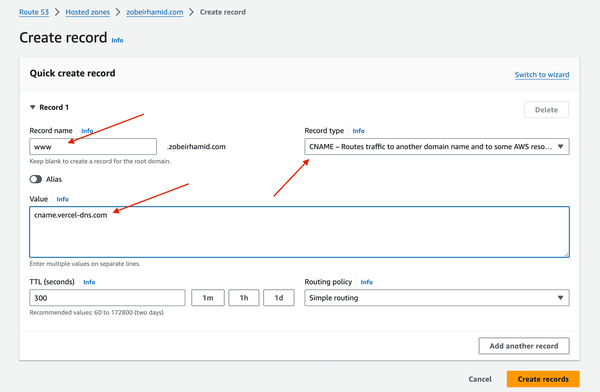
 Create another record with:
* Type: `CNAME`
* Value: `29be2d3df86a0426.vercel-dns-016.com`
* Subdomain: `www`
Create another record with:
* Type: `CNAME`
* Value: `29be2d3df86a0426.vercel-dns-016.com`
* Subdomain: `www`
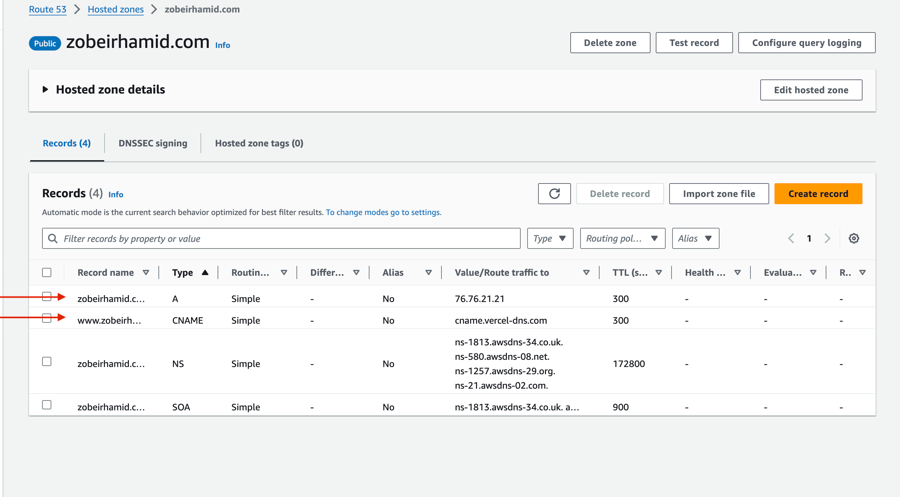
 Your final configuration should look like this:
 There should be only one `A` record. If there's already one, remove the old one first.
Remove all editable entries in the GoDaddy Hosting Panel (those with a trash icon) before adding the records below.
There should be only one `A` record. If there's already one, remove the old one first.
Remove all editable entries in the GoDaddy Hosting Panel (those with a trash icon) before adding the records below.
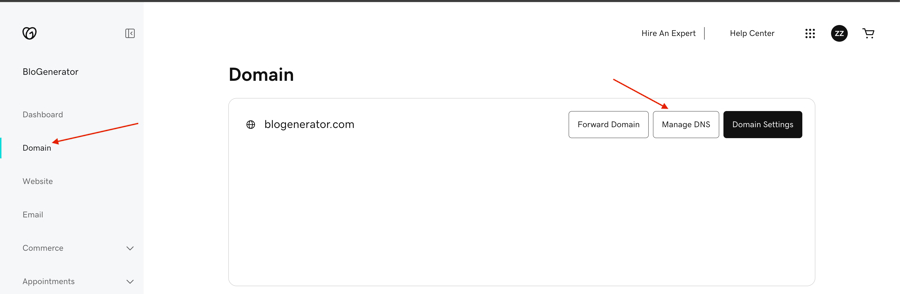
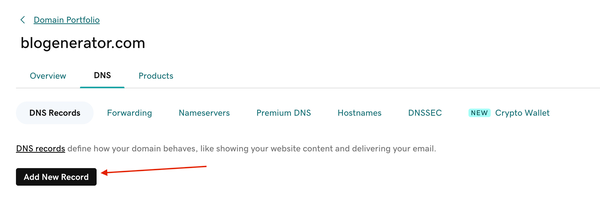 Add both the A and CNAME records as shown:
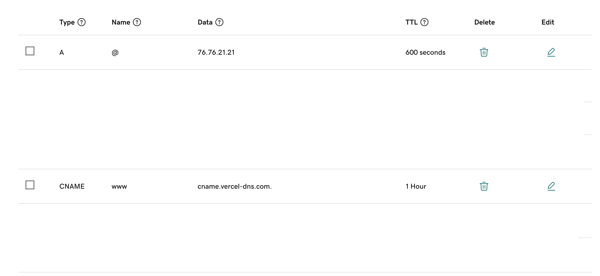
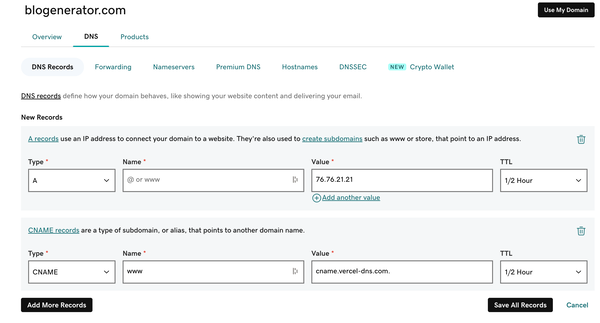 Your final configuration should look like this:
 ## Troubleshooting
DNS changes take up to 48 hours to propagate. Double-check your A and CNAME records match the values in the tables above. Make sure your app is published: click **Publish** and confirm it's live. If it's been more than 48 hours, email [hello@anything.com](mailto:hello@anything.com).
This usually means the publish didn't complete. Go back to your project, click **Publish**, and confirm all pages are selected. See the [Publish guide](/launch/publish) for the full steps. Try a hard refresh in your browser (Cmd+Shift+R on Mac, Ctrl+Shift+R on Windows).
Check for conflicting DNS records at your provider. There should be only one A record pointing to `76.76.21.21`. Remove any old A records before adding the new one. Also make sure you published your app after connecting the domain.
Some domains need extra verification. If Anything shows a "Domain verification required" warning when you publish, add the DNS record it displays (type, name, and value) at your domain provider. Click **Verify** after adding the record. Verification usually completes within a few minutes.
## Remove
Go to your project and click **Publish**.
Click **Remove domain**.
Delete the A and CNAME records at your domain provider so they don't point to a dead link.
## FAQ
Yes, but email hosting is separate from domain registration. See [Set up a domain email address](/launch/domain-email) for a step-by-step guide.
Go to [anything.com/dashboard](https://anything.com/dashboard), click **Domains**, then **Manage** next to your domain. From there you can add, edit, or remove any DNS records.
## Troubleshooting
DNS changes take up to 48 hours to propagate. Double-check your A and CNAME records match the values in the tables above. Make sure your app is published: click **Publish** and confirm it's live. If it's been more than 48 hours, email [hello@anything.com](mailto:hello@anything.com).
This usually means the publish didn't complete. Go back to your project, click **Publish**, and confirm all pages are selected. See the [Publish guide](/launch/publish) for the full steps. Try a hard refresh in your browser (Cmd+Shift+R on Mac, Ctrl+Shift+R on Windows).
Check for conflicting DNS records at your provider. There should be only one A record pointing to `76.76.21.21`. Remove any old A records before adding the new one. Also make sure you published your app after connecting the domain.
Some domains need extra verification. If Anything shows a "Domain verification required" warning when you publish, add the DNS record it displays (type, name, and value) at your domain provider. Click **Verify** after adding the record. Verification usually completes within a few minutes.
## Remove
Go to your project and click **Publish**.
Click **Remove domain**.
Delete the A and CNAME records at your domain provider so they don't point to a dead link.
## FAQ
Yes, but email hosting is separate from domain registration. See [Set up a domain email address](/launch/domain-email) for a step-by-step guide.
Go to [anything.com/dashboard](https://anything.com/dashboard), click **Domains**, then **Manage** next to your domain. From there you can add, edit, or remove any DNS records.