> ## Documentation Index
> Fetch the complete documentation index at: https://www.anything.com/docs/llms.txt
> Use this file to discover all available pages before exploring further.
# Publish
> Take your web app live or submit your mobile app to app stores
Publishing makes your web app live at a public URL or submits your mobile app to app stores.
## Preview vs. publish
**Preview** opens your app in a browser so you can test it before going live. Click the external link icon in the URL bar to open a preview. Only you can see it.
**Publish** deploys your app to a permanent public URL. Anyone with the link can visit it.
## Web
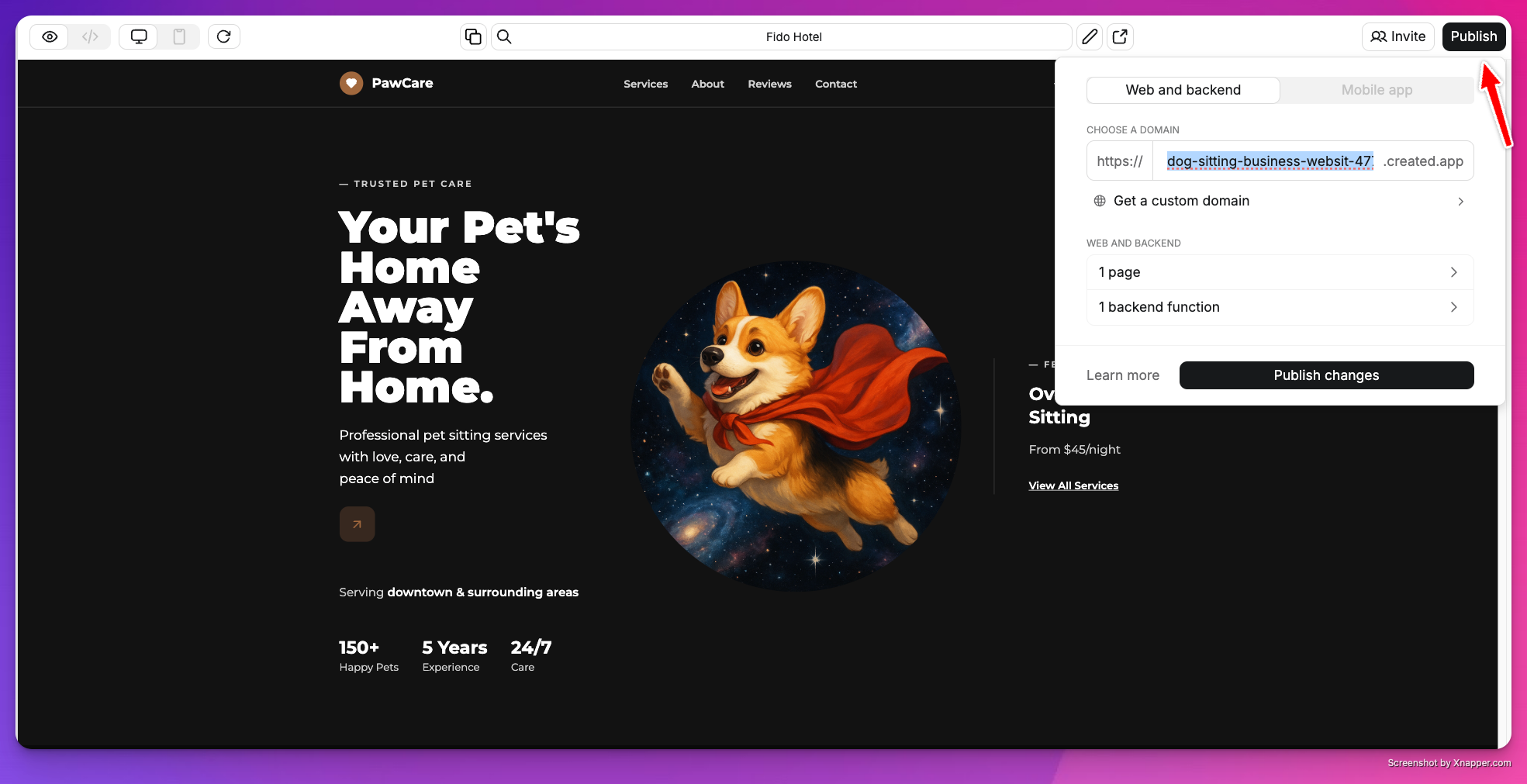 1. Click **Publish** in the top right
2. Choose your `.created.app` subdomain
3. Select the pages and functions to include
4. Set routes for each page
5. Click **Publish**
Your app is live at `yourslug.created.app`.
## Mobile
Publishing a mobile app submits it to the App Store through TestFlight or to Google Play's internal testing track. If your app uses backend functions or a database, check **Also publish web and backend** in the publish dialog so your live app works correctly.
See [Submit to App Store](/launch/app-store) or [Submit to Play Store](/apps/mobile/publishing-android) for the full walkthrough.
## Routes and URLs
Routes control how users reach each page:
* `/` is your homepage
* `/about`, `/contact`, etc. for additional pages
## Social previews
Control how your app looks when shared on social media. See [Branding & SEO](/launch/branding-seo) for setup.
## Domains
Every app gets a free `yourapp.created.app` subdomain. Pro plans can connect a custom domain. See [Domains](/launch/domains) for setup.
## Branding
Free projects show a "Made with Anything" badge. Upgrade to a [Pro plan](https://anything.com/pricing) to remove it. See [Branding & SEO](/launch/branding-seo#branding-badge) for details.
## Availability
Published URLs are public to anyone with the link. Use [User Accounts](/apps/auth) to restrict access to signed-in users.
Keep internal tools private by requiring user authentication or by not publishing them.
## Unpublish
To take your app offline, go to **Project Settings** → **Danger Zone** → **Unpublish**. This removes your app from its public URL. Your project and all its data stay intact — you can republish at any time.
## Database changes
When you publish, Anything syncs your test database to your live database. If there are changes (new tables, columns, etc.), you'll see an approval dialog listing what will change. Review the list and click **Approve** to continue. If the dialog isn't responding, refresh the page and try again. See [Databases](/apps/databases) for more.
## Troubleshooting
1. Click **Publish** in the top right
2. Choose your `.created.app` subdomain
3. Select the pages and functions to include
4. Set routes for each page
5. Click **Publish**
Your app is live at `yourslug.created.app`.
## Mobile
Publishing a mobile app submits it to the App Store through TestFlight or to Google Play's internal testing track. If your app uses backend functions or a database, check **Also publish web and backend** in the publish dialog so your live app works correctly.
See [Submit to App Store](/launch/app-store) or [Submit to Play Store](/apps/mobile/publishing-android) for the full walkthrough.
## Routes and URLs
Routes control how users reach each page:
* `/` is your homepage
* `/about`, `/contact`, etc. for additional pages
## Social previews
Control how your app looks when shared on social media. See [Branding & SEO](/launch/branding-seo) for setup.
## Domains
Every app gets a free `yourapp.created.app` subdomain. Pro plans can connect a custom domain. See [Domains](/launch/domains) for setup.
## Branding
Free projects show a "Made with Anything" badge. Upgrade to a [Pro plan](https://anything.com/pricing) to remove it. See [Branding & SEO](/launch/branding-seo#branding-badge) for details.
## Availability
Published URLs are public to anyone with the link. Use [User Accounts](/apps/auth) to restrict access to signed-in users.
Keep internal tools private by requiring user authentication or by not publishing them.
## Unpublish
To take your app offline, go to **Project Settings** → **Danger Zone** → **Unpublish**. This removes your app from its public URL. Your project and all its data stay intact — you can republish at any time.
## Database changes
When you publish, Anything syncs your test database to your live database. If there are changes (new tables, columns, etc.), you'll see an approval dialog listing what will change. Review the list and click **Approve** to continue. If the dialog isn't responding, refresh the page and try again. See [Databases](/apps/databases) for more.
## Troubleshooting
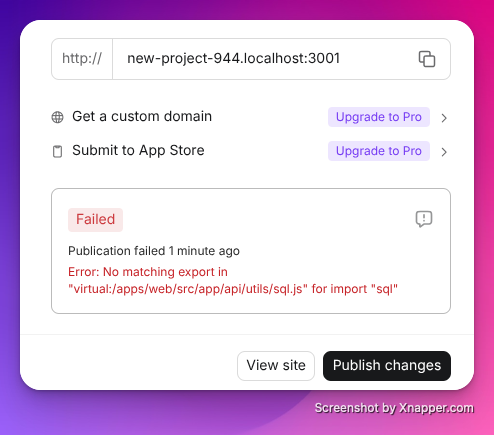 If publishing fails, a red **Failed** badge appears with the error message. Click the **Try to fix** icon to send the error to the agent, which will diagnose and fix the issue automatically.
If the publish dialog isn't responding, refresh the page and try again.
If publishing fails, a red **Failed** badge appears with the error message. Click the **Try to fix** icon to send the error to the agent, which will diagnose and fix the issue automatically.
If the publish dialog isn't responding, refresh the page and try again.