
Overview
Create Developer Account
Sign up and configure your Discord Developer Portal.
Get Bot Token
Create a Discord bot and obtain your bot token.
Verify Settings
Turn on these settings to have the best experience with Discord.
Connect to Anything
Add your credentials to Anything’s secrets.
Account setup
1
Create a Discord Developer Account
Go to Discord Developer Portal and sign up with your account.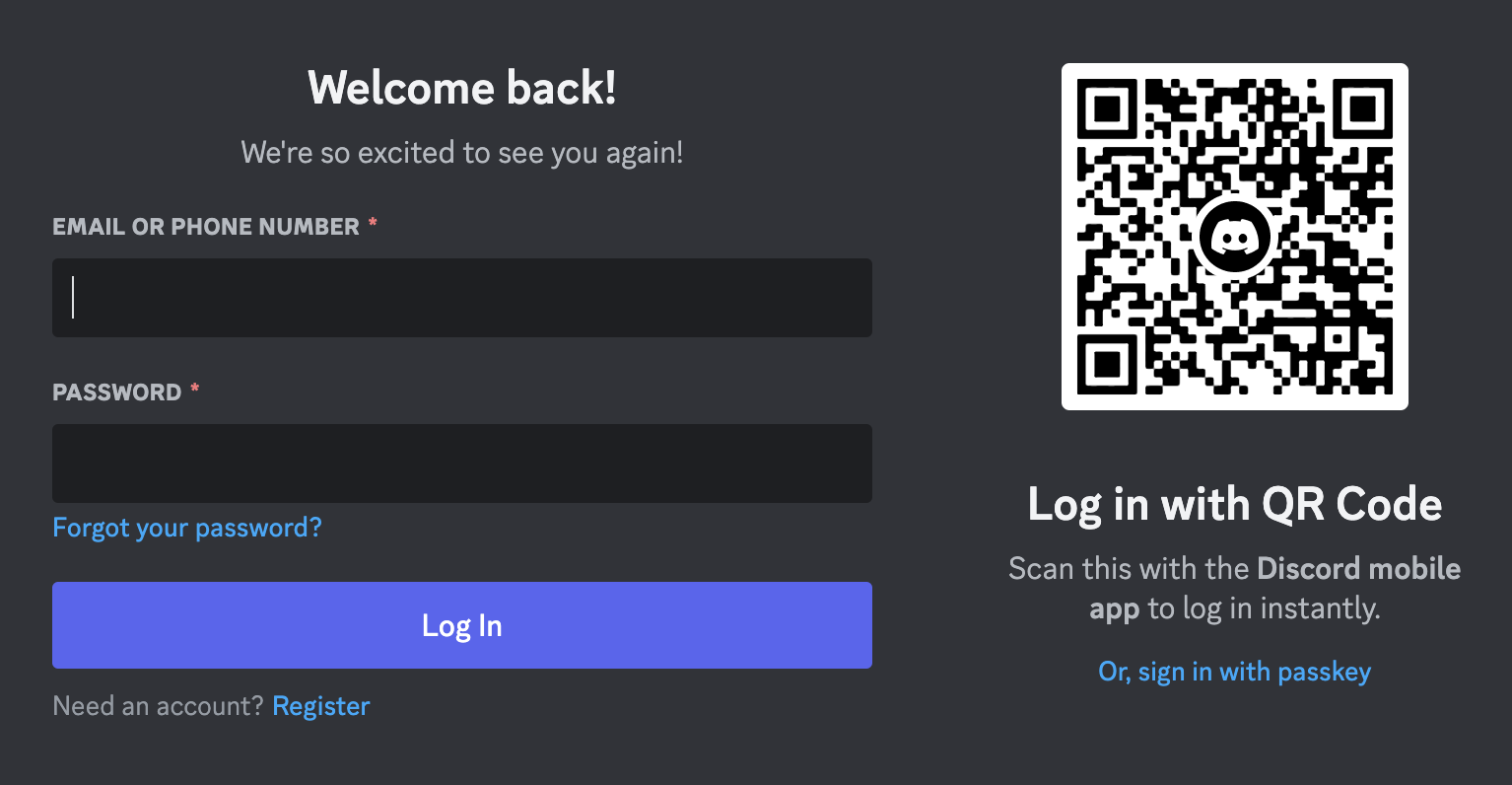
2
Create a New Application
Click “New Application” to create a new Discord application.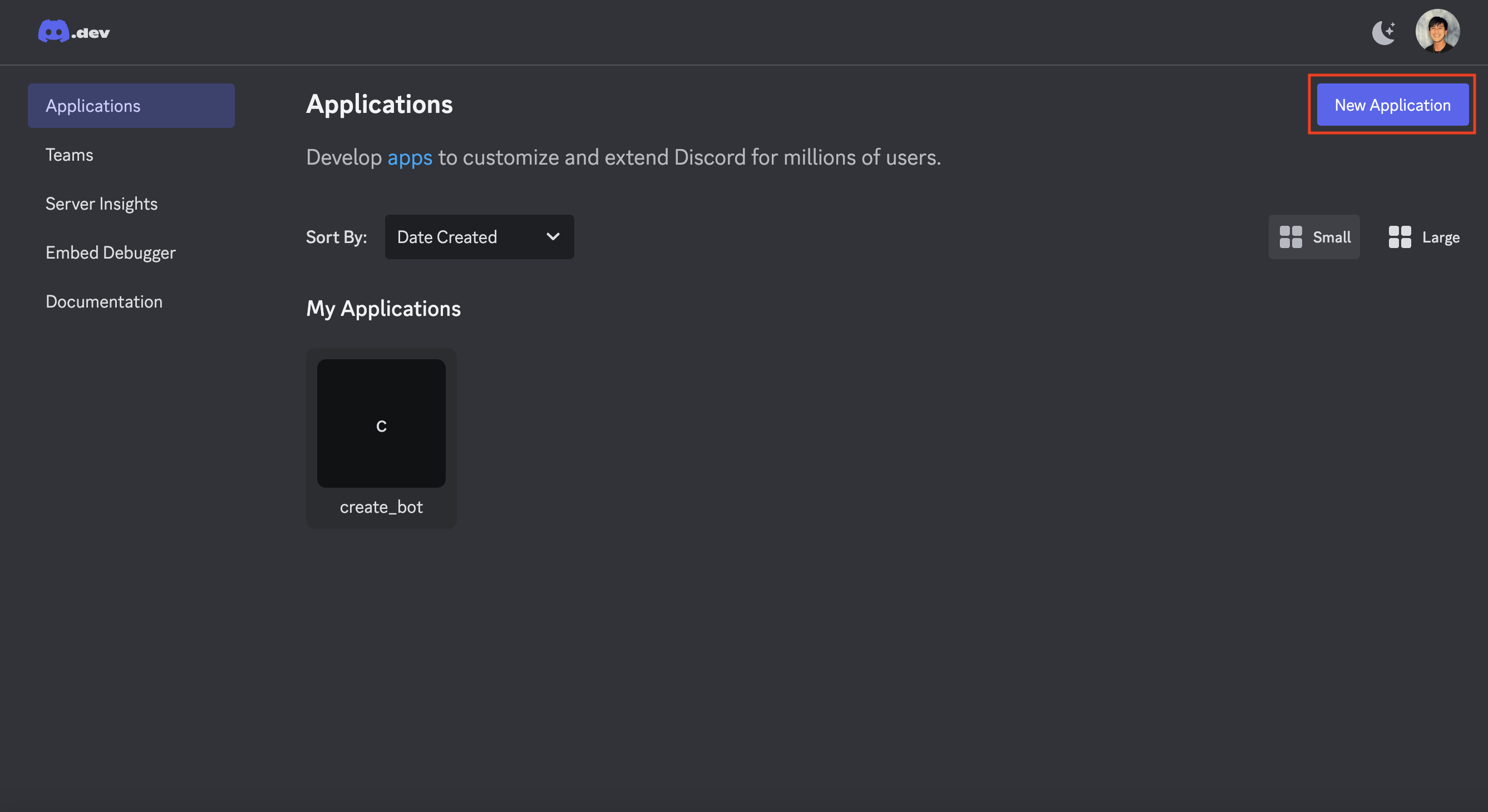
Generate API credentials
1
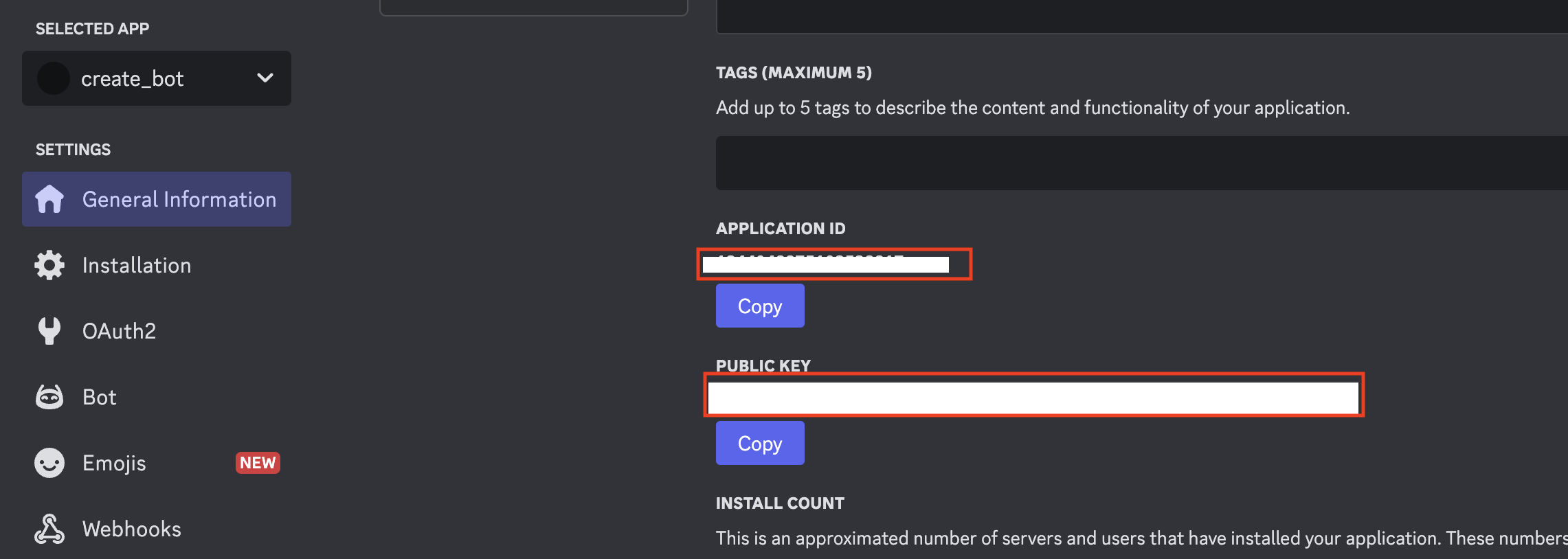
Get Your Public Key and Application ID
- Find your Public Key and Application ID in the General Information section.
2
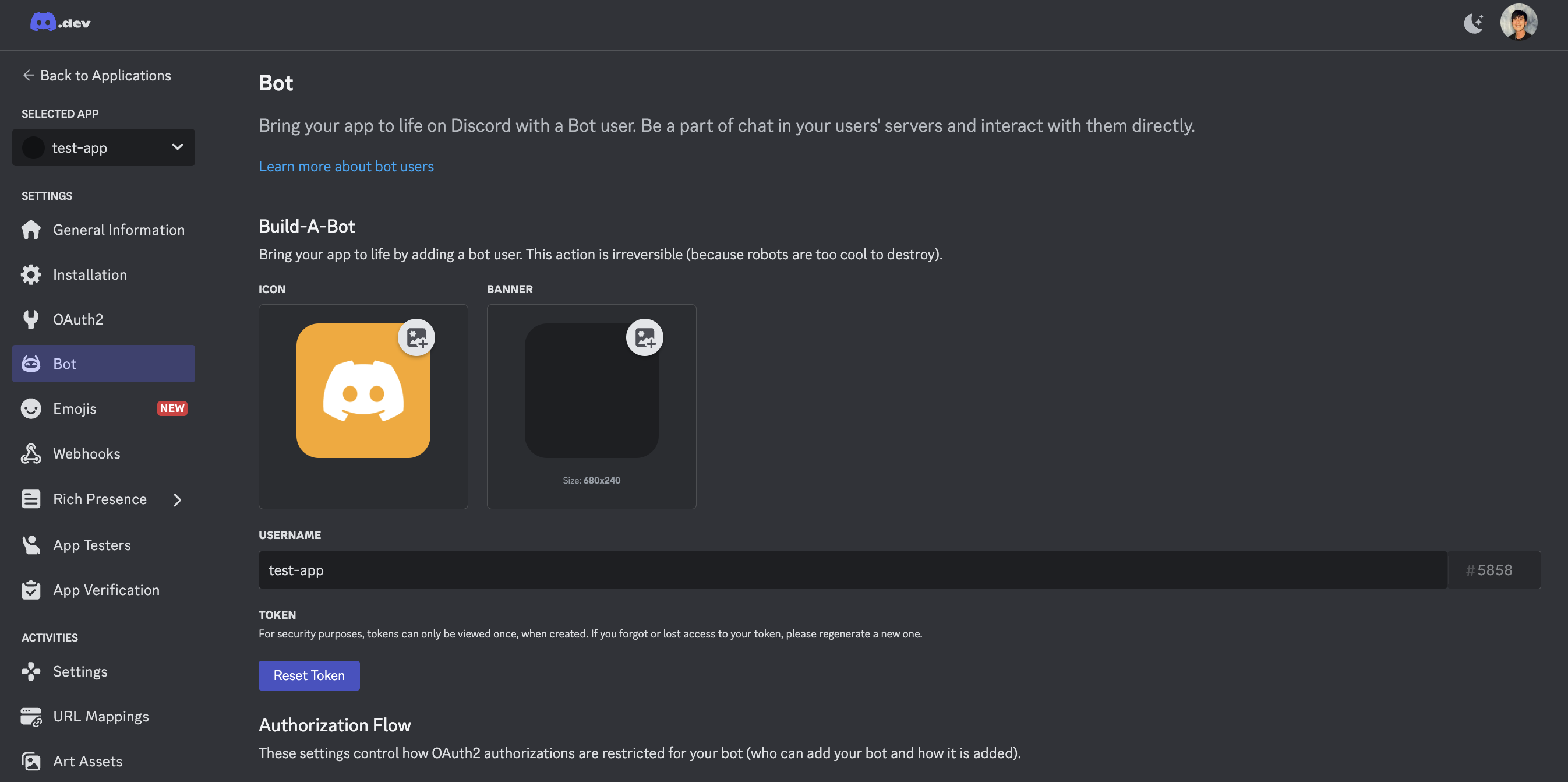
Get Your Bot Token
- In the Bot settings, click “Reset Token” to generate and copy your bot token.
3
Get your Guild ID
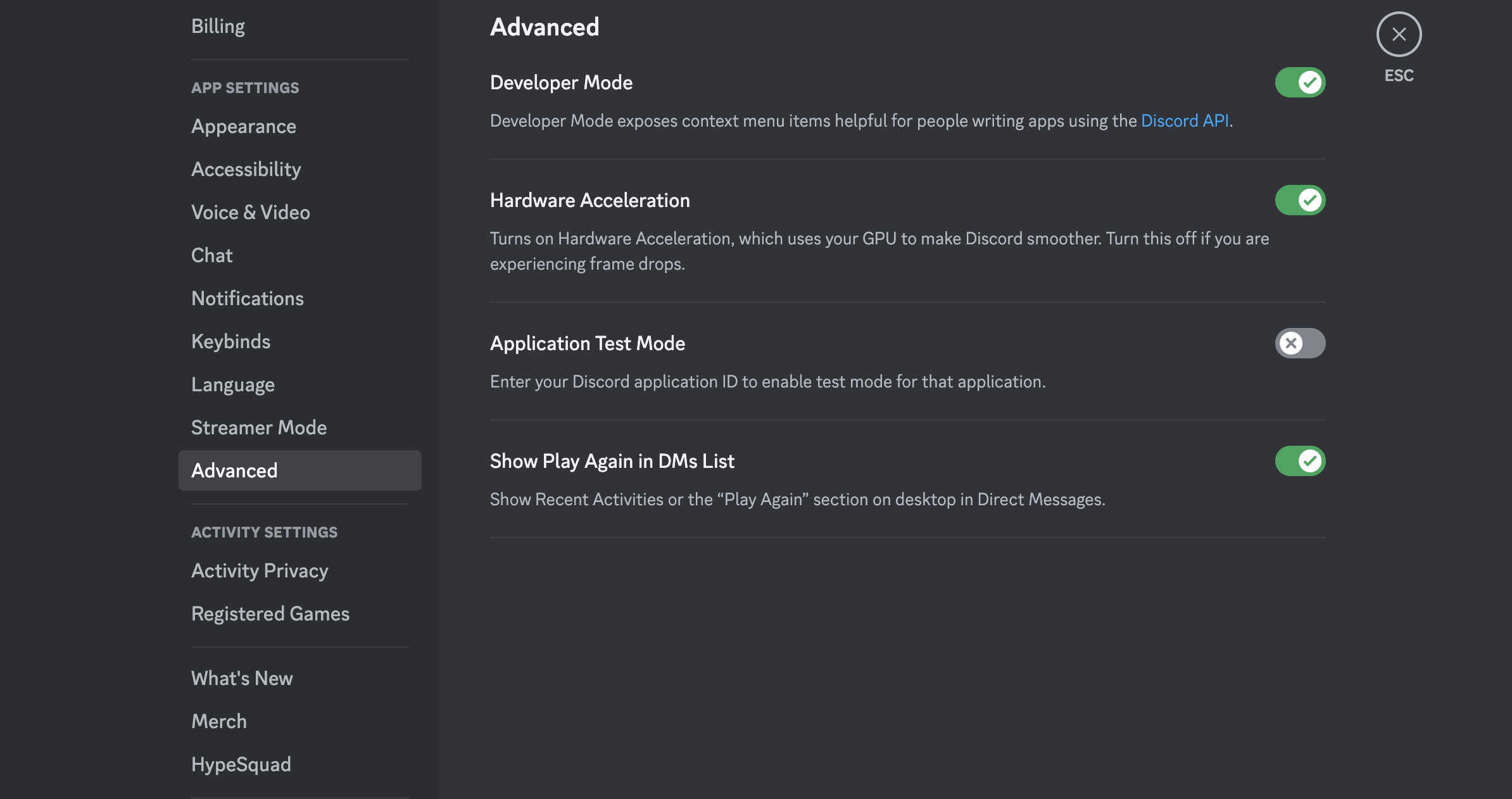
- Go into your settings for the main Discord messaging application.
- Find the advanced tab and enable developer mode.
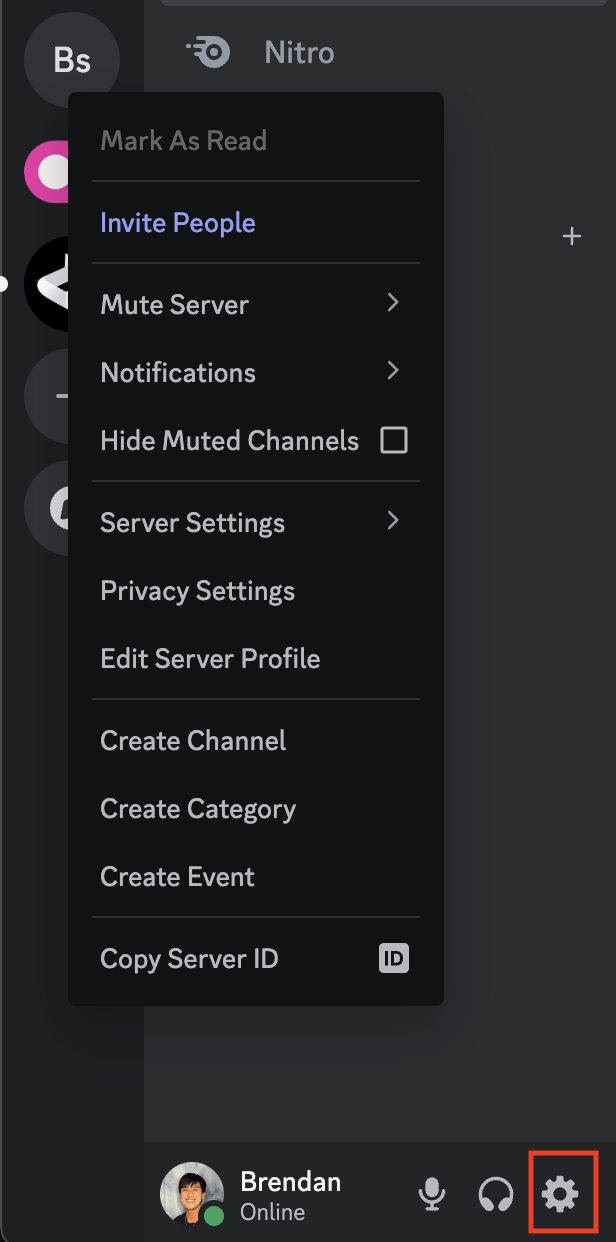
- Right click the server icon you want your bot to join in your list of servers.
- Copy the Server ID.
Verify settings
1
Set Bot Interactions
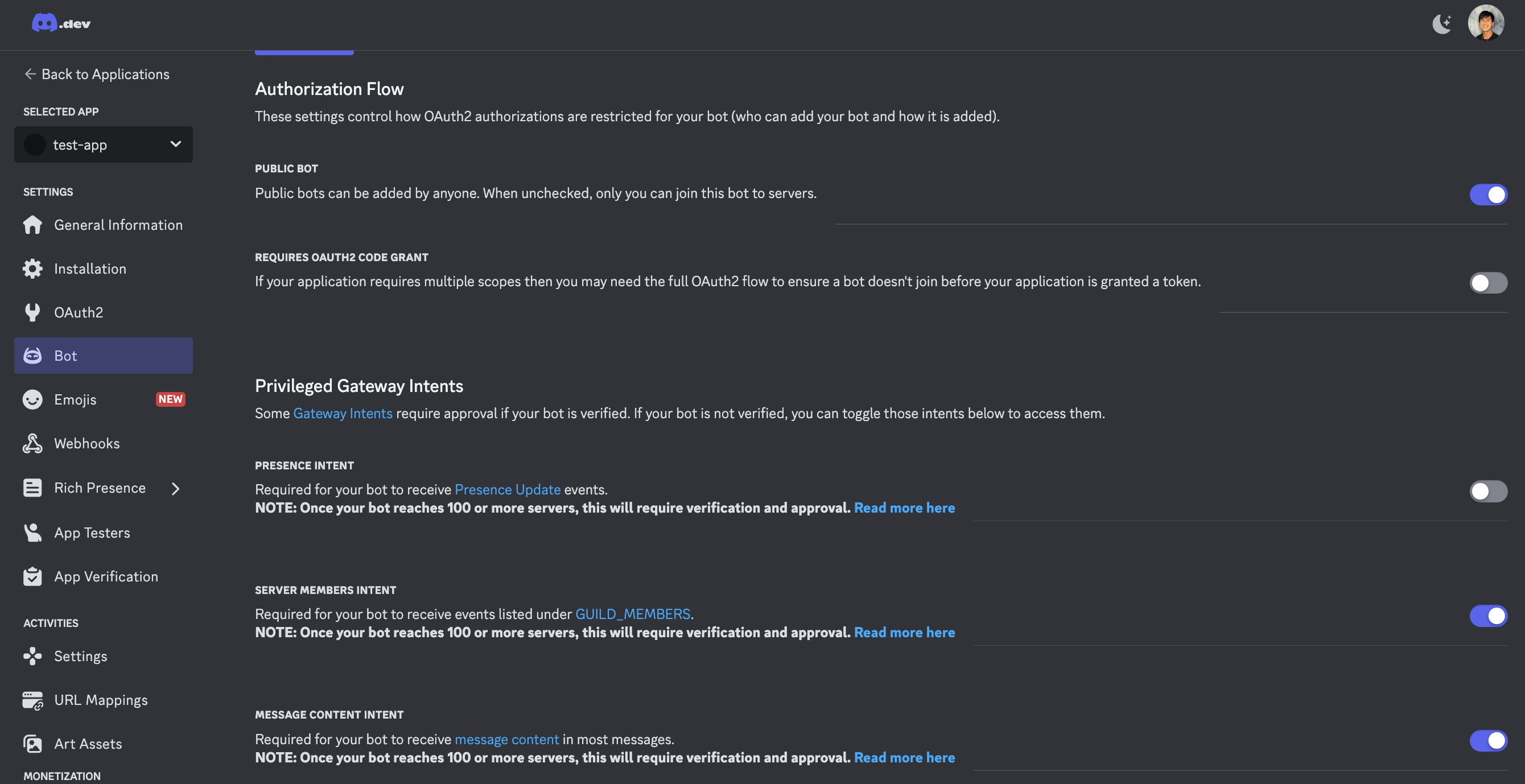
- Head back to the Discord Developer portal and into the Bot section to enable Public Bot to allow others to download your bot.
- Enable Server Members intent to allow interactions with the server members.
- Enable Message Intent to allow the bot to interact with messages in the server.
2
Set Bot Permissions
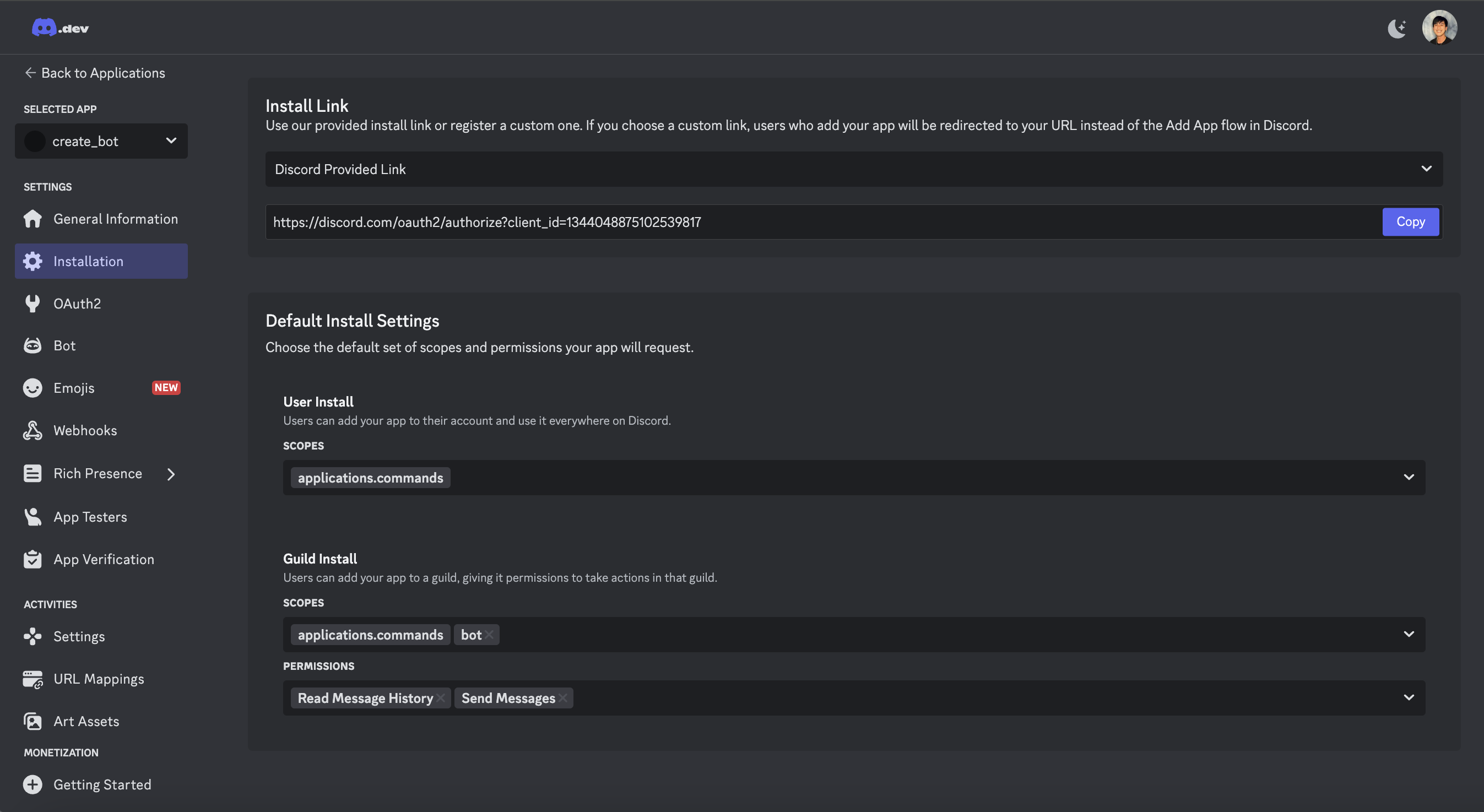
- Go into the Install section and scroll down to find the Default Install Settings
- Under Guild Install, click the drop down under scopes and add Bot to the list
- Under Permissions, enable Send Message and Read Message history.
3
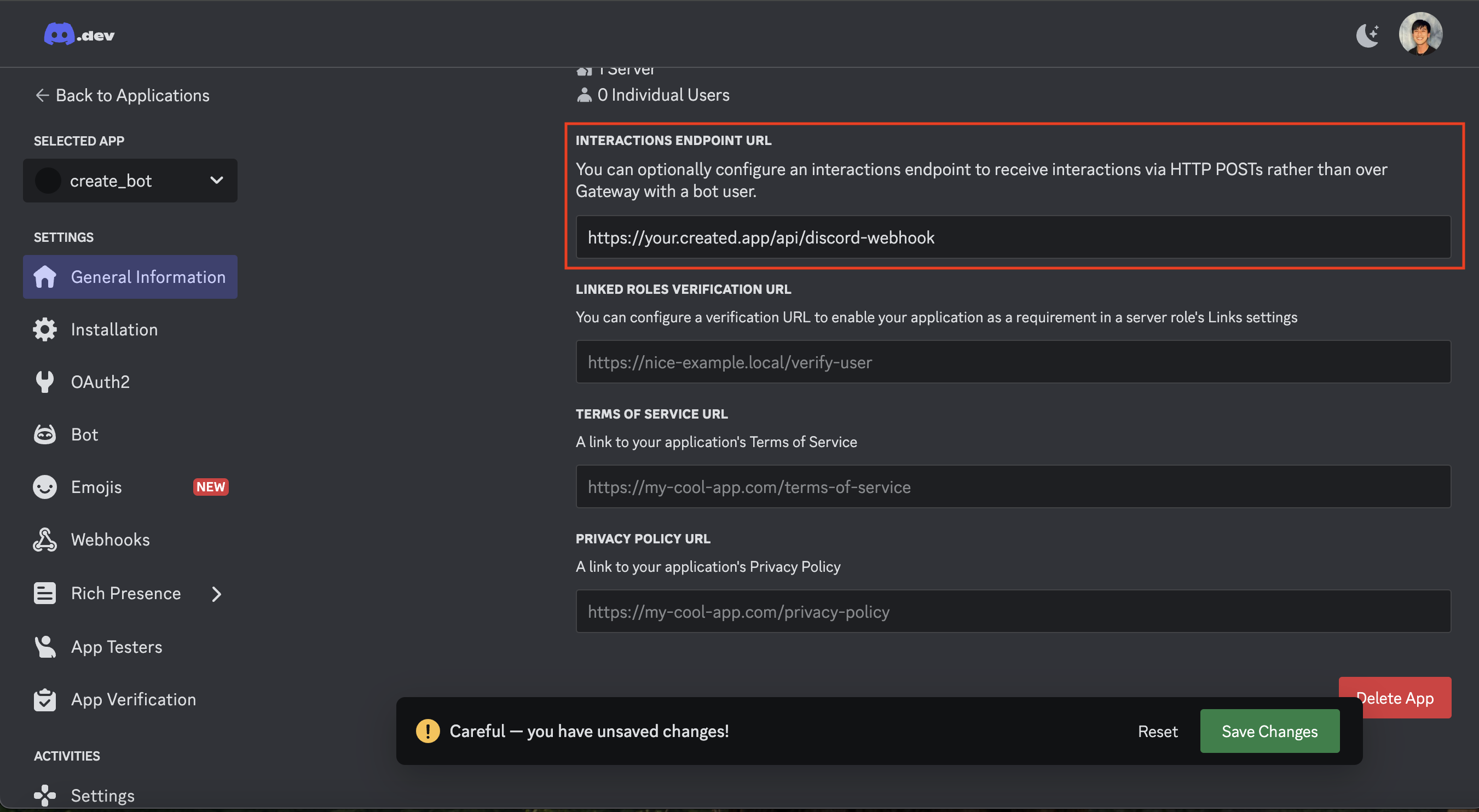
Set Bot Webhook URL
- Revisit the General Information section and scroll down to find the Interactive Endpoint URL
- Copy your Anything project’s base URL along with api/discord-webhook similar to the example picture.
- Once you click “Save Changes”, the endpoint should have verified successfully.
Setting slash commands
1
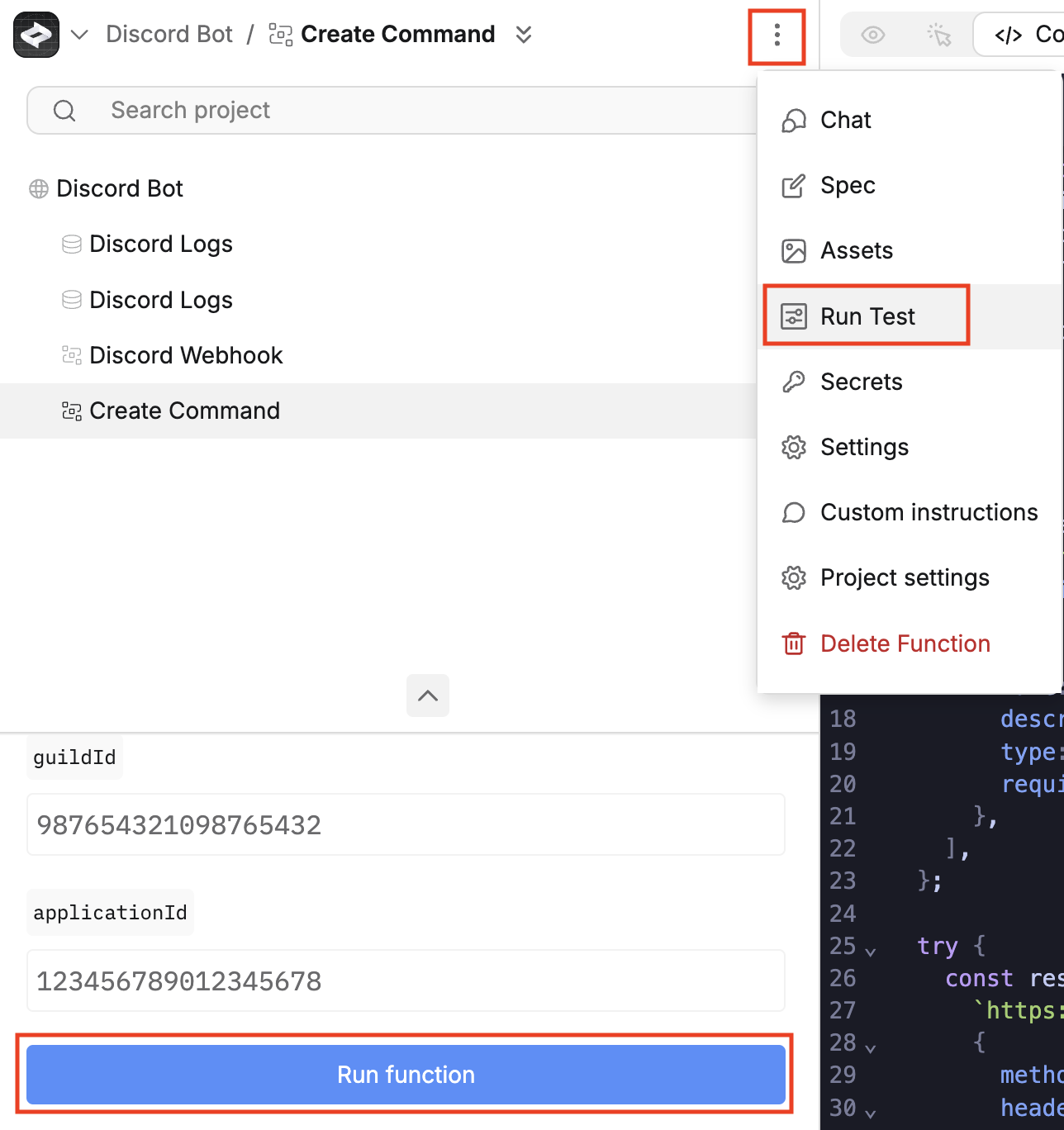
Run the Create Command function
- In your Anything project, run the Create Command function in the Run Test option. This will create a /chatgpt command for your bot.
2
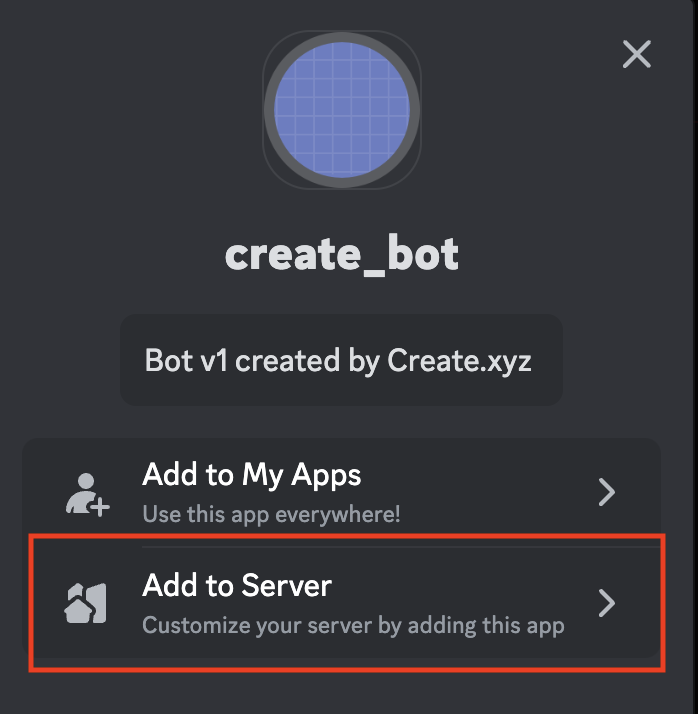
Invite Your Bot to a Server
- In the installation section, scroll down to find your installation link.
- Copy and paste it into your browser and add your bot to your server.
3
Test Your Bot
Send a test message using “/chatgpt Hello!” in your Discord server to verify that your bot is online and responding.
Add to Anything project
1
Add the Integration
- In your Anything project, type
/in chat. - Select “Discord” from the menu.
2
Add Your Credentials
- Paste your Bot Token into “DISCORD_BOT_TOKEN”.
- Paste your Application ID to “DISCORD_APP_ID”.
- Paste your Public Key to “DISCORD_PUBLIC_KEY”.
- Paste your Server ID to “DISCORD_GUILD_ID”.
3
Start Building
Use prompts to implement Discord features:
Send a welcome message using /DiscordBuild a chatbot that uses /Discord for customer supportSet up a notification system with /Discord
Frequently asked questions
What is Discord API?
What is Discord API?
Discord API allows you to interact with Discord’s messaging platform, enabling you to send messages, build bots, and manage server interactions.
Do I need a Discord Developer Account?
Do I need a Discord Developer Account?
Yes, you need a Discord Developer Account to access the API and create a bot. The account is free and sufficient for testing and development.
How does the bot work?
How does the bot work?
The bot works by listening to events in Discord and responding to commands or messages based on your implementation.
What can I build with Discord integration?
What can I build with Discord integration?
You can build:
- Chatbots for customer support
- Notification systems for events
- Interactive games and experiences
- Moderation tools for server management
Are there usage limits?
Are there usage limits?
Yes, Discord has API rate limits. Free accounts have lower limits than paid accounts. Check Discord’s official documentation for current limits.
Can I test my Discord integration?
Can I test my Discord integration?
Yes, you can test your integration by sending messages to your bot in a server where it has been invited. Monitor the bot’s responses to ensure it functions as expected.