
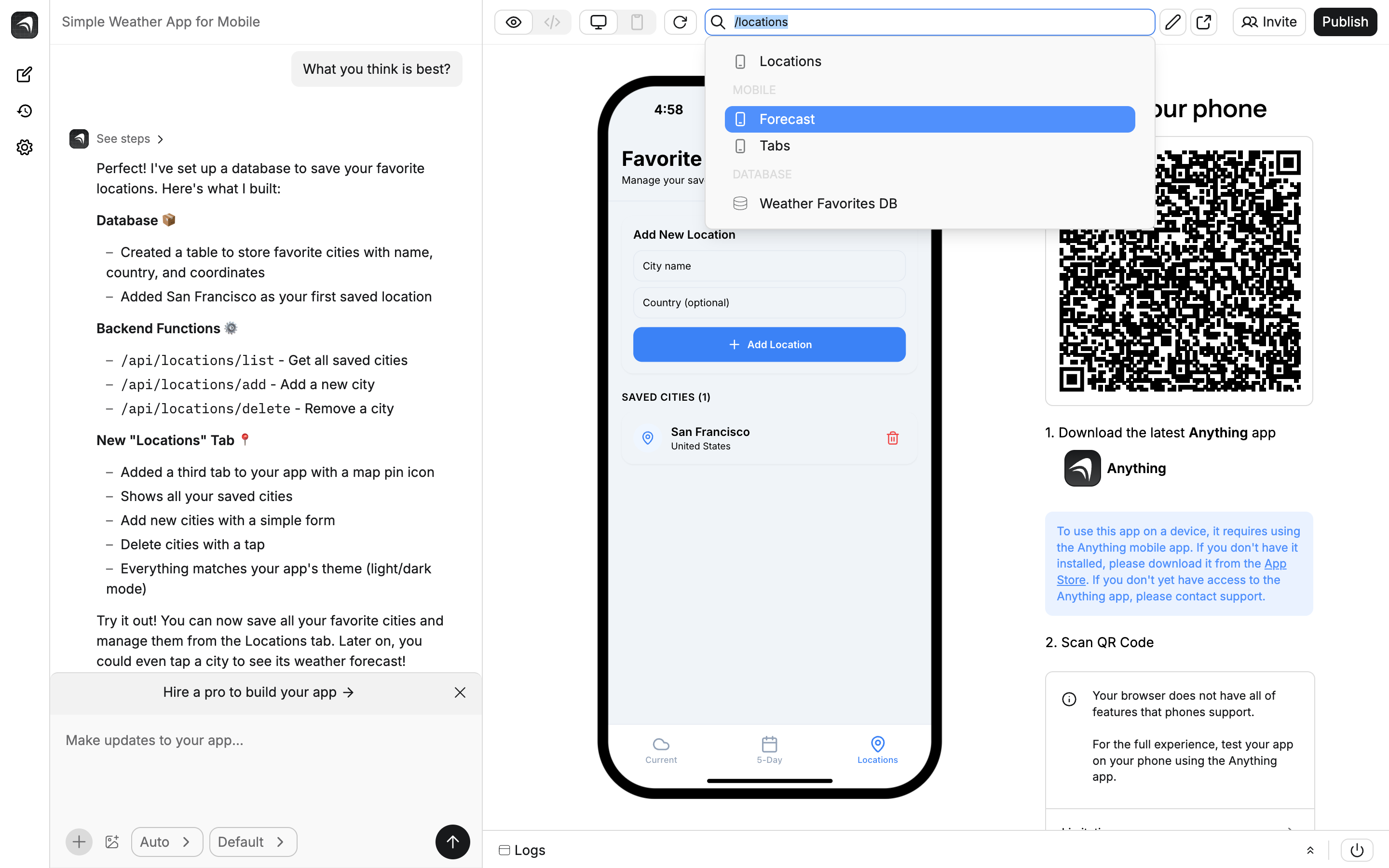
Chat
The chat is how you talk to the agent. Describe what you want, it builds it.Chat input
+or/: add integrations, reference assets, or create new elements- Image selector: paste or attach screenshots for visual reference. You can also drag and drop images from anywhere on the page.
- File attachments: attach PDFs, spreadsheets, and other documents for the agent to read and reference. See Agent capabilities.
- Mode selector: switch between Thinking, Fast, Discussion, Plan, and Max. New projects default to Thinking. See Agent modes.
- Model selector: override which AI model to use
- Press
cmd-enter(orctrl-enteron Windows) to send
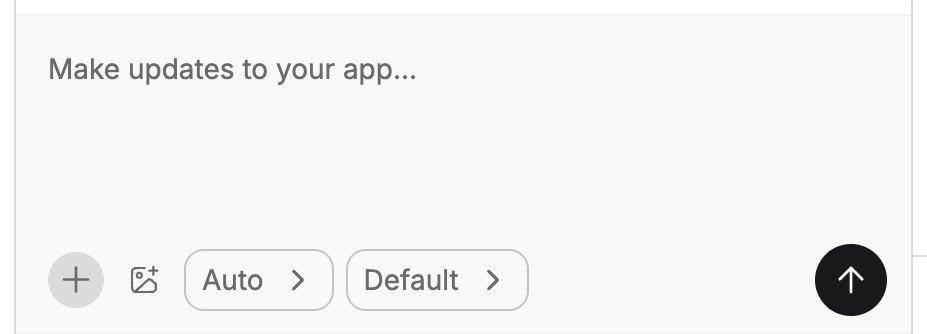
Type / to browse integrations and add-ons
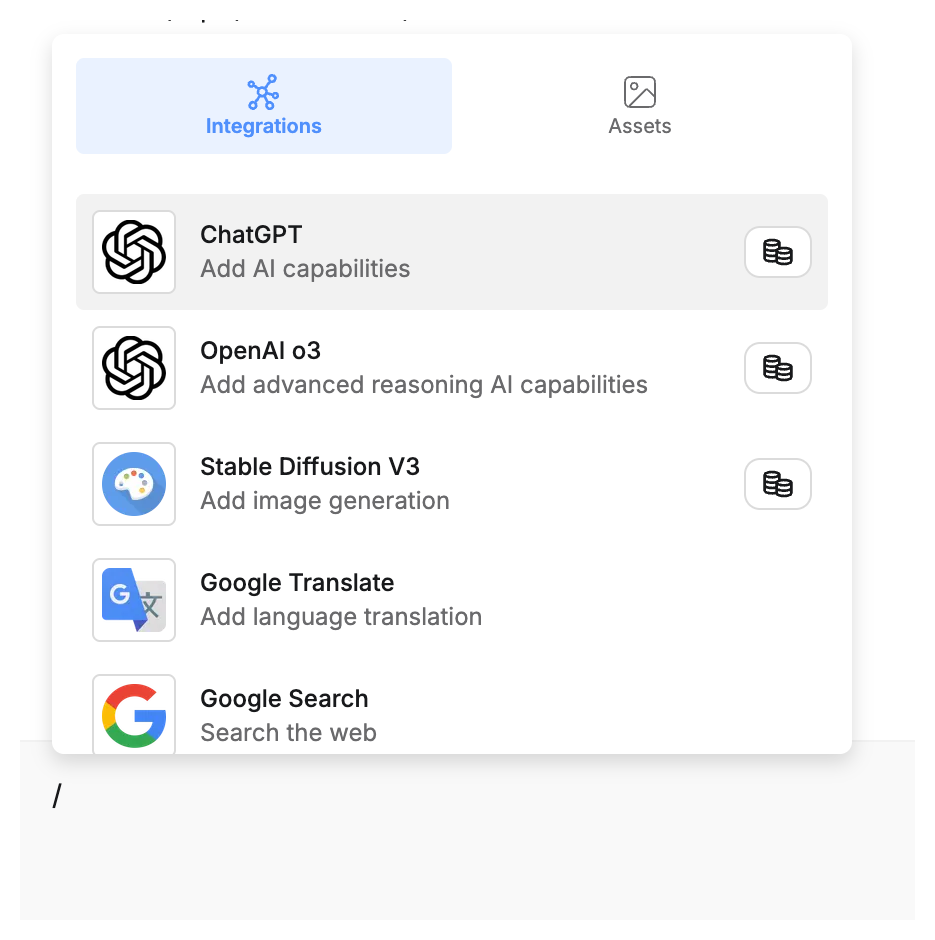
Chat tips
As you build, the chat shows tips that highlight features you might not know about, like the asset panel, logs, code view, and version history. You can turn them off in Project Settings.Chat view
- Scroll through your conversation with the agent
- Click any previous message to revert your app to that point
- Expand the agent’s thinking to see its reasoning step by step
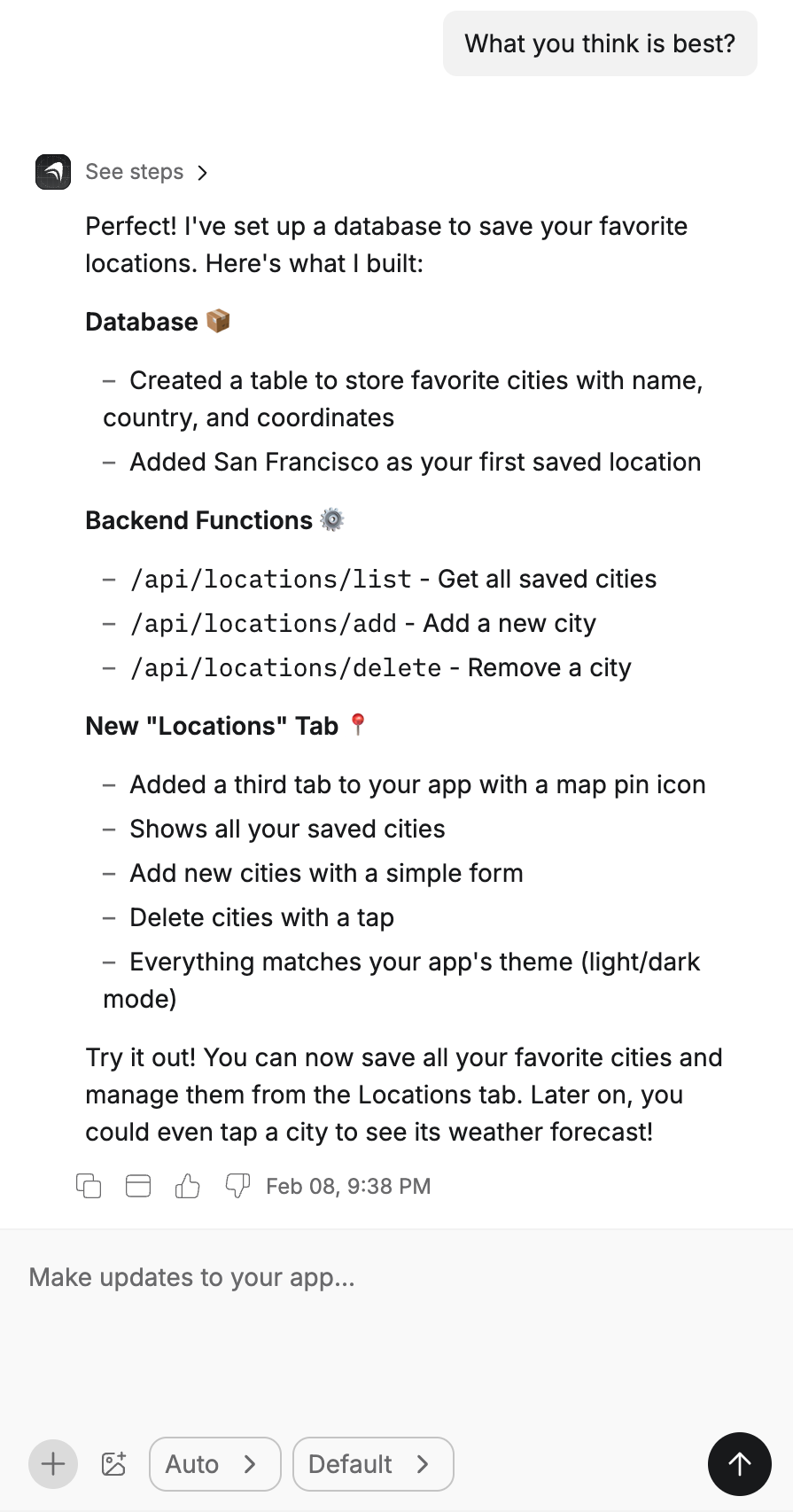
Click any message to revert your app to that point
See the Prompting Guide for tips on getting better results.
Left sidebar
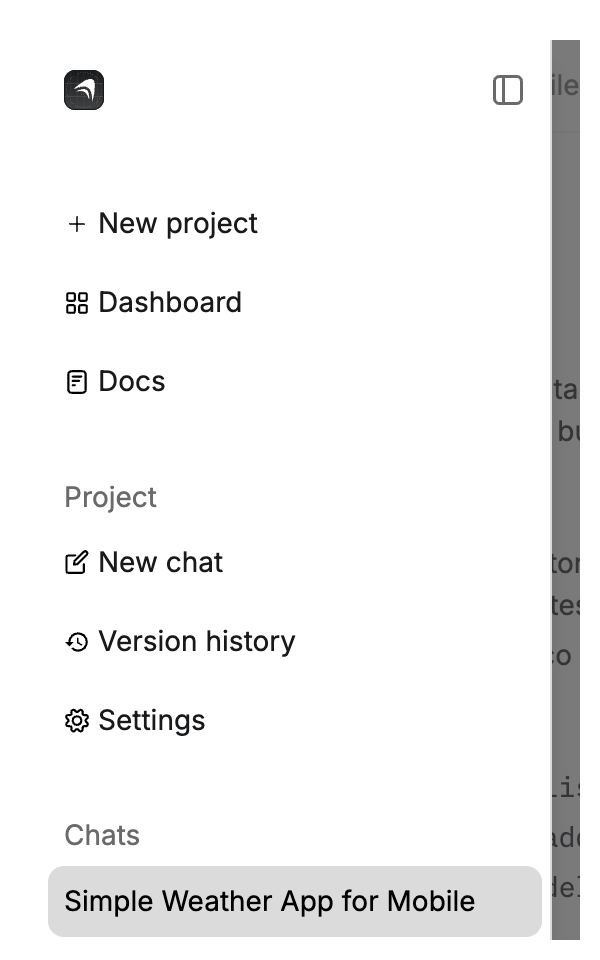
Quick access to navigation and project-level controls.- Anything logo. Opens the sidebar with chat history and a link back to the dashboard.
- New chat. Start a new conversation thread.
- Version history. Browse and restore previous versions.
- Settings. Open project settings.
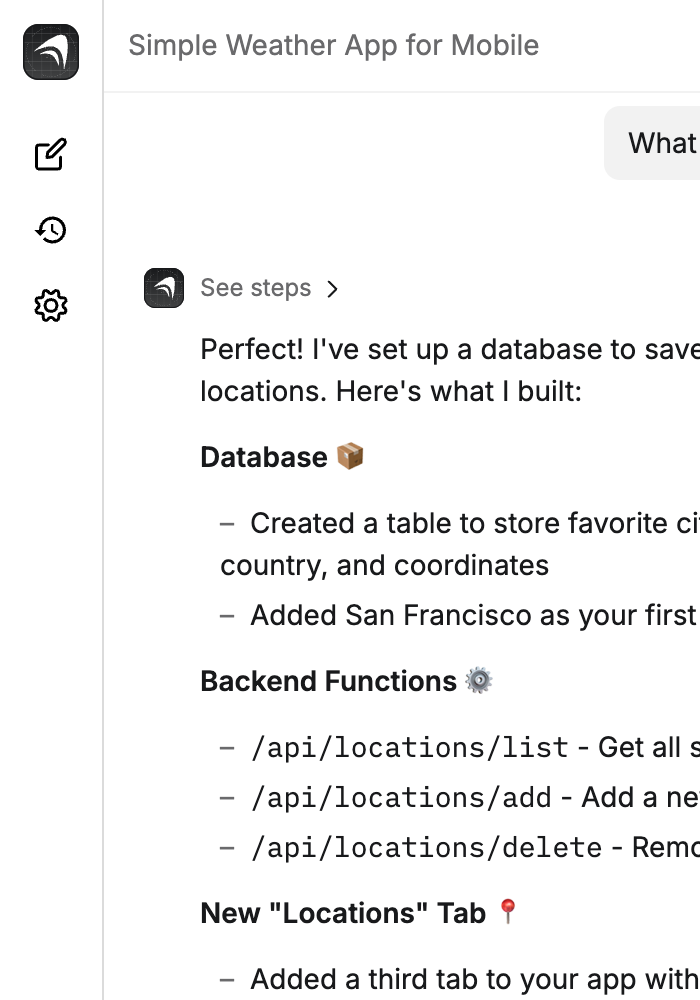
Tap the Anything logo to open the project menu
Top bar

- Preview / Code: toggle between your app and its code. In Code view, use the file explorer to browse files or press
cmd-shift-F(ctrl-shift-Fon Windows) to search across all files in your project. - Responsive: switch between desktop and mobile layouts (web apps)
- Refresh: reload the app preview
- Element selector: switch which page, component, or database you’re viewing
- Rename: edit the name of the current element
- External preview: open your app in a new window without the builder
- Invite: add collaborators
- Publish: push your app live

App preview
The center of the builder shows your app running in a cloud sandbox.- Web apps fill the full preview area
- Mobile apps show inside a device frame with a QR code to test on your phone
- Scan the QR code and open it in Expo Go to test on your actual phone
Bottom bar
- Logs. Output from your running preview app, including errors and warnings. Helpful for debugging.
- Restart sandbox. Reset the app’s cloud environment.
Version history
Every change is tracked. Go back to any previous version.- From chat: click a previous message to preview that version, then Restore to bring it back.
- From the sidebar: tap the clock icon to browse all versions. Published versions are labeled.
- Ask the agent: describe what you want to restore and the agent finds the right version. It shows an interactive card in chat with the version details and a one-click Restore button.
Publish
How you publish depends on what you’re building:- Web apps: click Publish in the top right. See Publish.
- Mobile apps: click Publish, then go through the Submit to App Store flow. See Submit to App Store.
Project settings
Click the Settings icon (gear) in the left sidebar.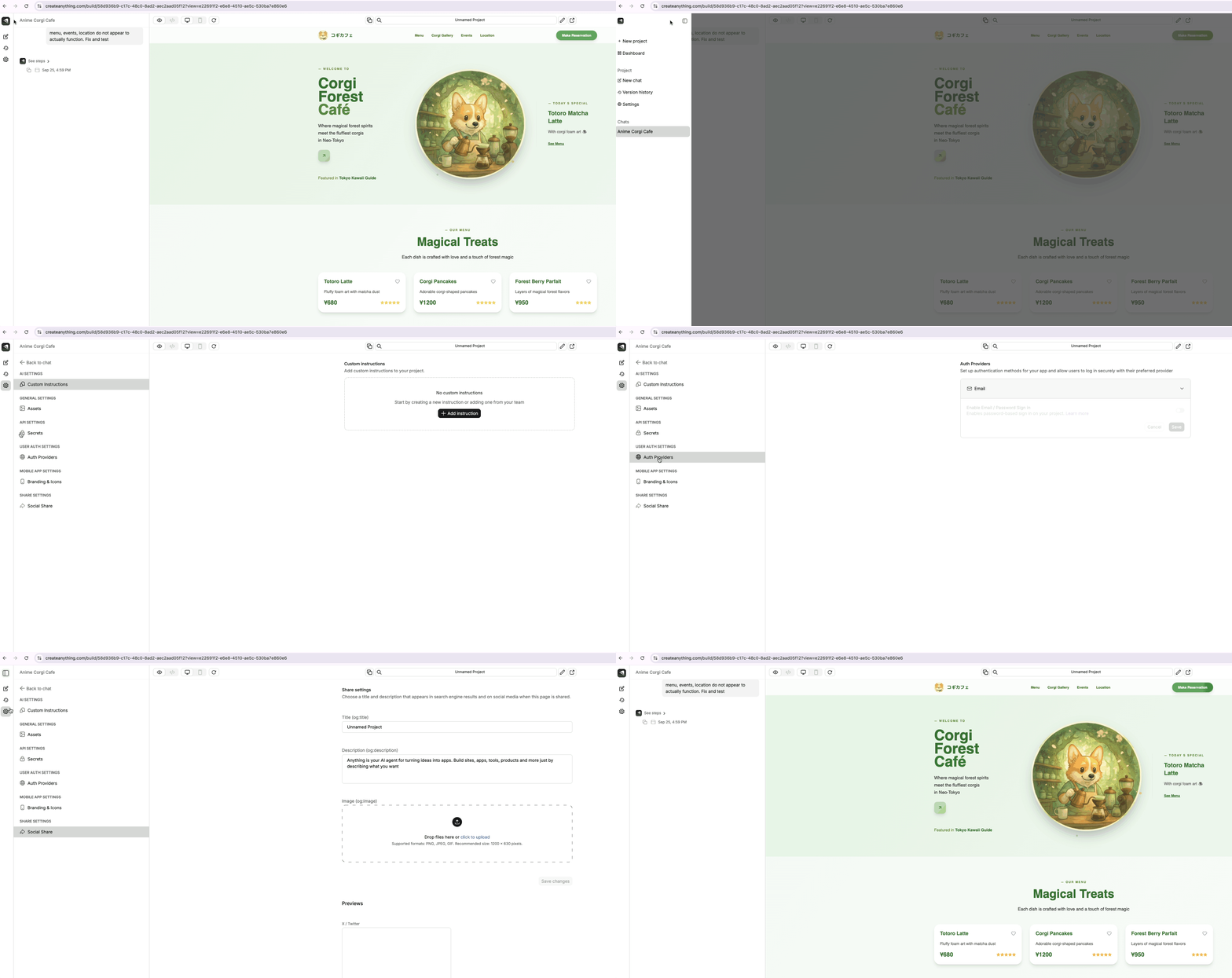
- Custom Instructions. Shape how the agent builds. See community examples here.
- Assets. Upload images, audio, and video files for your app.
- Secrets. Store API keys and tokens securely.
- Auth Providers. Configure login (Google, Apple, email). See Auth.
- Branding & Icons. App icons and branding for mobile builds.
- In App Purchases. Configure RevenueCat for mobile payments.
- Social Share. Preview images and metadata for shared links.
Dashboard
Your home base. Access it from the logo menu in any project.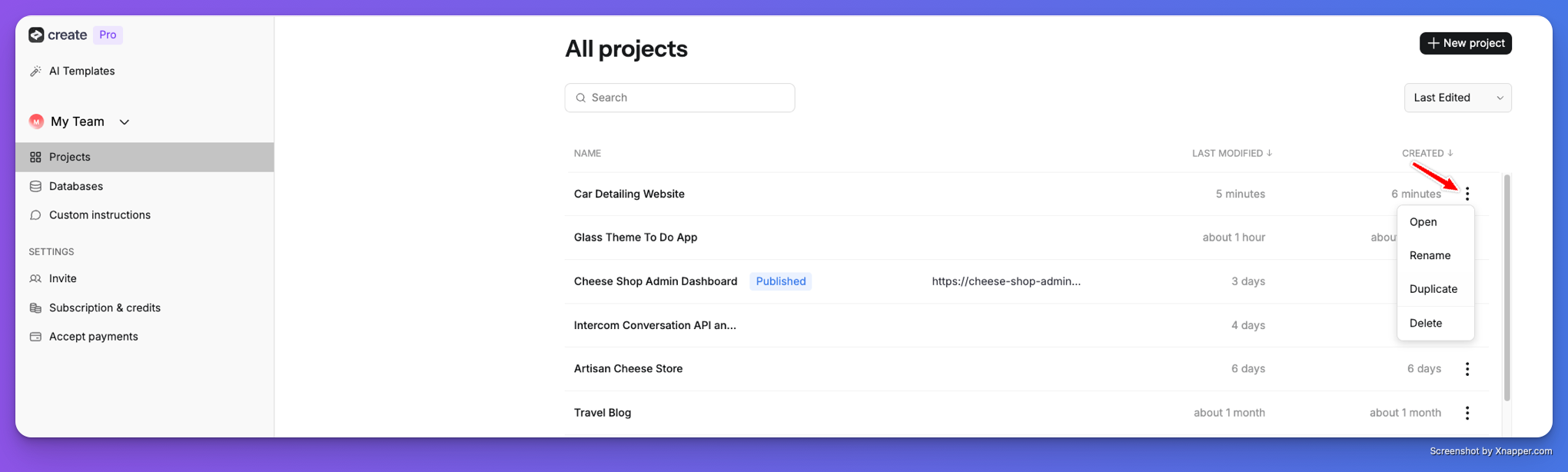
- Projects: view, duplicate, and delete your projects. Deleting a project shows an Undo option so you can restore it immediately if you change your mind.
- Templates: browse purchased templates and manage your listings
- Databases: view databases across projects
- Subscription & Credits: monitor Credits and manage your plan
- Accept Payments: connect Stripe or RevenueCat accounts
- Settings: connect your phone number for text-to-build, link Figma, and configure notifications
Text to build
Build apps by texting a phone number. Go to Settings in your dashboard and find Text Message under User Settings. Enter your phone number, and Anything will text you a dedicated number. Text that number anytime to describe an app or a change, and the agent builds it. You’ll get a link back to open your app in the builder.Requires a Pro plan or higher.