
Overview
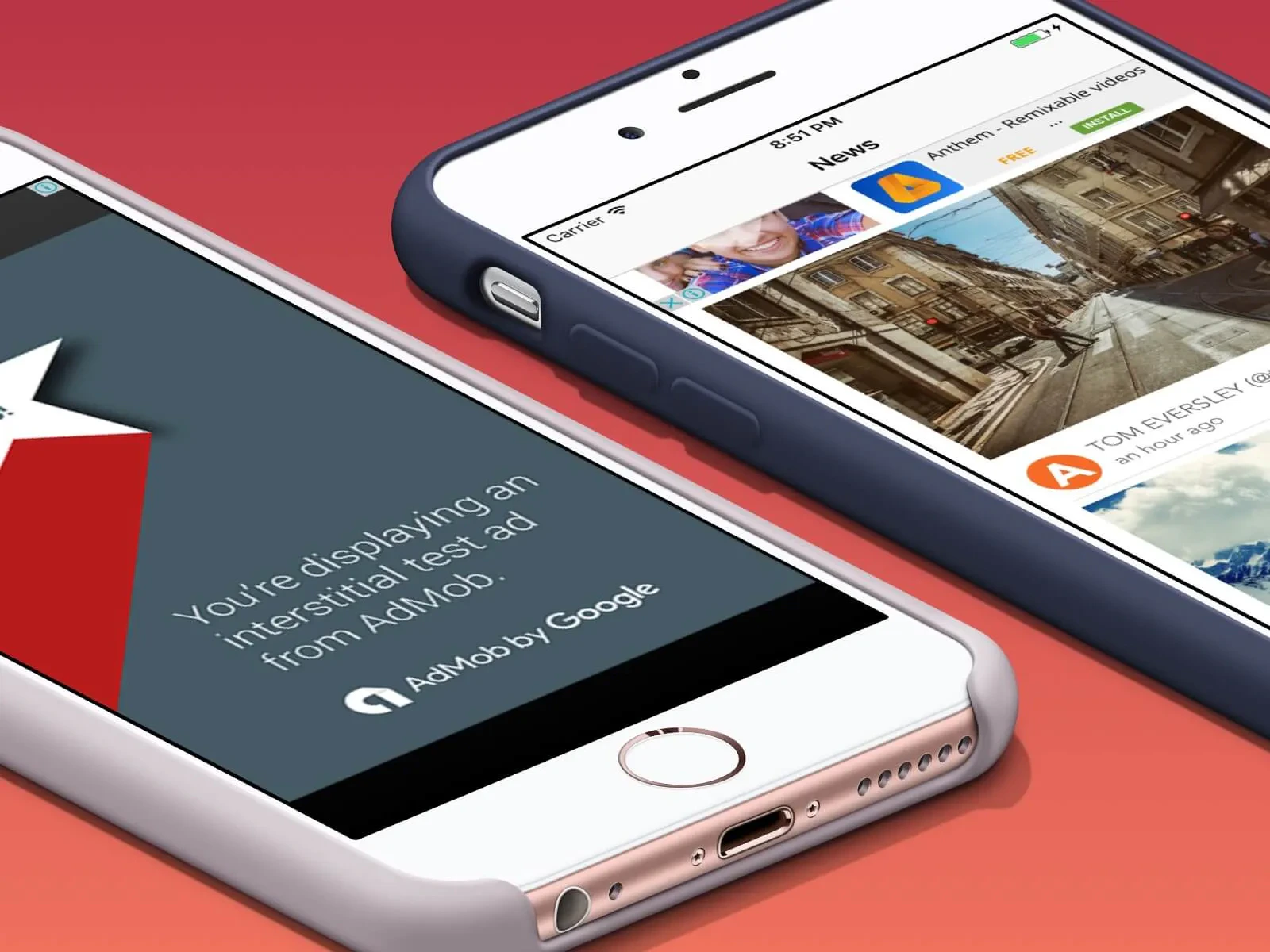
Ads are the simplest way to make money from a free app. You don’t charge users, you don’t manage subscriptions. Google places ads, users see them, you get paid. Anything supports two Google ad products in one place:- AdMob for mobile apps. Banner, interstitial, rewarded, rewarded interstitial, app open, and native ads inside your iOS or Android app. AdMob apps are platform-specific, so iOS and Android each get their own AdMob app and their own ad units.
- AdSense for web apps. Display, in-article, in-feed, matched content, and link ads on your published web app, plus Auto Ads if you want Google to place them for you. AdSense ad units are global to your account, not scoped to a specific site.
Prerequisites
Before you begin, make sure you have:- A Google account
- A signed-up AdMob account if you’re monetizing a mobile app
- A signed-up AdSense account if you’re monetizing a web app
- A project in Anything: mobile for AdMob, web for AdSense
- A published app on a domain or in the App Store. Google needs to crawl a real, live property before it serves real ads.
Setup
Connect your Google account
Open project settings
Find the Ads section
Connect AdMob (for mobile)
Connect AdSense (for web)
AdMob: pick an app and create ad units
After you connect AdMob, the panel switches to a picker. AdMob apps are platform-specific, so an iOS app and an Android app are two separate AdMob apps even when they’re the same product. If you ship to both stores, create one of each.Select your AdMob account
Select your app
Create ad units in AdMob
home_banner, level_complete_interstitial, or extra_lives_rewarded. The agent picks units by name when it places them in your app.Return to Anything
AdSense: register your site and create ad units
AdSense works differently from AdMob. Sites and ad units are separate. You register your site once, and you create ad units that work across any approved site under your account. There is no “pick the site for these ad units” step.Add your site in AdSense
Create ad units
Or turn on Auto Ads
Return to Anything
Adding ads to your app
Mobile (AdMob)
In your project settings, find the ad unit you want to use and click Add to App. A small placement modal opens.Pick a page (banner and native only)
Describe placement (optional)
Confirm
EXPO_PUBLIC_ADMOB_<NAME>_AD_UNIT_ID with the live ad unit ID, opens a new chat thread, and pre-fills a prompt that tells the agent which page, which format, and where to put it.Web (AdSense)
In your project settings, click Add to App on a configured ad slot. AdSense supports five ad slot types, all of which work the same way once added:- Display: the most flexible. Banner-style ads that fit anywhere.
- In-article: ads designed to sit between paragraphs of long-form content.
- In-feed: ads styled to match cards in a feed or list view.
- Matched content: related-article recommendations with optional ads mixed in.
- Link: small text-link ads.
- Adds the AdSense loader script to
<head>of your root layout. - Creates an
<AdUnit />component that wraps Google’s<ins class="adsbygoogle">tag with the rightdata-ad-clientanddata-ad-slotattributes. - Places the ad where you asked.
How it works
Anything plugs into Google’s ad SDKs without any configuration on your side. Mobile:- The agent imports
react-native-google-mobile-adsdirectly in your component files. - The Expo plugin and your AdMob app IDs are injected at build time. You don’t edit
app.json. - On a real device or development build, the SDK loads ads from Google.
- In Expo Go and the web preview, the ad components render as size-accurate placeholders so your layout still looks right.
- The AdSense loader script is added to the
<head>of your root layout. - Each ad unit is rendered as an
<ins class="adsbygoogle">element with your publisher and slot IDs. - The component pushes one entry to
window.adsbygoogleper ad on mount, so the ad fills. - AdSense’s crawler verifies your site, and ads start serving once it’s approved.
Going live
Both AdMob and AdSense need to verify that you actually own the website or app before they pay out. This is the IAB authorized-sellers protocol, the sameads.txt standard you may have heard about.
AdMob: app-ads.txt
The first time you add an AdMob ad unit, the agent writes anapp-ads.txt file to the public/ folder of your web app in the same project. This is intentional. AdMob crawls the developer website you list in the App Store or Play Store, not the app itself.
The file contains a single IAB authorized-sellers line:
pub-XXXXXXXXXXXXXXXX is your AdMob publisher ID, filled in automatically. The file is written once. Adding more ad units later doesn’t rewrite it.
To finish setup:
Publish your web app
app-ads.txt is reachable at https://yourdomain.com/app-ads.txt.Set the developer website in the store listing
Wait for AdMob verification
AdSense: ads.txt and site approval
For web, the agent writesads.txt to the public/ folder so it’s served at https://yourdomain.com/ads.txt.
The site approval step is manual. AdSense doesn’t auto-review new sites, you have to ask:
Publish your web app
ads.txt is reachable at https://yourdomain.com/ads.txt.Request a review in AdSense
Wait for site approval
Confirm ads.txt is verified
Testing
Mobile
You cannot test real ads in the web preview or Expo Go. You need a real device or a development build.- In the web preview: banner ads render as a small gray placeholder. Interstitial and rewarded
load()andshow()calls are no-ops. - In Expo Go: the package is polyfilled with size-accurate placeholders so the layout doesn’t break, but no real ads load.
- On a real device: real ads load through the Google Mobile Ads SDK once the app is built natively.
Web
AdSense ads only serve on approved domains. They will look blank in the preview and on any unapproved domain. To verify your integration works:- Publish the app to a real domain.
- Open the site, view source, and confirm the AdSense loader script is in
<head>. - Confirm
https://yourdomain.com/ads.txtreturns the IAB authorized-sellers line. - Wait for AdSense to approve the site, then check that ads start filling.
Policy notes
A few rules from Google that are easy to break by accident:- Don’t click your own ads. Even once. AdMob and AdSense detect this and ban accounts. If you need to test the click flow, use Google’s test ad unit IDs.
- Don’t ask anyone else to click your ads. Same rule.
- Don’t put more than one ad per page until you understand AdSense’s placement rules. Auto Ads handles this for you.
- Real-world goods and services on iOS can use AdMob alongside Stripe Connect for marketplace payouts. Apple’s IAP rules don’t apply to physical goods or real-world services. See Apple’s Guideline 3.1.5.
Troubleshooting
”No apps found” in AdMob
You connected AdMob but the app dropdown is empty. Fix: Click Create AdMob app to open the AdMob console in a popup, create your app there, then return to the tab. The app list refreshes automatically when you focus the tab.Ad units list is empty after creating units
You created ad units in AdMob but they don’t show up in the picker. Fix: Switch back to the Anything tab — the ad units list refreshes automatically when you focus the tab. New units can take a few seconds to propagate from AdMob.Ads show as blank or “ad failed to load”
Ads don’t render even on a published site or real device. Fix: Check these in order:- Site or app approved? AdSense and AdMob both gate real ad serving on account approval. Look at your account status in the Google console.
ads.txtorapp-ads.txtverified? Anything writes the file. You still need to publish the web app and wait a day or two for Google’s crawler.- Developer website set? For AdMob, the URL in your App Store or Play Store listing must match where
app-ads.txtlives. - Test ad unit IDs left in code? Real ads do not serve from test IDs. Have the agent swap them for your live IDs.
Banner ad component throws “module can’t be resolved”
You see a bundler error aboutreact-native-google-mobile-ads.
Fix: Don’t try to fix it. The error is from the web bundler, not from a real broken import. The package is polyfilled for the web preview and Expo Go, and resolves to the native module on real device builds. Tell the agent to ignore the error and re-run.
AdSense script appears outside <head>
Ads load late, the layout shifts, or some pages don’t get ads.
Fix: Ask the agent to move the AdSense loader script into the root layout’s <head>. Tell it the script must sit there, not inside a page component.
Ads worked, then stopped after I updated my app
A working integration suddenly serves blank ads. Fix: Check your AdSense or AdMob console for policy notices. Common causes: a new page violates a policy, or a new domain hasn’t been added to your authorized list. Resolve the notice and ads usually return within hours.FAQ
Do I need to add anything to app.json or eas.json for AdMob?
Do I need to add anything to app.json or eas.json for AdMob?
app.json to add react-native-google-mobile-ads to plugins. If you do, EAS builds may fail or duplicate config.What's the difference between AdMob and AdSense?
What's the difference between AdMob and AdSense?
Why do my AdSense ad units show up across all my sites?
Why do my AdSense ad units show up across all my sites?
Do I need a separate AdMob app for iOS and Android?
Do I need a separate AdMob app for iOS and Android?
Can I use both ads and Stripe or RevenueCat in the same app?
Can I use both ads and Stripe or RevenueCat in the same app?
Why does my web preview show gray placeholders instead of ads?
Why does my web preview show gray placeholders instead of ads?
How do I disconnect a Google account?
How do I disconnect a Google account?
Can I split AdMob and AdSense across two different Google accounts?
Can I split AdMob and AdSense across two different Google accounts?
Connections
You can connect AdMob and AdSense to the same Google account or to different ones. They are tracked as separate OAuth connections, so disconnecting AdMob doesn’t disconnect AdSense and vice versa. To swap accounts, click Disconnect in the relevant section and reconnect with a different Google account.Related Articles
- Mobile Apps: build a native iOS or Android app
- Web Apps: build and publish a web app
- Publish your site: get your web app on a real domain so AdSense can verify
- Publish to the App Store: get your iOS app live so AdMob can verify
- RevenueCat: subscriptions and in-app purchases for mobile, an alternative to ads
- Stripe: subscriptions and one-off payments for web, an alternative to ads