
RevenueCat is for mobile apps. For web apps, use Stripe.
Overview
Want to monetize your app? RevenueCat makes it simple to add subscriptions and in-app purchases to your iOS app without complex payment code. Instead of wrestling with Apple’s in-app purchase APIs or building your own payment infrastructure, RevenueCat handles subscription management, entitlements, and revenue tracking. You focus on building features; RevenueCat handles monetization. Here’s what you get:- Set up monetization quickly - Configure subscriptions, one-time purchases, and premium features without writing payment code
- Track revenue and growth - Monitor revenue, analyze customer behavior, and understand what’s driving your business
- Test and optimize - Build paywalls, A/B test pricing, and optimize your revenue strategy with real data
Prerequisites
Before you begin, make sure you have:- An iOS mobile app project in Anything
- An active Apple Developer Account - Required to publish apps and use in-app purchases. Provides access to App Store Connect.
- A RevenueCat account
- Business information completed in App Store Connect - Before accepting payments, complete your banking information and tax forms under App Store Connect > Business. This is required for Apple to process payouts.
Setup
Connect your accounts at the platform level
First, connect your accounts at the platform level to enable in-app purchases and subscriptions across all your projects.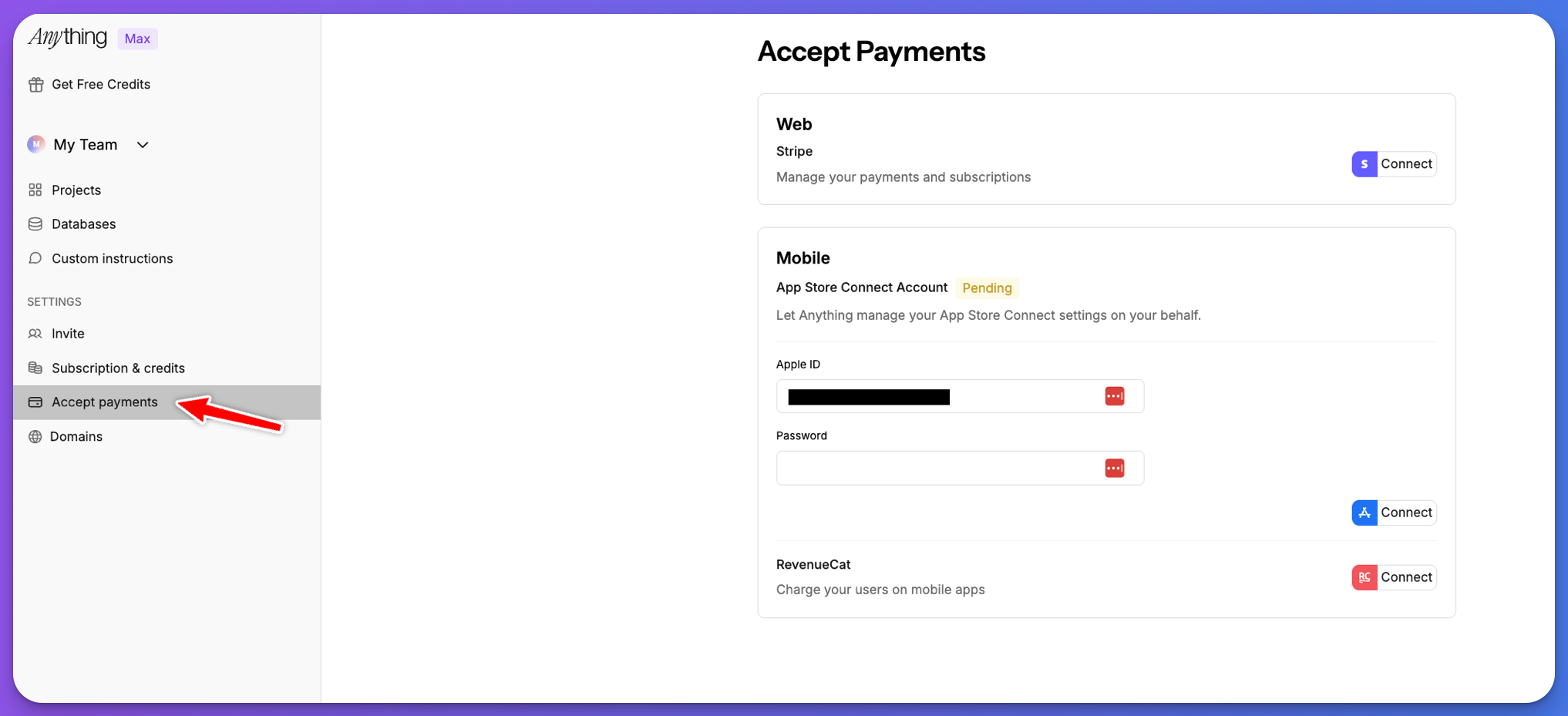
Connect App Store Connect
Connect your App Store Developer account to enable in-app purchases and subscriptions.
Add RevenueCat to your project
After connecting at the platform level, add RevenueCat to your project using the AI agent.Set up RevenueCat
In the chat, ask the agent to set up RevenueCat:The AI builder will automatically connect your project to matching projects in RevenueCat and App Store Connect, or create new ones if needed.
Reviewing connections (optional): You can review the connections the AI builder made by going to Project Settings > In app purchases. This shows the connected projects in RevenueCat and App Store Connect, but you don’t need to manually configure these—the AI handles it automatically.
Configure App Store Connect for Subscriptions
After the AI agent sets up your products, you need to complete the subscription configuration in App Store Connect to ensure your subscriptions are ready for submission.Upload subscription screenshot
In App Store Connect, go to your subscription’s Review Information section and upload a screenshot of your subscriptions page. The screenshot must match one of Apple’s iPhone specifications. See Apple’s screenshot specifications for requirements.
Set subscription prices
Configure your subscription pricing in App Store Connect. Set the price for each subscription tier and region where you want to offer your subscriptions.
Configure price schedule and availability
Go to Monetization > Pricing and Availability in App Store Connect and ensure your app’s price schedule and availability are properly configured.
How it works
RevenueCat integrates automatically with your mobile app. Here’s how the payment flow works:- Configure products using the AI agent in Anything. For example:
"Create a Pro Level Subscription that is 9.99 USD a month" - Users make purchases through Apple’s in-app purchase system (they see Apple’s payment UI)
- Apple processes the payment and takes their commission (typically 15-30%)
- RevenueCat receives the purchase event from Apple and tracks subscription status
- RevenueCat unlocks features in your app based on entitlements
- You receive payouts from Apple (not RevenueCat) according to Apple’s payout schedule
Testing
Testing in the Anything iOS App
You can test your RevenueCat integration directly in the Anything iOS App on your device. This allows you to:- Test purchases and subscriptions in Apple’s sandbox environment
- Validate paywall functionality before going live
- Test subscription states and payment flows
- Preview your app natively on your device
- Install the Anything iOS App - Download from the App Store and sign in with your Anything account
- Open your project - Your projects sync automatically between devices
- Test natively - Preview and test your app directly on your device with full native functionality
Testing on TestFlight
Submit your app to Apple via our system to test in TestFlight. Test purchases work in TestFlight’s production-like environment. See Publishing to iOS App Store for submission instructions.Viewing Sandbox Purchases
When testing subscriptions, you can view sandbox purchases in your RevenueCat dashboard:- Go to RevenueCat > Customers > Sandbox to see all test purchases and subscription activity
- Sandbox purchases appear only in RevenueCat—App Store Connect does not report sandbox purchase data
- This allows you to verify that purchases are being processed correctly during testing
Production
Once your app is approved and released:- Real payment processing through Apple’s App Store
- Automatic App Store compliance
- Live analytics and customer management in your RevenueCat dashboard
Preparing for Production
Before submitting your app to the App Store, ensure all requirements are met:Business Setup Checklist
- Banking information completed in App Store Connect > Business
- Tax forms completed in App Store Connect > Business
- Subscription screenshot uploaded (matches iPhone specifications)
- Subscription prices configured in App Store Connect
- Price schedule and availability set under Monetization > Pricing and Availability
- Subscription shows “Ready to submit” in both RevenueCat and App Store Connect
Verification
The best way to verify everything is configured correctly is to check that your subscription products show “Ready to submit” status in both:- Your RevenueCat dashboard
- App Store Connect
Troubleshooting
Product Name Mismatch
Issue: Products not syncing between RevenueCat and App Store Connect. Solution: Product names must be exactly the same in both RevenueCat and App Store Connect. For example, if your subscription is namedpro_plan in RevenueCat, it must also be pro_plan in App Store Connect (case-sensitive). Mismatched names prevent the systems from matching products.
”No Offerings” Error
Issue: Your app shows"No offerings" when trying to display subscriptions.
Solution: This error is usually caused by one of the following:
- Product name mismatch between RevenueCat and App Store Connect (see above)
- Missing subscription metadata in App Store Connect (screenshot not uploaded)
- Subscription prices not configured
- Service credentials not properly configured
"Ready to submit" in both systems. If issues persist, see RevenueCat’s troubleshooting guide for more details.
Missing Metadata
Issue: Subscription shows"missing metadata" in App Store Connect.
Solution:
- Upload a subscription screenshot in Review Information > Screenshot that matches Apple’s iPhone specifications
- Ensure subscription prices are set
- Verify all required fields in App Store Connect are completed
Service Credentials (Advanced)
The AI agent should automatically configure service credentials. Only follow these steps if you’re experiencing connection issues.
- In-app purchase key: Should be configured in RevenueCat from App Store Connect. See RevenueCat’s IAP key configuration guide.
- App Store Connect API key: Should be configured in RevenueCat. See RevenueCat’s ASC API key configuration guide.
Related Articles
- Mobile Development - Build mobile applications
- Publishing iOS - Publish to App Store
- Stripe Payments - Web app payments