
Testing on your iPhone
Expo Go gives you a native preview on your device, including camera, location, notifications, and other device features.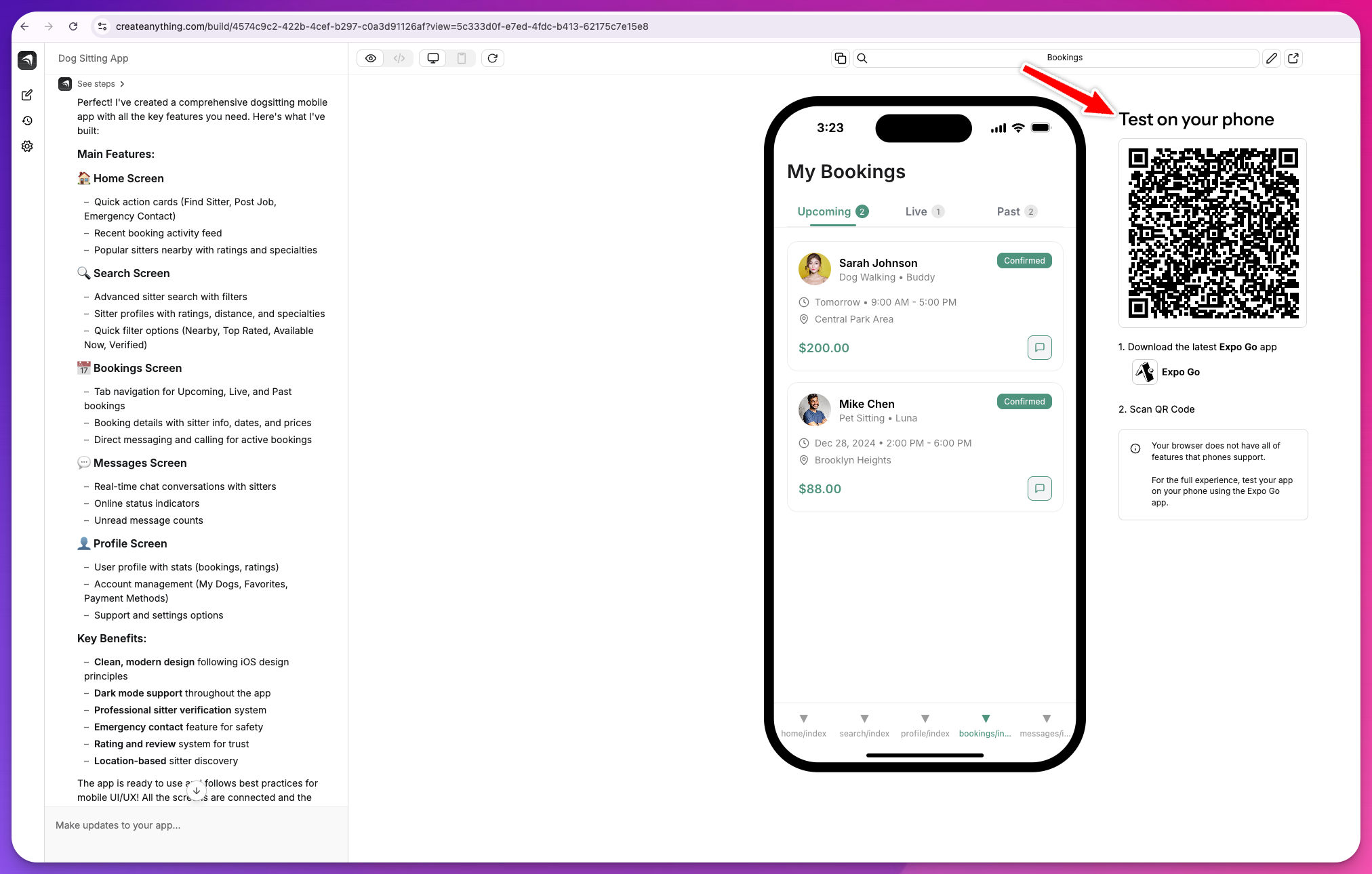
How to load your app
- Download Expo Go on your iPhone.
-
Load your app in one of two ways:
- In your project editor, find the QR code in the mobile preview area and scan it with your iPhone camera.
- If prompted, open the project link in Expo Go.
- Any changes you make in the builder update in Expo Go automatically, so you can test iterations in real time.
- Test camera, location, notifications, and other device features directly on your iPhone.
Device features like camera, location, and barcode scanning won’t work in the web preview. Always test on your iPhone using Expo Go for full functionality.
Capturing logs from a TestFlight build
When a bug only reproduces in TestFlight, the answer is in your device’s logs. The recommended path is Apple’s Console app on a Mac, and there are good no-Mac options too. See Capture TestFlight logs.App compliance check
Run the compliance check before submitting to the App Store to make sure your app meets Apple’s guidelines.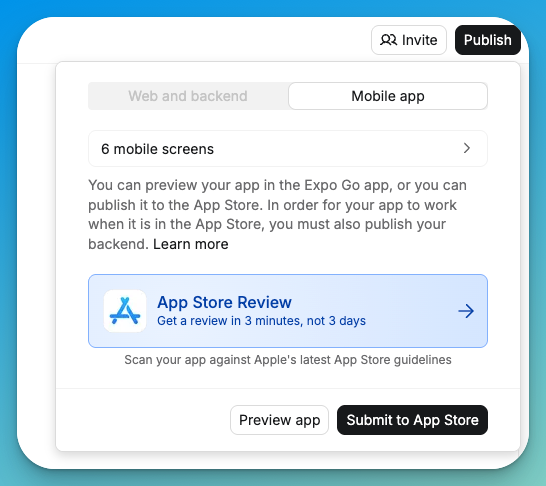
- Click Publish in your mobile project.
- Select App Store Review from the publication options.
The compliance check analyzes your app against Apple’s App Store guidelines and flags issues to fix before submission.