
Overview
Create Developer Account
Sign up and configure your LINE Account Manager, LINE Official Account, and LINE Developer Account.
Get Channel Credentials
Create a LINE channel and obtain API keys
Verify Settings
Turn on these settings to have the best experience with LINE
Connect to Anything
Add your credentials to Anything’s secrets
Account Setup
1
Create a LINE Official Account Manager
Go to https://manager.line.biz/ and sign up with your account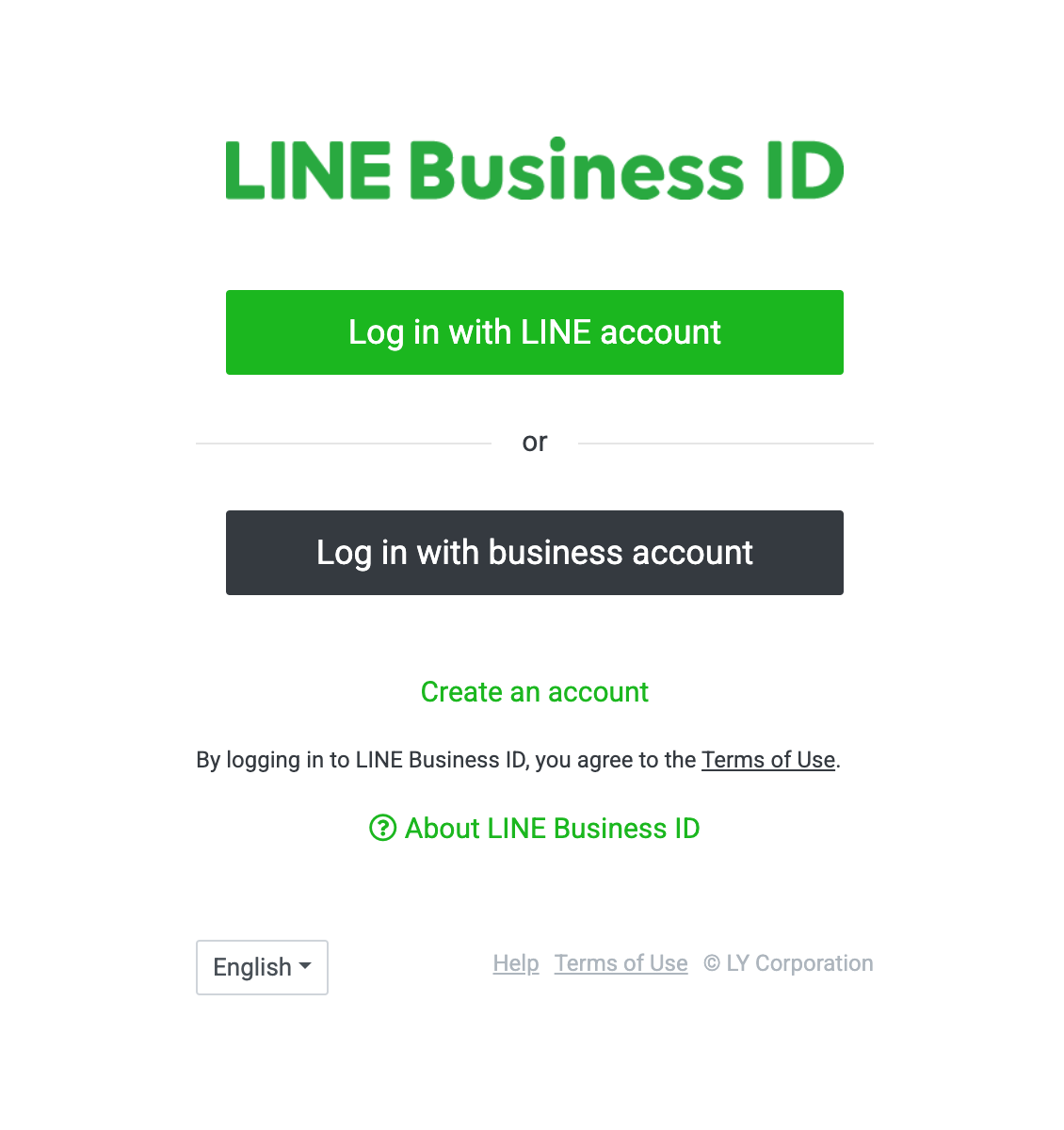
2
Create a LINE Official Account
Click “Create LINE official account” to continue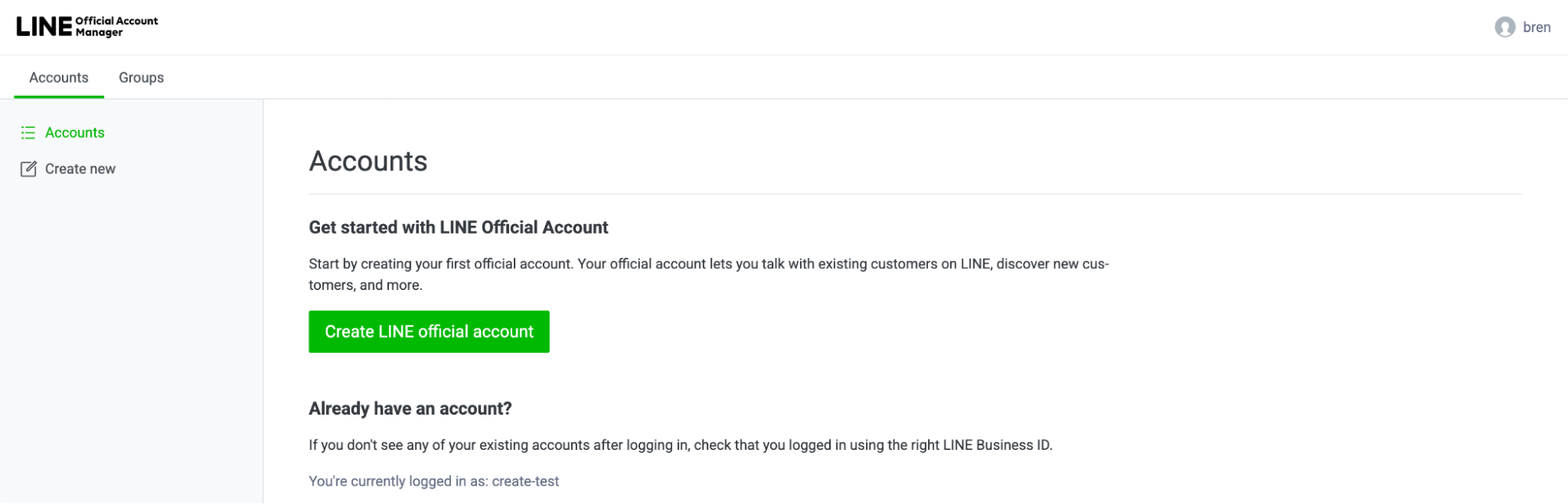
3
Link your LINE Account to LINE Developer
Once your account is created, you may now visit LINE Developer and click Log in to Console to link your LINE Official Account.
Generate API Credentials
1
Creating a Provider
Click on “Create a new provider” to generate a provider for your Channel.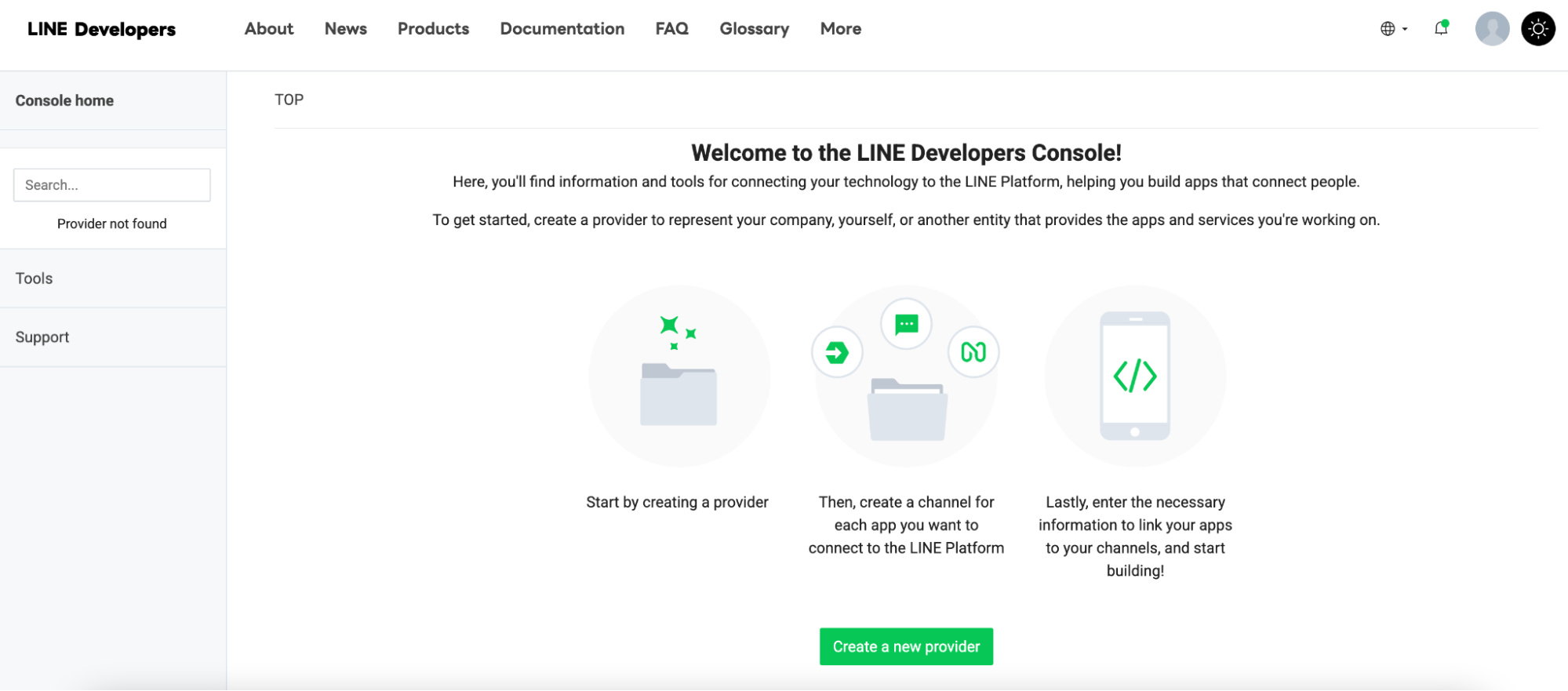
2
Enable Messaging API
Now go back to your LINE Official Account Manager. In the top right corner, click on “Setting”. Then, on the left panel, select “Messaging API” and “Enable Messaging API”. Be sure to select the provider mentioned previously.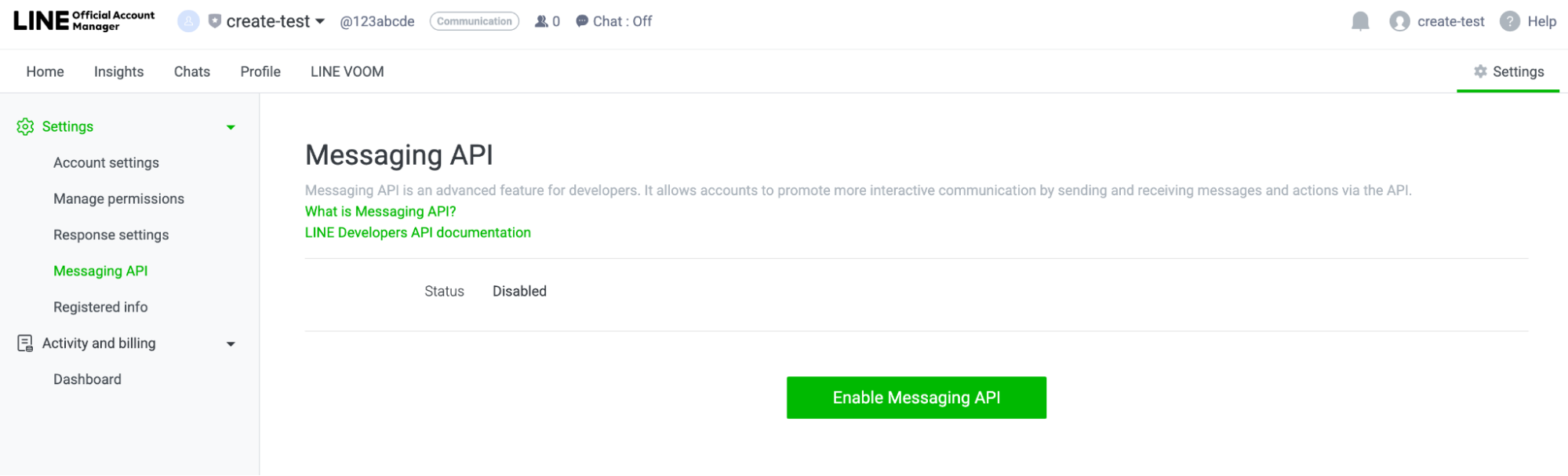
3
Finding Webhook URL
Find your webhook URL path in the Page and Function Settings under the Publish button. Copy the URL of your Anything project’s live site and API path into the webhook URL.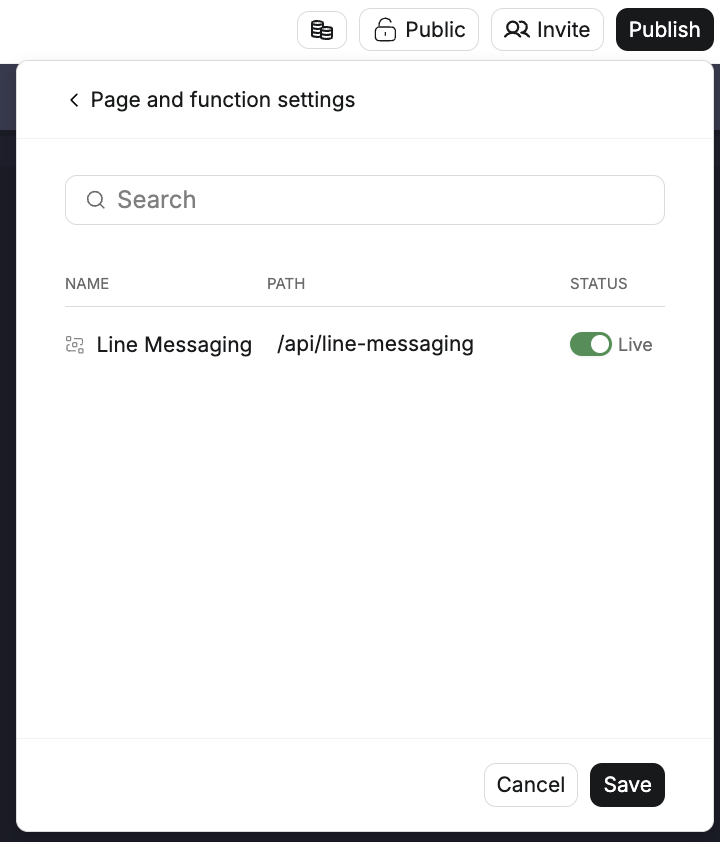
4
Inputting Webhook URL
Input your webhook URL in your LINE Official Account Manager. It should be in the format of https:// your-anything-project-url.created.app/api/line-messaging.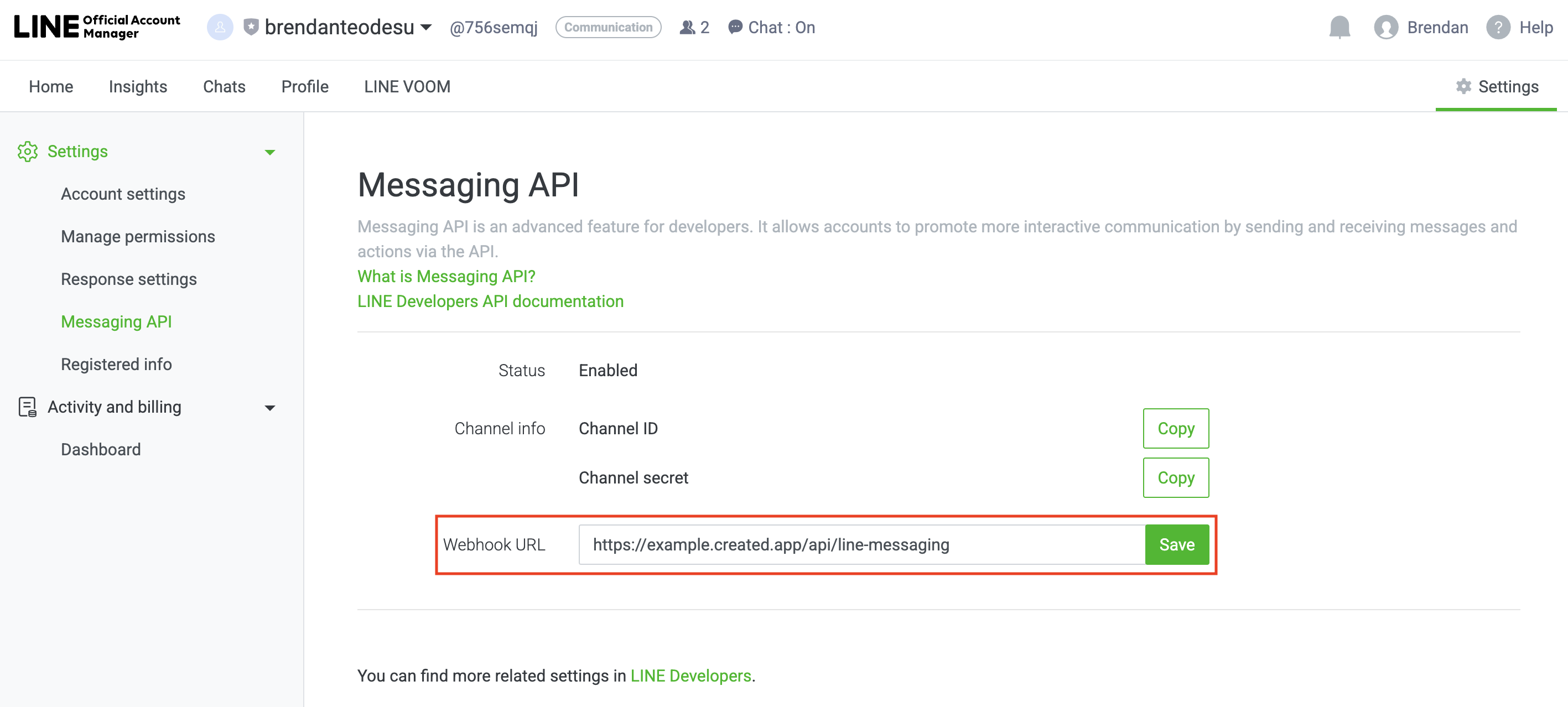
5
Channel Secret Token
You may copy your Channel Secret Token here as well.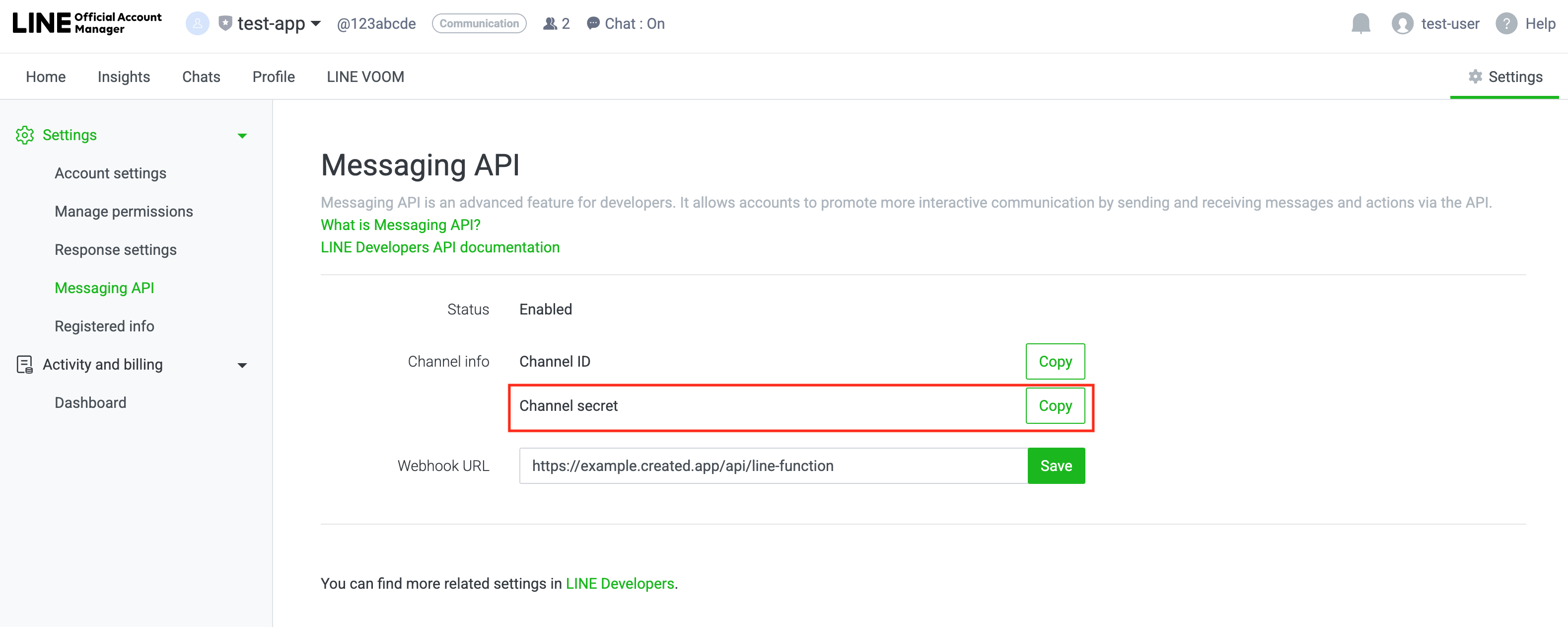
6
Channel Access Token
Get your Channel Access Token by going to your LINE Developer Account > Provider Name > Messaging API > Scroll all the way down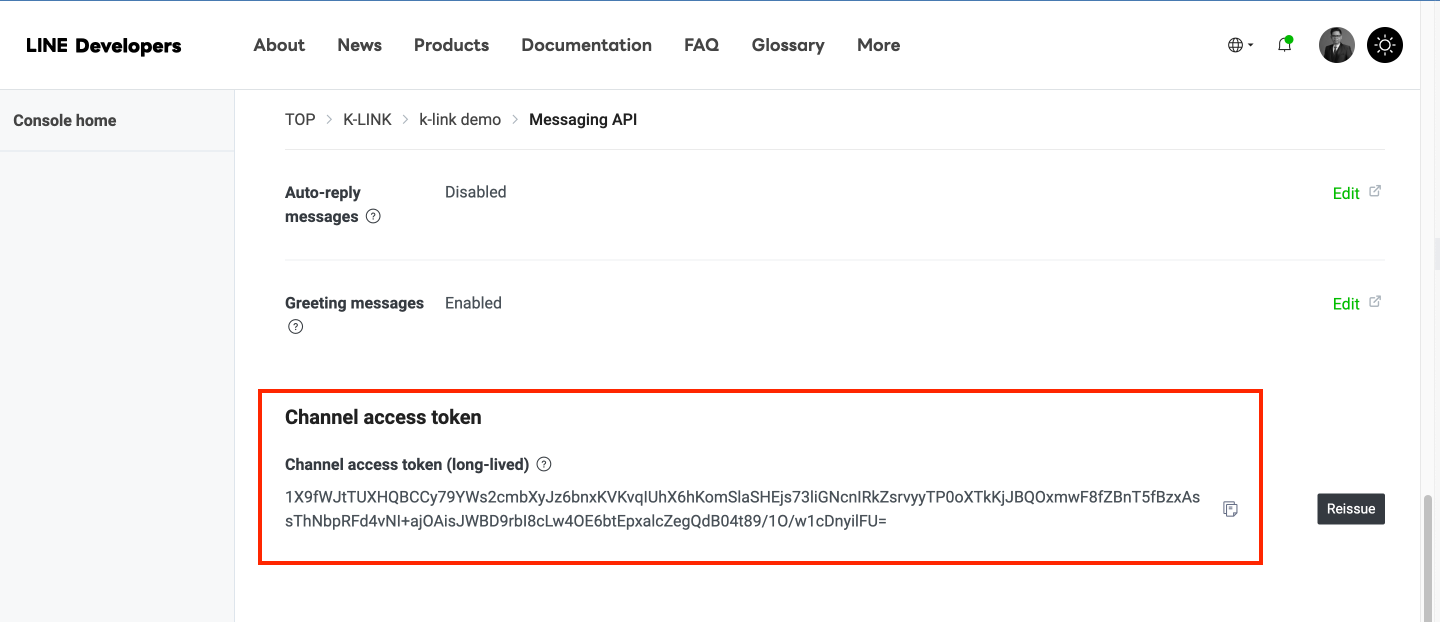
7
Adding Tokens to Anything
Enter and save your API tokens in Anything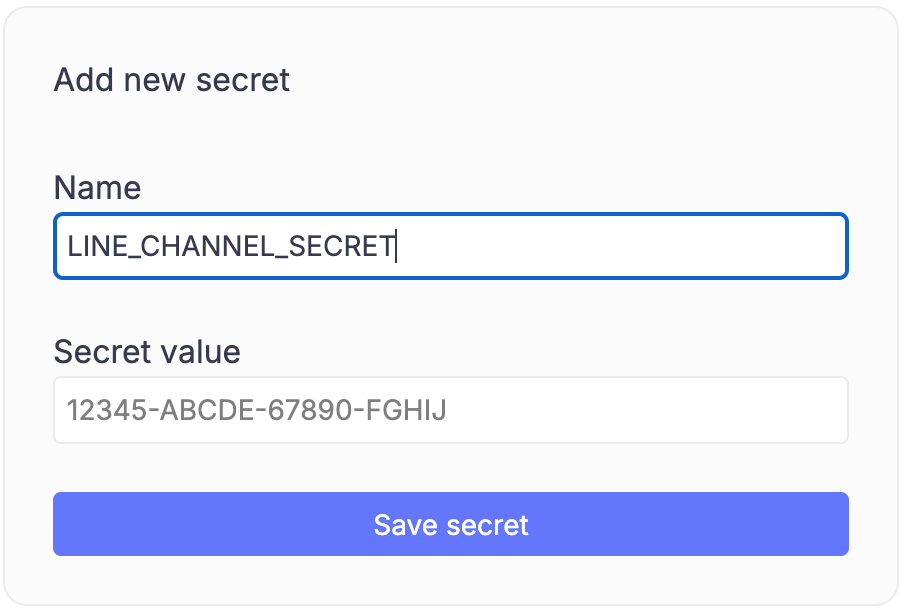
Verify Settings
1
Verify Webhook URL
After publishing your project, you may verify your webhook URL by going to your LINE Developer Console > Provider > Channel > Messaging API
If you see a success message, your webhook URL is verified. Otherwise, you may need to check your webhook URL/function and try again.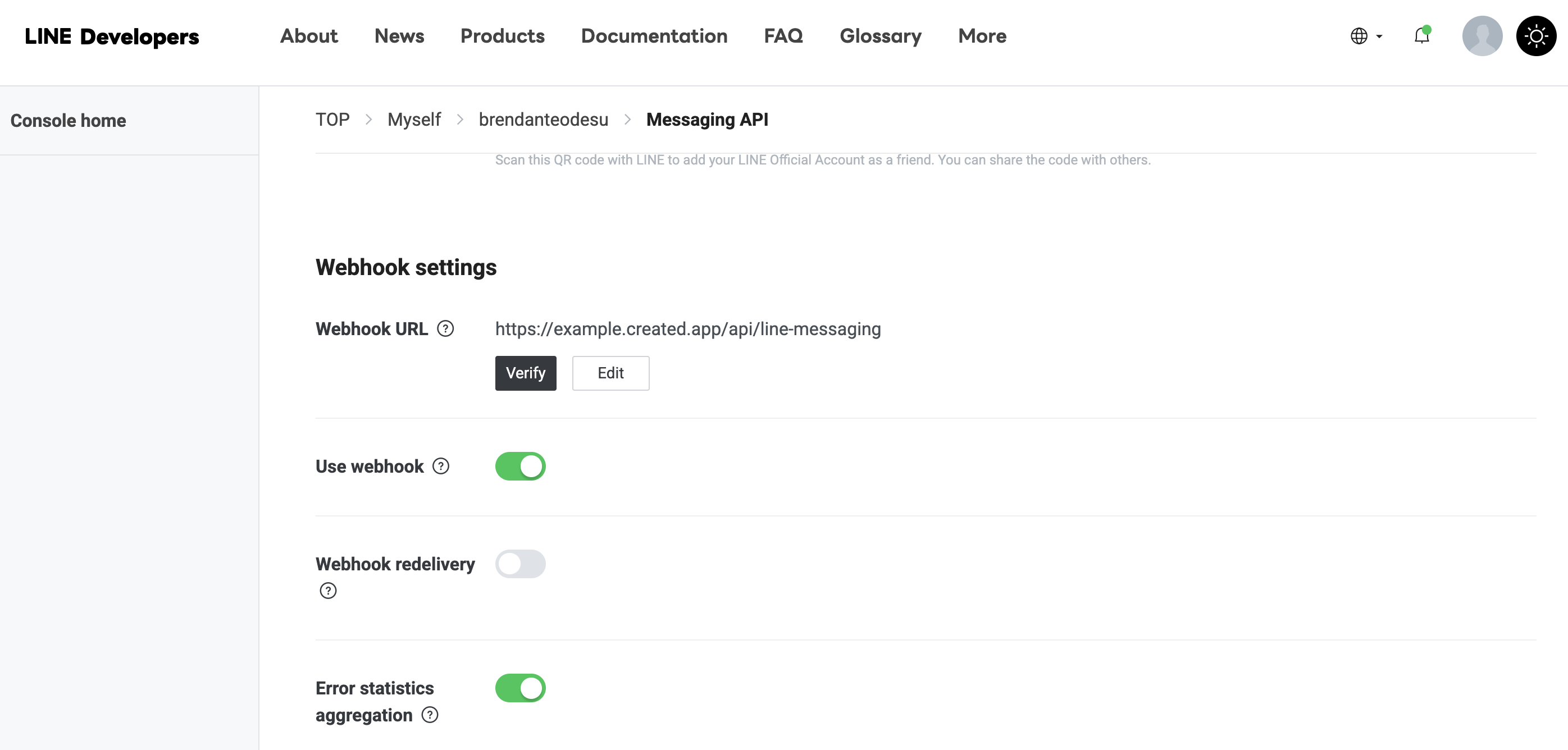
If you see a success message, your webhook URL is verified. Otherwise, you may need to check your webhook URL/function and try again.
2
Enable Chatbot Settings
Enable Chatbot Settings by going to your LINE Official Account Manager > Settings(Top Right) > Response Settings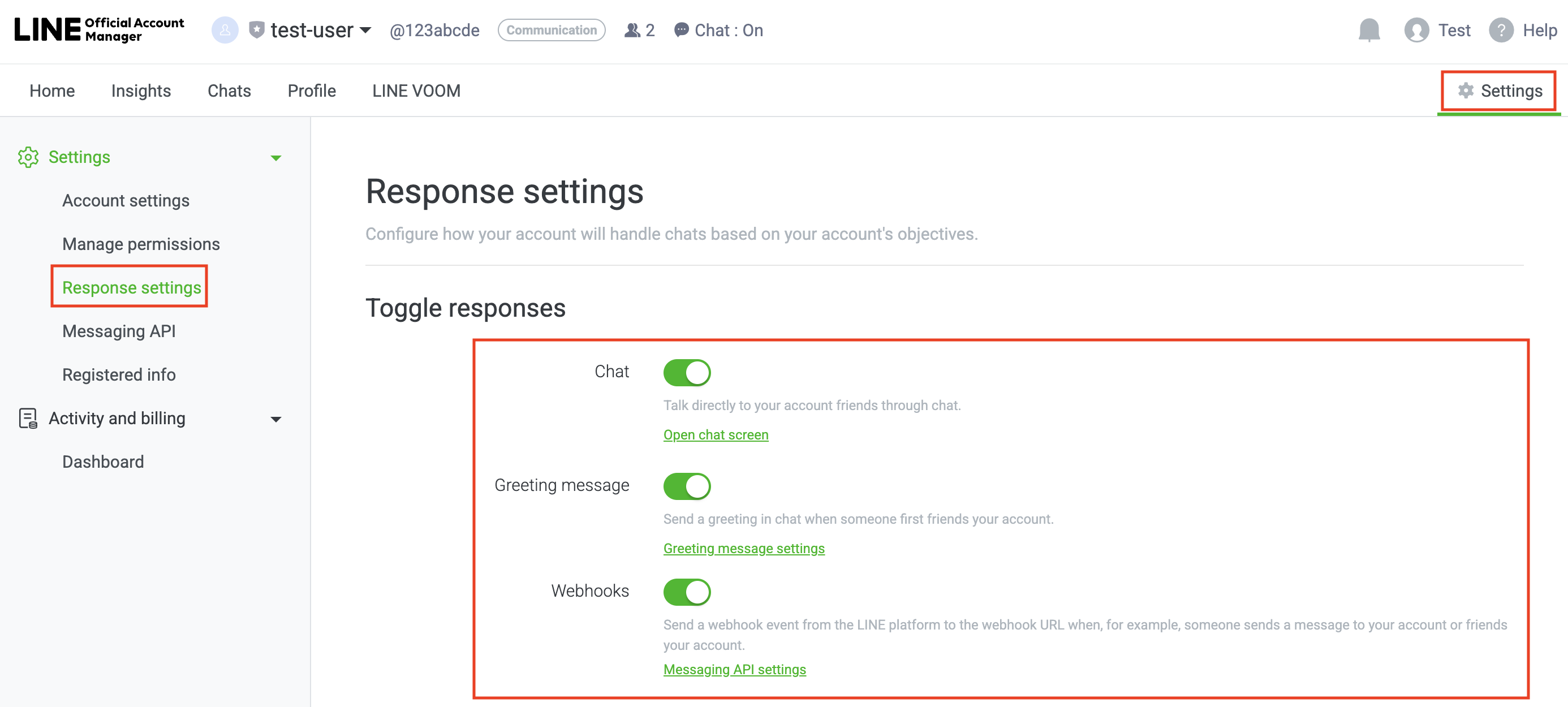
3
Enable Chatbot to Join Group Chats (Optional)
Allow your chatbot to join group chats by going to your LINE Official Account Manager > Settings(Top Right) > Account Settings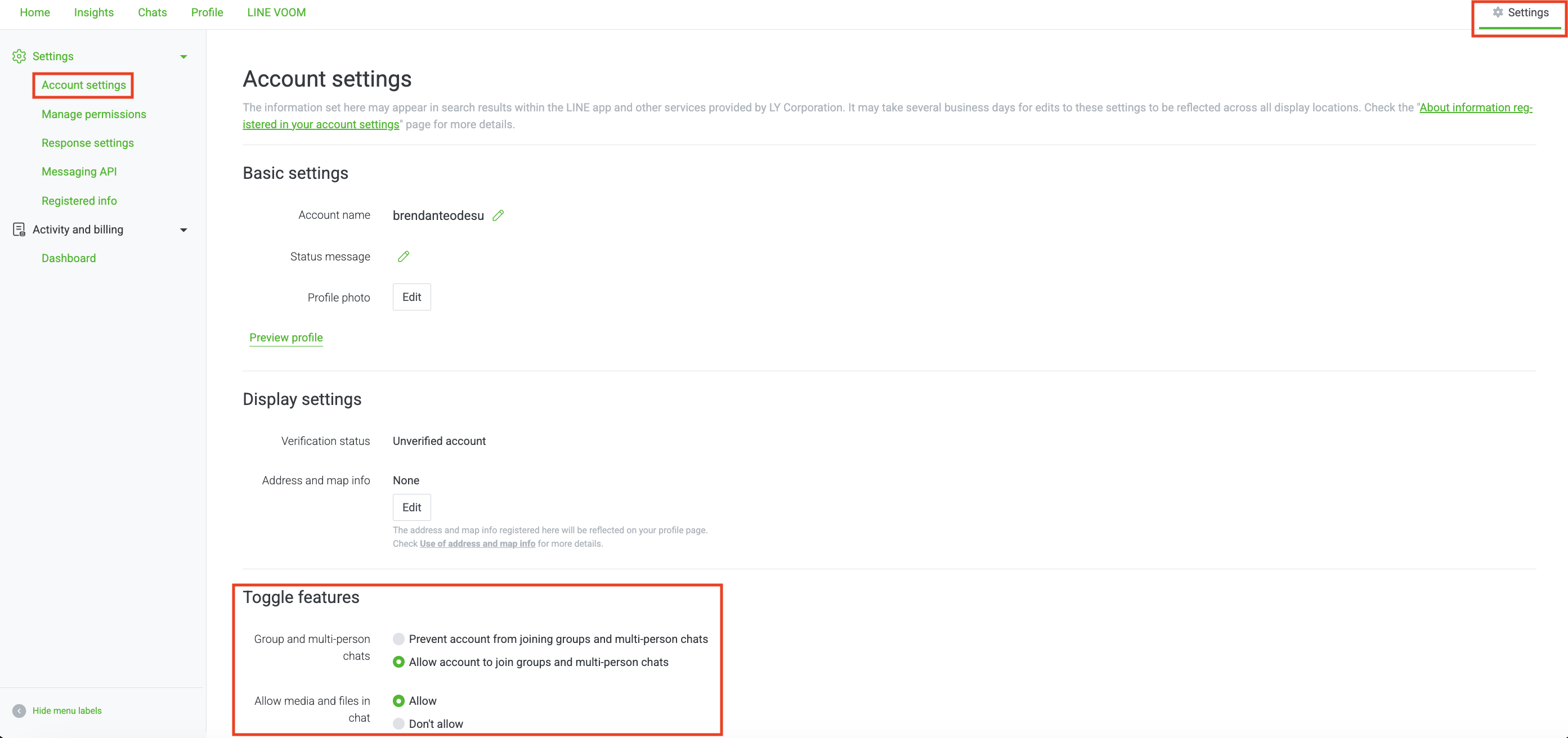
Add to Anything project
1
Add the Integration
- In your Anything project, type
/in chat - Select “Line” from the menu
2
Add Your Credentials
- Paste Channel Secret into “LINE_CHANNEL_SECRET”
- Paste Access Token into “LINE_ACCESS_TOKEN”
3
Start Building
Use prompts to implement LINE features:
Send order confirmation via /LineBuild a chatbot that uses /Line for customer supportCreate a broadcast system with /Line
Frequently Asked Questions
What is LINE Messaging API?
What is LINE Messaging API?
LINE Messaging API allows you to send messages, build chatbots, and interact with users through LINE’s messaging platform. It’s particularly popular in Asia and great for customer engagement.
Do I need a LINE Business Account?
Do I need a LINE Business Account?
Yes, you need a LINE Business/Developer Account to access the Messaging API. The basic account is free and sufficient for testing and development.
How does the webhook work?
How does the webhook work?
The webhook works by sending LINE encrypted messages to your Anything project’s function URL when a message is typed in the Line app. This message triggers Function(s) that can send messages back to the user.
What can I build with LINE integration?
What can I build with LINE integration?
You can build:
- Customer service chatbots
- Order notification systems
- Broadcast messaging tools
- Interactive marketing campaigns
- Automated response systems
Are there usage limits?
Are there usage limits?
Yes, LINE has API rate limits and message quotas. Free accounts have lower limits than paid business accounts. Check Line’s official documentation for current limits.
Can I test my LINE integration?
Can I test my LINE integration?
Yes, you can test your LINE integration by verifying your webhook URL returns a success message. Followed by talking to your bot on LINE to test the integration.
Additonally, you may test responses from your bot by asking the AI chat to print the response and using the Function test runner.