
How to triage
Most bugs come down to a single, specific error in the logs. The fastest path to a fix is to find that error, understand it, then ask the agent to fix the one thing that’s actually broken. Discussion mode is the right tool for the understanding step. You can ask the agent anything without it changing your code, which makes it safe to inspect, ask follow-ups, and narrow things down.Fixing issues yourself
Open your app and trigger the broken behavior on purpose. Note exactly what you clicked, what you expected to happen, and what happened instead. For mobile apps, reproduce on your device using Expo Go. One issue at a time.
Open the Logs panel from the bottom bar of the builder. The most useful entry is usually the first error or warning that appeared right when you triggered the bug. Use the copy button to grab the full message, including the stack trace. If nothing useful is in the logs, take a screenshot of what’s broken on screen.
Switch to Discussion mode and paste the error (or the screenshot). Don’t ask for a fix yet. Ask the agent what’s going on. Discussion mode doesn’t change your code, so you can probe freely:
- “Read the logs and tell me what’s failing."
- "Which file is throwing this error?"
- "Is this a frontend issue or a backend issue?"
- "What would you change to fix it, and what would that affect?”
Keep going until you understand the actual cause, not just the symptom. The narrower your understanding, the smaller the fix the agent has to make.
Switch to Thinking mode and ask for the specific change you now know is needed. Keep the ask narrow: name the file, name the behavior, name the expected outcome. A focused prompt produces a focused fix.
Refresh your preview and reproduce the original steps. Check the logs again to confirm the error is gone. If it isn’t, go back to Discussion mode with the new error and narrow further.
Reproduce in preview first
Always try to trigger the bug in your builder preview before asking the agent to fix anything. Preview is your safe-to-break copy of the app. Production is what your real users see. Fix in preview because:- Preview has its own database, so anything you do here doesn’t touch real user data.
- Live logs and errors stream straight to the builder, where the agent can read them.
- The agent’s changes land in preview, so you can verify the fix before pushing it live with Publish.
If you’re using Max
Max can run the triage loop for you. Instead of pulling logs yourself, give Max the symptom and let it reproduce, investigate, and fix in one shot. Good Max prompts look like:Reviewing Error Logs
How to review error logs and provide context to your AI agent to help fix them.App Error Detected
When Anything detects a problem with your published or preview app, it shows an App Error Detected banner automatically. This is built-in error monitoring. You don’t need to do anything to enable it. Click Try to Fix and the AI builder will attempt to diagnose and repair the issue for you. This repair attempt is free — it uses no credits.Browser
We recommend Google Chrome for the best experience using Anything. Many display issues, failed previews, and mobile submission errors are caused by outdated or unsupported browsers. Download Chrome here.Restarting Preview Server
If you’re experiencing issues with your preview not appearing, you can restart the preview server by clicking on the power button in the bottom right of your project.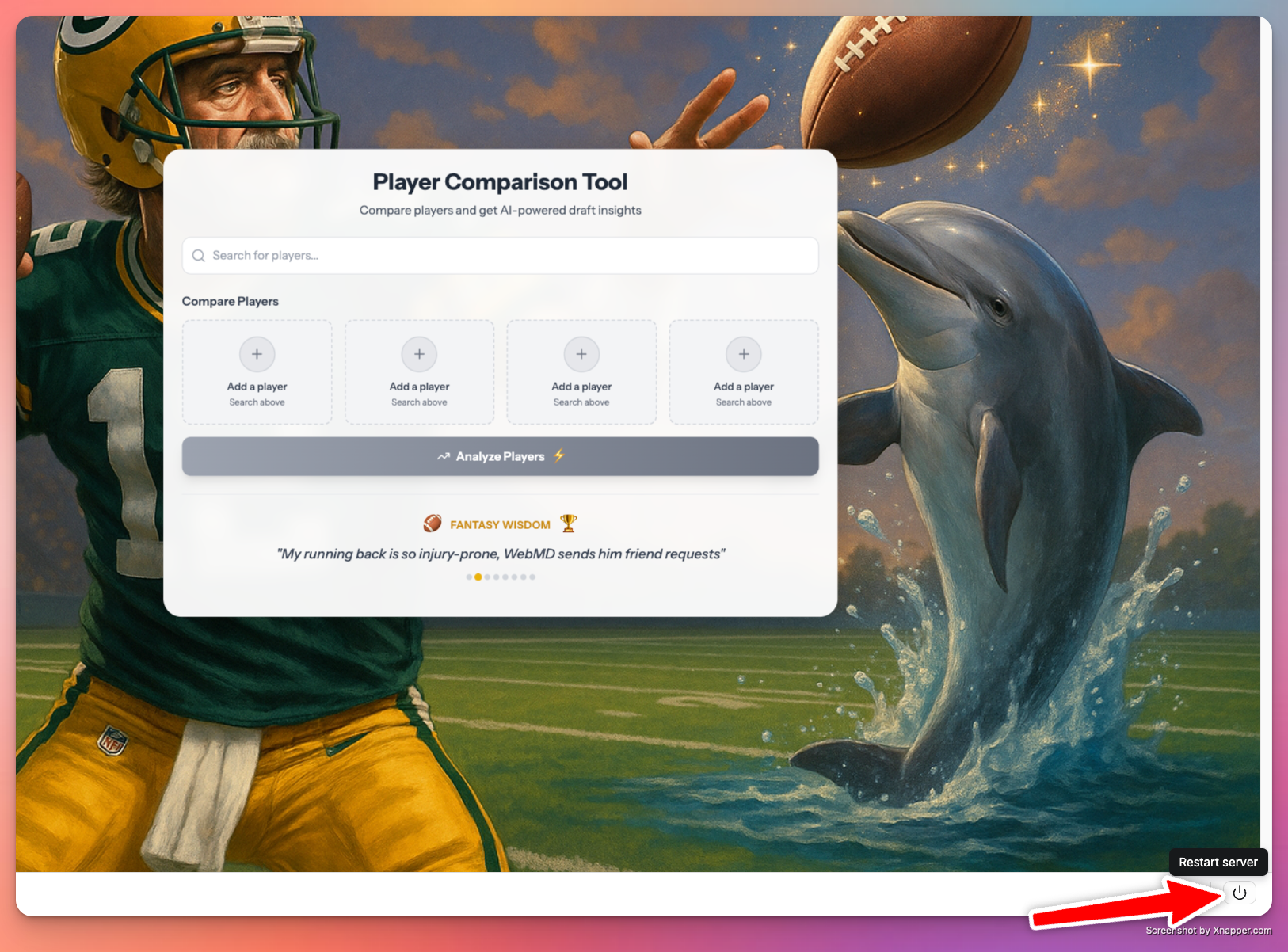
Version History Restore
If you need to revert to a previous version of your project, you can use the Version History feature to restore from an earlier point directly in the chat.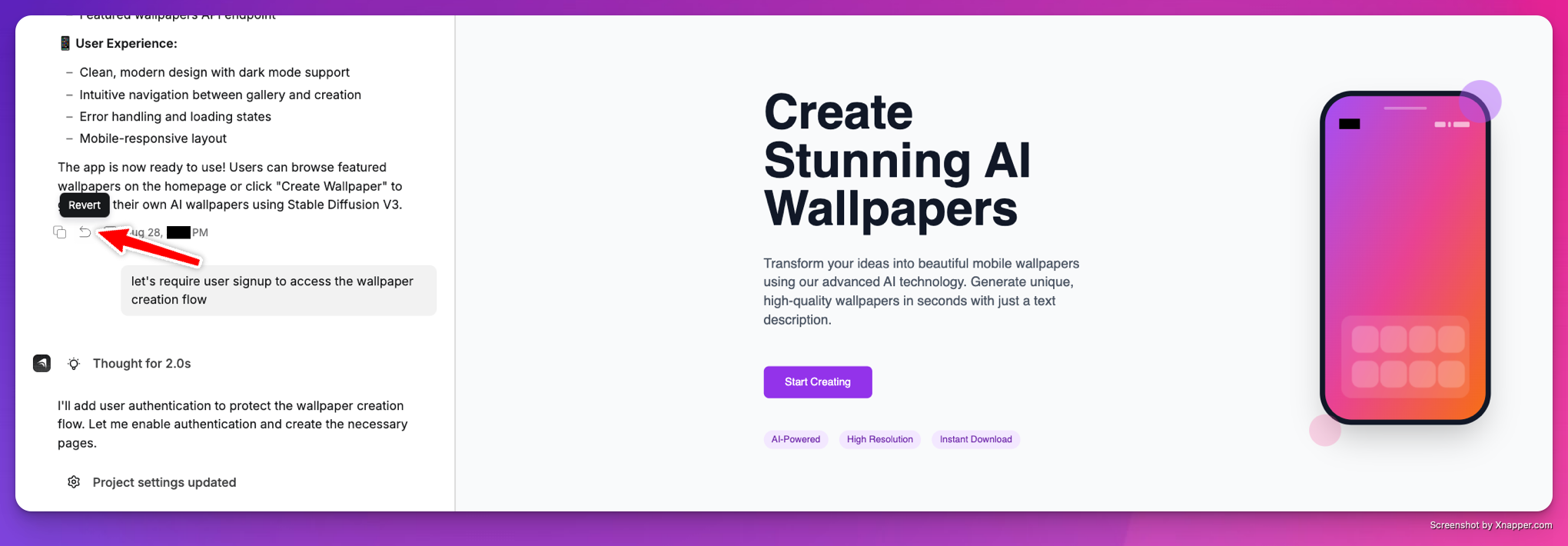
You have two options: restore directly from the builder chat (as shown in the screenshot above) or open your project settings menu to find the version history viewer.
Browse through your project’s version history and identify the version you want to restore from.
Click the restore option for your chosen version and confirm the action. This will revert your project to that previous state.
Status Page
If there is an outage or system wide issue we will report it on our status page available at status.anything.com Anything’s agent relies on upstream data from Anthropic’s Claude Sonnet AI Model, if there is an outage with their system it will impact our builder’s ability to execute commands. You can view their status page here.Support
Our primary support channel is over email, hello@anything.com. Please reach out with questions or to report issues with your build. Please consider including your build URL to help us expedite any investigation. Thank you!Sharing Your Build
-
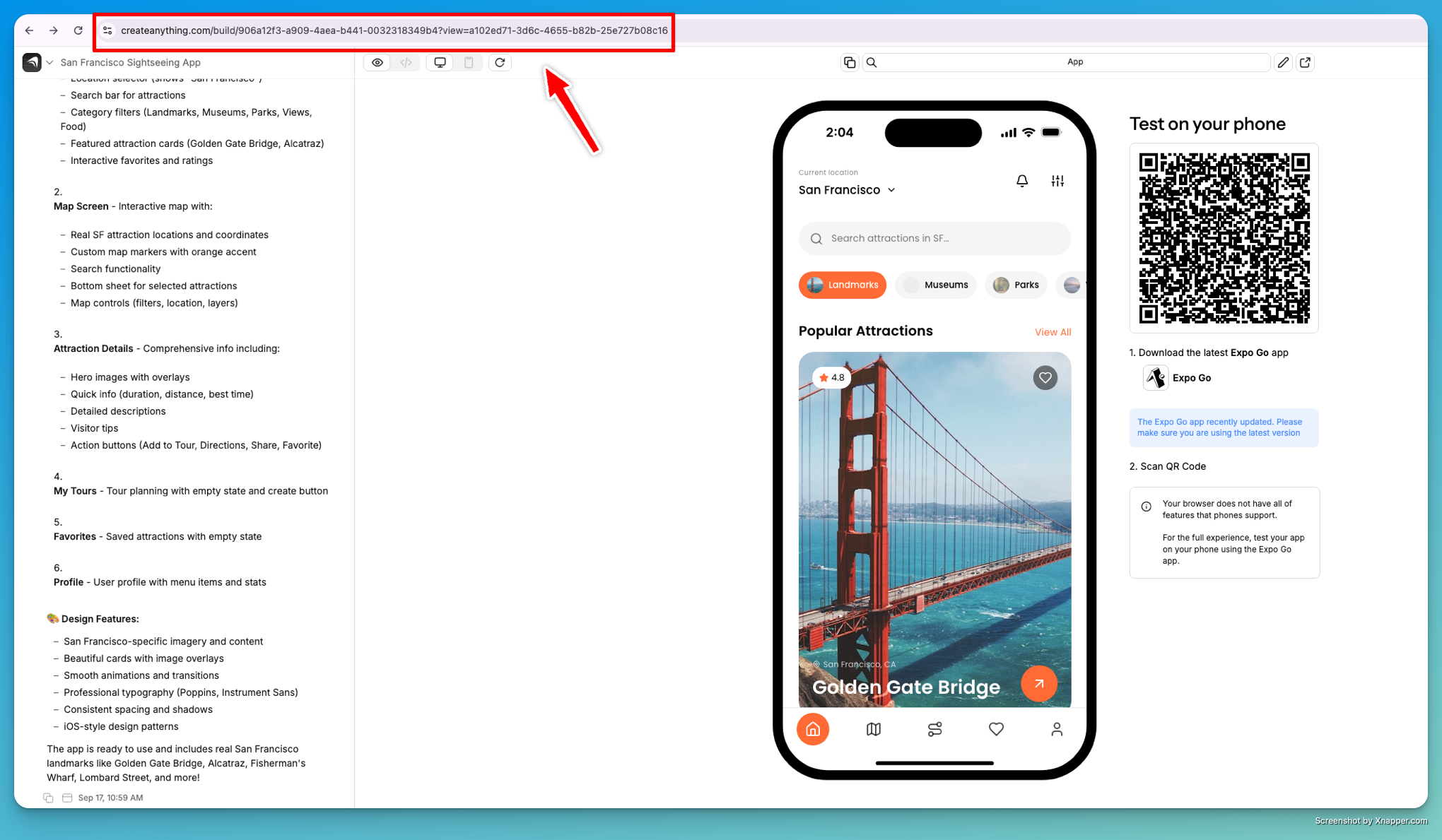
Your builder URL.
- For web users: Open your project to edit it, then copy the URL from your browser’s address bar (this is your builder url)
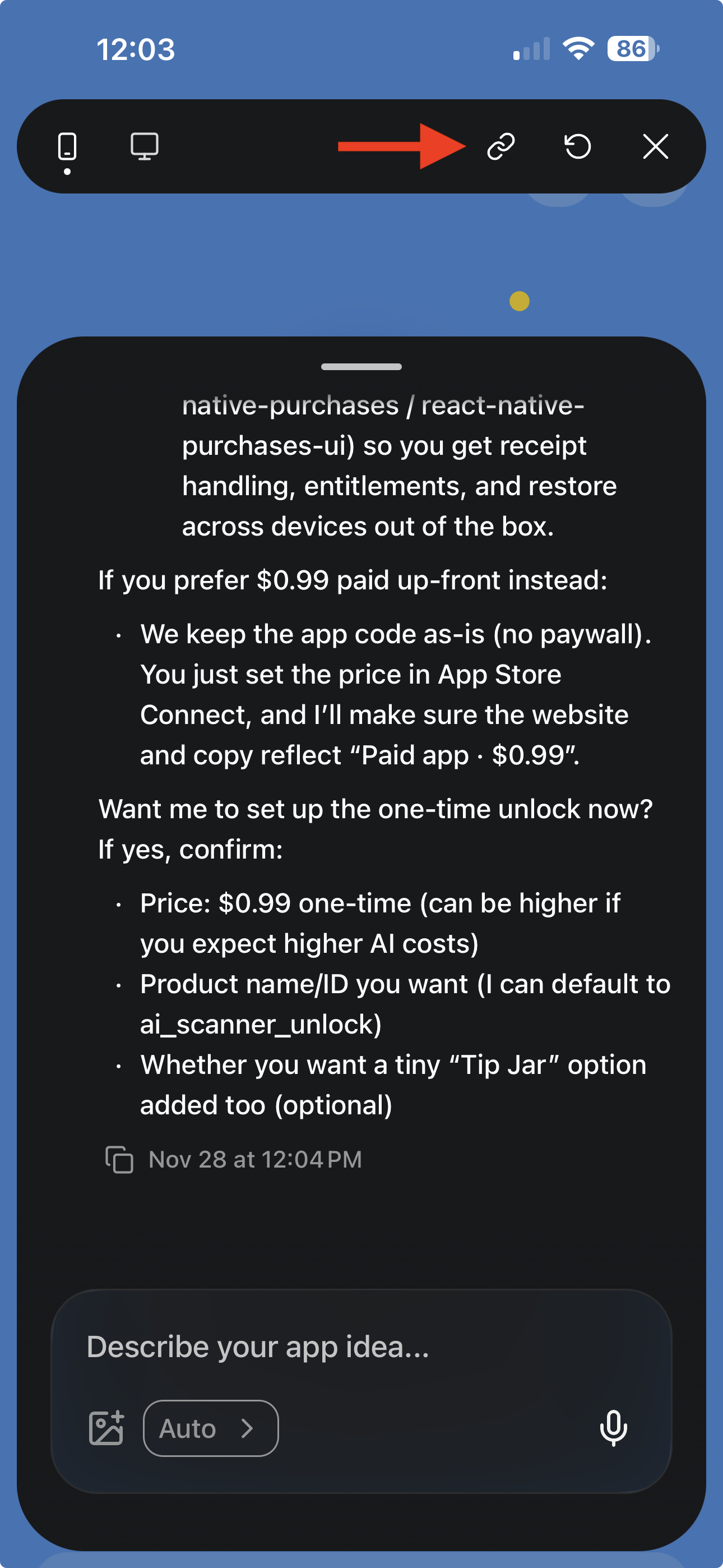
- For iOS users:
- Open app in question in the iOS App
- Open chat/builder overlay via the black button on the left side of the nav screen
- Click on the URL icon in the top of the menu
- Whenever possible include a specific description of what’s not working (e.g., “The function called “RetrieveWeather” returns a 500 error when submitting the form”)